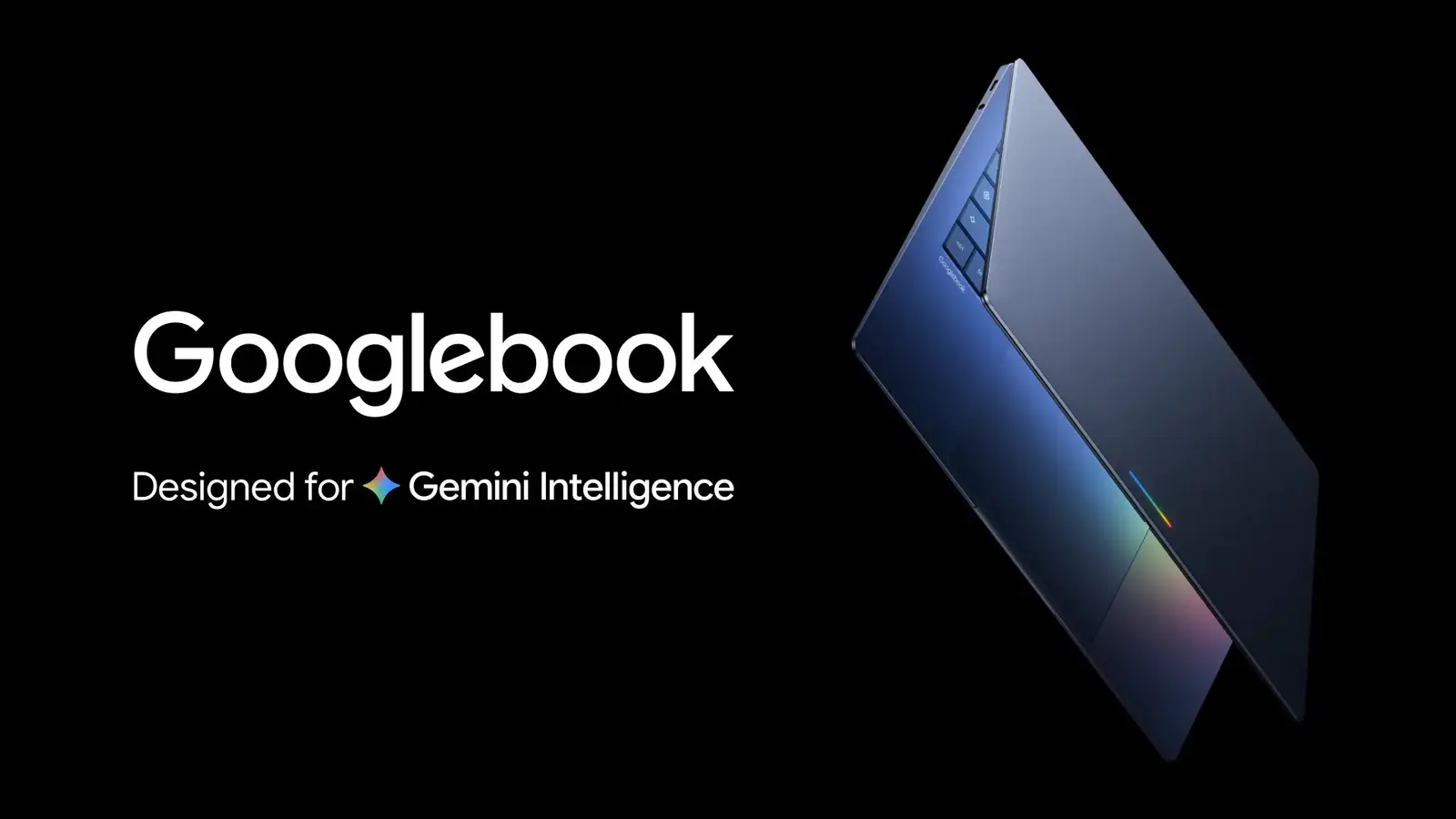
Googlebook's headline feature is that it works with your Android phone. Linking the two takes a compatible Android 17 phone, the same Google account on both devices and the same Wi-Fi network or personal hotspot. This guide follows Google's support pages and the setup checklist Google posted for the rollout, as relayed by 9to5Google. We did not test the steps on a Googlebook.
What you need first
Per Google's support page, have these ready (the version-check path is from Google's checklist as quoted by 9to5Google):
- A Googlebook on the latest Googlebook OS version.
- A compatible Android phone on Android 17 or higher. Check under Settings > About phone > Android version.
- Bluetooth and Wi-Fi on for both devices.
- Both devices on the same Wi-Fi network or personal hotspot.
- The same Google account signed in on both.
- Play Store apps updated on both devices.
Google's rollout checklist names Pixel and compatible Android 17 phones from Xiaomi, Oppo, OnePlus, Motorola, Lenovo, Honor, Sharp, Sony and Samsung. Samsung phones need One UI 9.0, which 9to5Google says has reached only a small part of Samsung's catalog.
Update two apps on the phone
Google's checklist, as quoted by 9to5Google, asks for two minimum versions on the phone. Update both in the Play Store.
- Google Play services: version 26.37 or higher.
- Cross-device services: version 1.0.1346 or higher.
Google's checklist gives this path for Google Play services: open Settings > Apps > See all apps, pick the app, open App details and tap Update if one is offered. If it is missing from the list, tap More and then Show system. The checklist gives the same path for Cross-device services.
Pair the phone
Android Authority describes pairing as tapping the phone icon on the Googlebook's taskbar and scanning the QR code that appears. Scanning it opens the cross-device services toggles on the phone.
Then turn the service on. On the Googlebook, per Google:
- Open Settings.
- Select Connected devices, then Connection preferences, then Cross-device services.
- Turn on Use cross-device services.
Repeat on the phone. Per Google, the path depends on the phone:
- Pixel phone or tablet: Settings > Connected devices > Connection preferences > Cross-device services.
- Other Android phone or tablet: Settings > Google > All services > Cross-device services. You can also search Settings for "Cross-device services".
Google says cross-device services work between devices that share a Google account.
Choose what to share
Google says to turn on, on each device, what you want to share. On the phone, open the Cross-device services screen using the path above, then select Continue activity or Internet sharing. Google's main page lists these switches. Tasks, Apps and Files & media are marked phone only.
| Toggle | What it does | Notes from Google |
|---|---|---|
| Tasks | Lets you continue something you started on the phone | Phone only. You can switch Tasks off for individual apps in the phone's app settings |
| Apps | Shows your phone apps in a window on the Googlebook (Cast My Apps) | Phone only. Not available for some apps with sensitive information or protected content |
| Notifications | Syncs notifications across your devices | Google says Notifications is off by default; media controls and silent notifications do not sync |
| Do Not Disturb sync | Syncs Do Not Disturb across your devices | |
| Files & media | Shows the phone's storage in the Googlebook Files app | Phone only. The folder uses your phone's device name |
| Internet sharing | Shares internet access between devices on the same Google account | Turn it off and your other devices cannot use this device for internet access |
| Automatically share Wi-Fi | Your devices can connect to Wi-Fi again without the password | |
| Instant hotspot | Automatically shares hotspot access across your devices |
Google's notification page says to allow the notification, photos and media permissions to use all of the cross-device features. Opening a file from the phone's folder downloads it to the Googlebook.
If it won't pair
Some owners hit pairing problems in launch week. Android Authority reported that Google called one of them a known first-time setup timing issue, where the taskbar QR code stays on screen. Google said a Play services update was rolling out. Most of these fixes come from Google's pages and checklist; the order here is ours:
- Update both devices. Apply the Play services and Cross-device services updates above, and install any pending system updates on the Googlebook. Android Authority's writer found the pending Googlebook system updates under Settings > account name > all services > System services and paired after applying them and restarting.
- Use home Wi-Fi. Google says hotel, cafe, office and guest networks often block direct connections between devices (client isolation). It also says the network must support Multicast DNS. Pause any VPN or DNS blocker.
- Check the switches. Both devices need Bluetooth and Wi-Fi on and the same Google account. On the phone, confirm the switches you want are on in Cross-device services.
- Restart cross-device services. Turn the service off on both devices, wait 10 seconds and turn it back on.
- Restart both devices.
What is not confirmed
- Whether every Android 17 phone from every brand works. Google lists brands, not models.
- Samsung timing. One UI 9.0 is required, and 9to5Google says it has reached few Galaxy phones so far.
- Whether the launch-week QR bug is fully gone for everyone. Android Authority reported the update as rolling out on Oct. 9, and we did not confirm it has reached every phone.