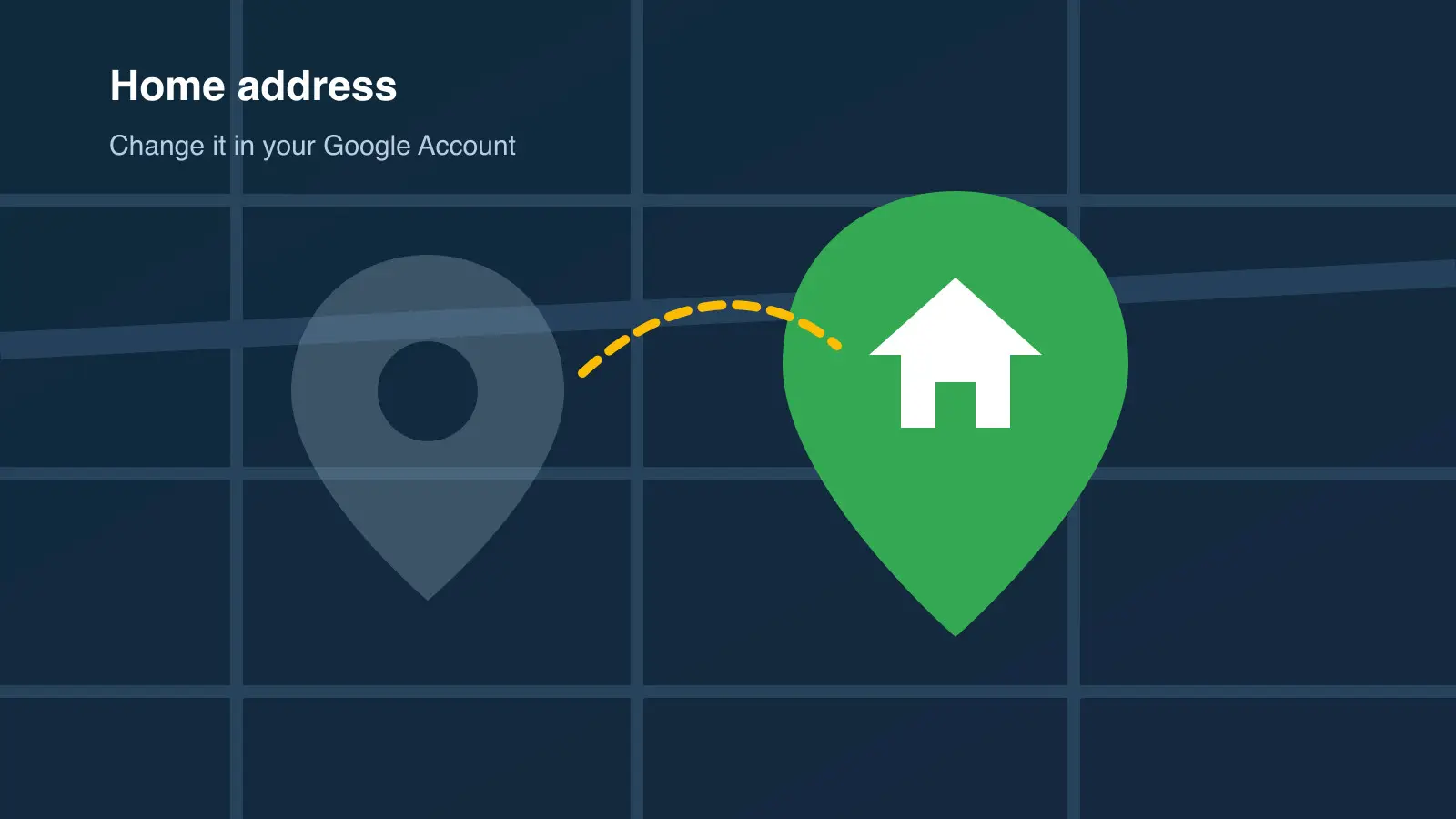
Google saves your home and work addresses in your Google Account. Google uses them to personalize your experience across its products, such as showing search results near home and giving directions to work. Change the address there whenever it no longer matches where you live or work.
Android
Google's Help page gives these steps for Android phones and tablets:
- Open the Settings app.
- Tap Google, then Your profile, then Manage your Google Account.
- Tap Personal info, then Home address.
- Enter your address and tap Save.
iPhone and iPad
On an iPhone or iPad, use the Google Account site:
- Go to myaccount.google.com. If you use another account, tap your profile photo at the top left and pick the right one.
- Tap your profile picture or initial, then Manage your Google Account.
- At the top, tap Personal info, then Home address.
- Enter the new address and tap Save.
Web
Google's Help page gives the computer steps through your Google Account, not through the Maps site:
- Sign in to your Google Account.
- On the left, click Personal info.
- Click Home address, enter the address and click Save.
Remove or edit a saved home address
To remove your home address, open Personal info, then Home address, and tap or click Remove. To edit it instead, open Home address, enter the new address and save it. Use the same menu path on Android, iPhone, iPad or a computer.
Tips and what to know
- Only you can access your home and work addresses, according to Google's Help page.
- To make an address visible on your profile, Google says to add it as a profile address instead.
- Some third-party guides describe "Edit home" menus inside the Maps app. Google's Help page does not list those menus, so we left them out.
Steps checked against Google's Maps Help page on Oct. 10, 2026, for Android phone and tablet, iPhone and iPad, and computer. We did not test these steps on a device.