If your Android phone shows you in the wrong place, start with the settings that Google's and Samsung's help pages cover. The order below is ours, not theirs. Engadget published a similar how-to on Oct. 12, 2026. We did not test these steps on a phone.
The short answer
- Make sure Location is on. Google and Samsung both say apps cannot get your location without it.
- Turn on Location Accuracy. Google says it combines GPS, Wi-Fi, mobile networks and phone sensors to estimate where you are.
- Check the app's permission. Allow location, and turn on precise location for the app that is wrong.
- Turn off battery saving. Samsung lists Power saving mode and Sleeping apps as causes of lost GPS.
- Move outside. Samsung says GPS works best with an open view of the sky.
Step 1: Make sure Location is on
Google says that when Location is off, no apps get your device's location.
Google Pixel
- Open Settings, then tap Location.
- Turn Use location on.
Samsung Galaxy
- Open Settings, then select Location.
- Tap the switch at the top of the screen to turn location services on.
Step 2: Turn on Location Accuracy
Google says this setting matters especially indoors and near tall buildings, where GPS is hard to receive. Google lists these steps for Android 12 and higher. Samsung's US page lists the same path for Galaxy phones.
Google Pixel
- Open Settings.
- Tap Location, then Location Services, then Location Accuracy.
- Turn on Improve Location Accuracy.
Samsung Galaxy
- Open Settings and select Location.
- Tap Location services.
- Select Location Accuracy.
- Turn on Improve Location Accuracy.
Samsung says menu names and layouts vary by model and software version.
Google says that with Location Accuracy on, Google periodically collects nearby sensor and wireless-signal information to build crowdsourced signal locations. It says this uses temporary, rotating identifiers that are not tied to a specific person or account.
Step 3: Turn on Wi-Fi and Bluetooth scanning
Google says scanning helps apps get better location information from nearby Wi-Fi access points and Bluetooth devices. Google and Samsung give the same path, on Android 12 and higher for Google. Samsung lists scanning before Location Accuracy.
- Open Settings, then Location.
- Tap Location Services (Samsung: Location services).
- Turn on Wi-Fi scanning and Bluetooth scanning.
Step 4: Check the app's location permission
Location can be on while one app is blocked. Engadget also says to check app permissions. Google names the Pixel list App location permissions. Samsung calls it App permission.
Google Pixel: all apps
- Open Settings, then Location.
- Tap App location permissions.
- Find the app under Allowed all the time, Allowed only while in use, Ask every time or allow when I share, or Not allowed. Tap it to change it.
Google Pixel: one app, with precise location
- Touch and hold the app icon, then tap App info.
- Tap Permissions, then Location.
- Choose an option that allows location. Once access is allowed, you can turn Use precise location on or off.
Google says an app given only approximate location can tell you are in an area of about 3 square kilometers. Google adds that turning off Location Accuracy can stop apps getting precise location.
Samsung Galaxy
- Open Settings, then Location.
- Tap App permission and select the app.
- Choose Allow all the time if the app needs your location in the background.
Samsung says location can be less accurate when the screen is off, depending on the option chosen. Other choices are Allow only while using the app, Ask every time and Don't allow.
Step 5: Turn off battery saving
Samsung lists a Power saving mode, and an app on its Sleeping apps list, as causes of lost GPS. Samsung's page lists Sleeping apps before Power saving. Google's Maps help says to turn off Battery saver mode if your location jumps around.
Google Pixel
- Swipe down from the top of the screen and tap Battery Saver to turn it off.
- Or open Settings, then Battery, then Battery Saver.
Samsung Galaxy: turn off Power saving
- Open Settings, then Device care.
- Tap Battery, then Power saving.
- Turn the switch off.
Samsung Galaxy: remove an app from Sleeping apps
- Open Settings, then Device care, then Battery.
- Tap Background usage limits, then Sleeping apps.
- Tap More options (three dots), then Remove.
Step 6: Fix the blue dot in Google Maps
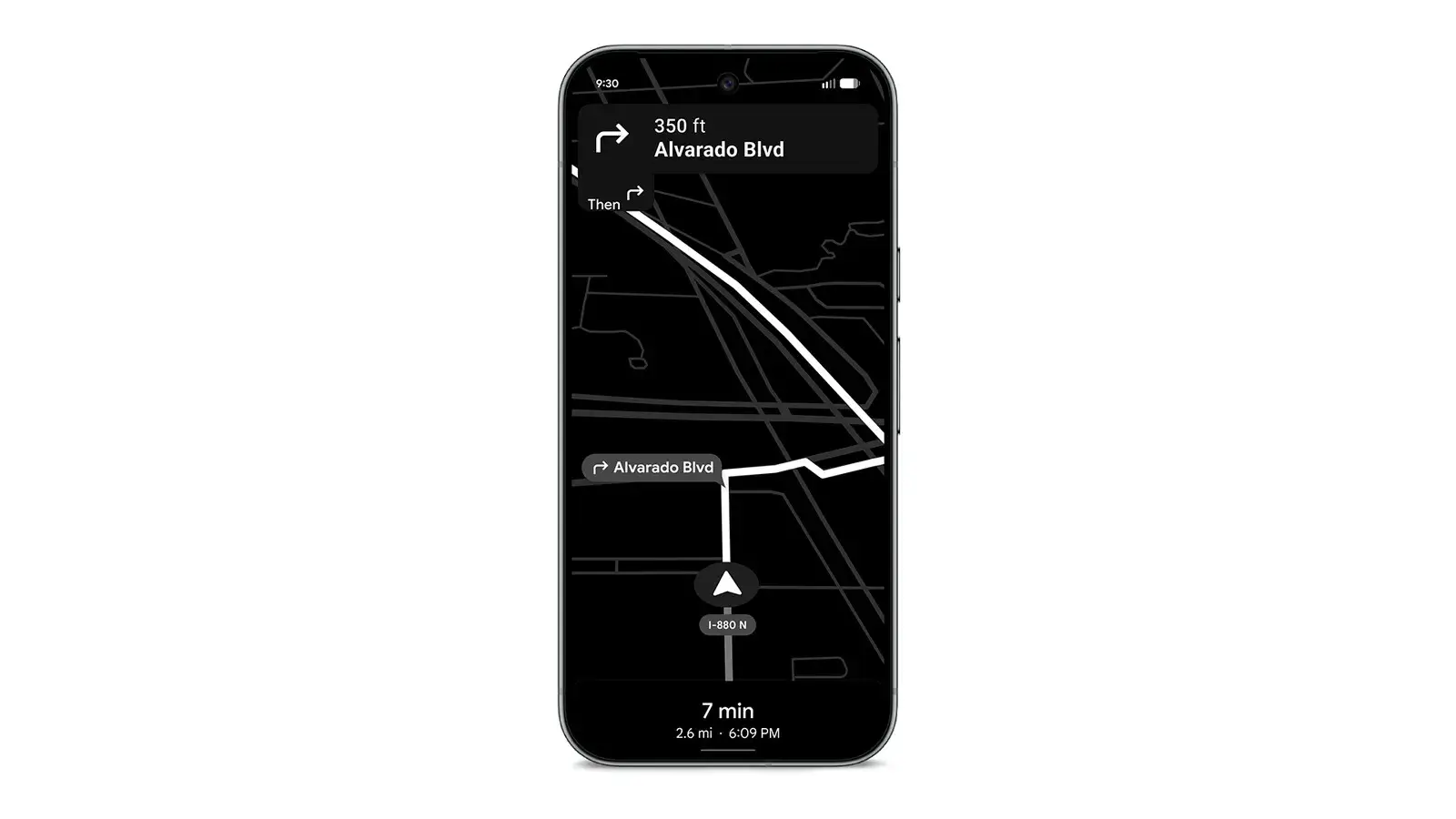
Google's Maps help says a wide light-blue circle means the app is unsure where you are. A gray or missing dot means it cannot find you and shows your last location.
- Tap the low accuracy message, if one shows. Google says it explains the issue and offers a fix or a calibration.
- Calibrate the compass. If the dot's beam is wide or points the wrong way, open Maps and make a figure 8 with the phone a few times.
- Calibrate with the camera, outside. Google says to do this while outside. Tap the blue dot, then Calibrate, and follow the on-screen steps. Google says whether Maps opens the Live View calibrator depends on Street View availability. Point at buildings and signs across the street, not at trees or people.
- Check the network. Turn on Mobile data or Wi-Fi and turn off Airplane mode. Engadget adds that on a weak Wi-Fi signal, switching to cellular data may help.
Step 7: Check the signal, accessories and updates
- Go outside. Samsung says tall buildings, storms and a lack of sky view disrupt GPS, and that indoor GPS use is not recommended.
- Hold the phone clear. Samsung says holding it so it blocks the antennas can hurt the signal.
- Remove a third-party case. Samsung says non-certified cases or accessories may affect GPS. It suggests removing them and checking again.
- Update the phone. Samsung says to open Settings, then Software update or System updates, and tap Download and install or Check for software updates.
- Skip GPS-fixer apps. The help pages we read give no A-GPS clearing step, so we left GPS-fixer apps out.
- Restart, then retry. Google's Maps help suggests restarting the phone if your location is still wrong.
- Move to a better spot. Engadget suggests closing Maps, walking somewhere with a stronger signal, and trying again.
What we could not confirm
- Android 16 and 17 labels. Google's pages name Android 12 and higher and Android 11 and lower. They do not name Android 16 or 17, so menu labels there are unconfirmed.
- One UI 8 and 9 labels. Samsung's page does not name a One UI version and says menus vary by model and software. Its path for Location Accuracy differs from an older Samsung page.
- Whether any step fixes your phone. We did not test them. The sources do not cover repairs.
- Maps calibration on Samsung. Google documents the compass and camera steps in Maps. Samsung's page does not cover them, so we did not check them against a Samsung source.