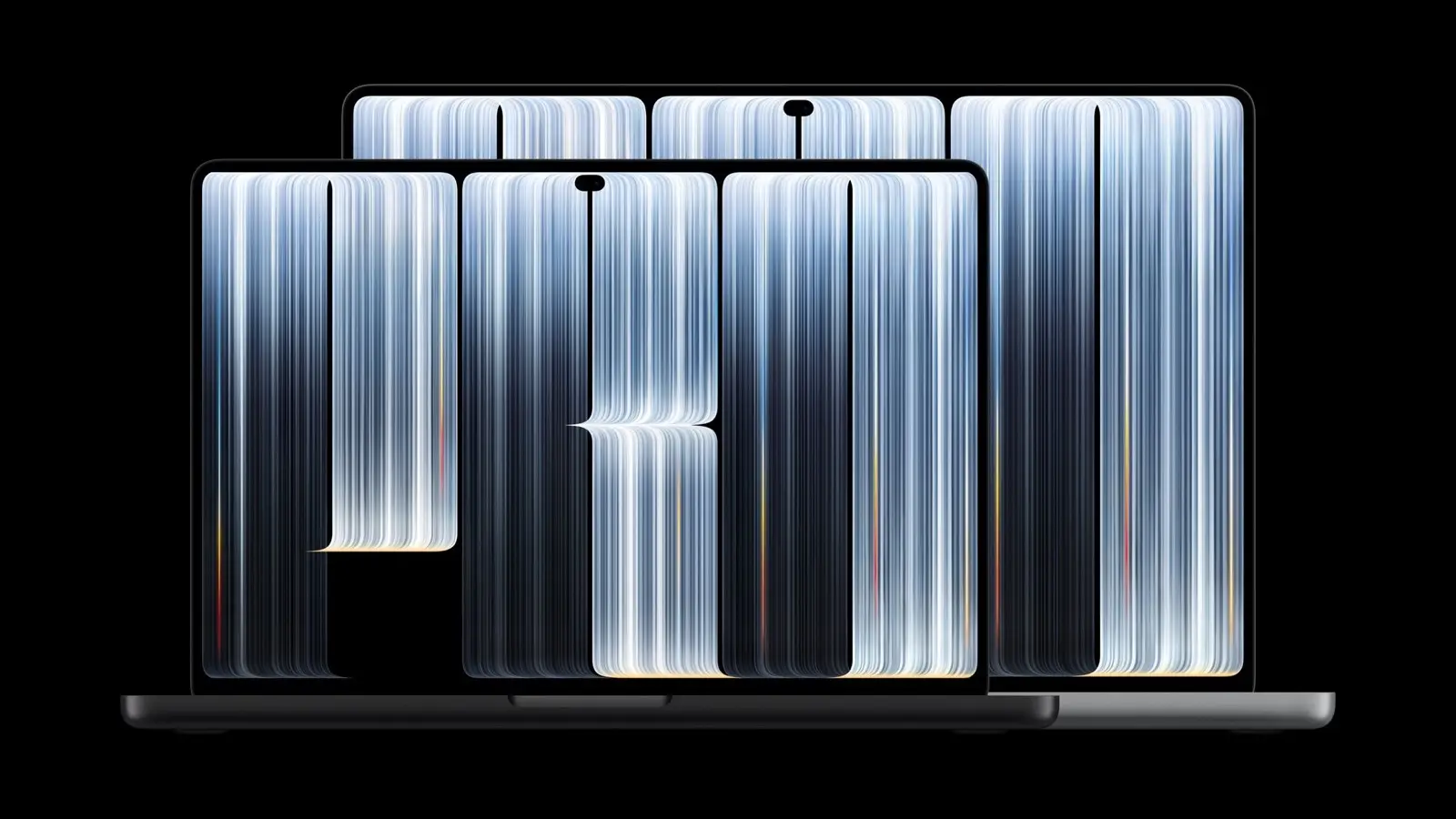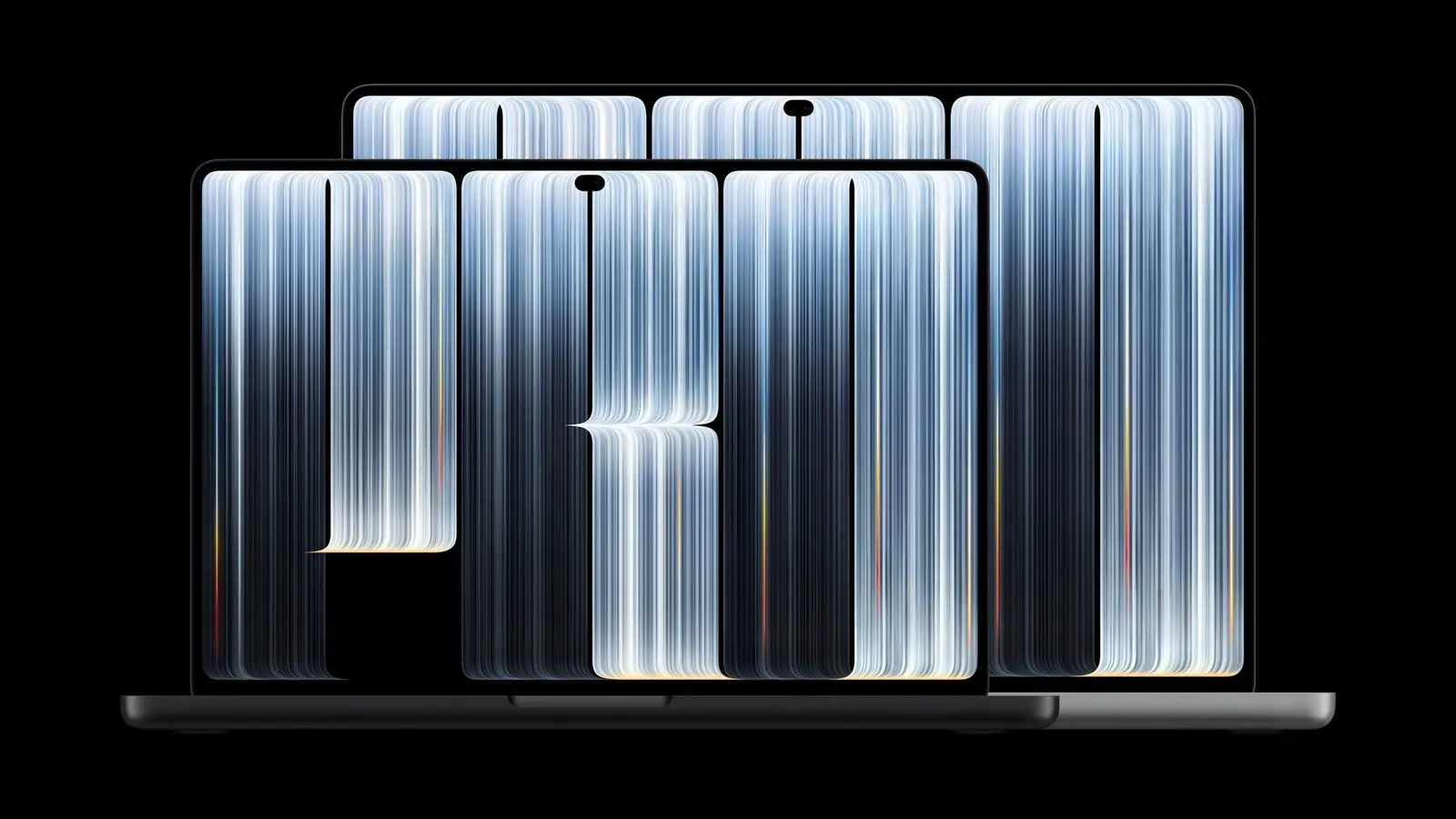
The Apple logo on the back of the display of the MacBook Pro with PROLED XDR Display is illuminated. If you would rather it stay dark, the support page for the illuminated logo gives a Terminal command to switch it off.
How to turn off the glowing Apple logo
- Open Terminal. You can find it in the Utilities folder inside Applications, or search for it with Spotlight.
- Paste this command and press Return:
sudo defaults write com.apple.CoreBrightness LEBacklightMode -int 0
- Enter your administrator password when asked. Nothing appears on screen as you type, which is normal. Press Return when you are done.
How to turn it back on
To restore the illumination, open Terminal again and run this command:
sudo defaults delete com.apple.CoreBrightness LEBacklightMode
What to know
- Terminal is the method. It is the way the support page describes.
- You need an administrator password. The command starts with
sudo, so it asks for one. - It applies to every account. The change covers all macOS user accounts on the Mac, and it also applies in macOS Recovery.
- It carries over to a new Mac. If you migrate to another Mac, the setting comes along.
- Reinstalling macOS resets it. After a reinstall the logo is illuminated again.
- The glowing logo belongs to the PROLED XDR model. That is the M6 MacBook Pro.
Sources
We read one page on Nov. 5, 2026.
As of Nov. 5, 2026.