The Control Center Wi-Fi button can leave Wi-Fi off until tomorrow, which is why Step 2 comes first. Start with Step 2, then forget the network (Step 4).
This guide is based on Apple's support pages and our research.
Step 1: Phone or router?
Check whether other devices can join the same network. Apple's Wi-Fi troubleshooting page says that if they can, the router and network are working and the fault is more likely on the iPhone. If they drop too, jump to Step 5.
Also try a different Wi-Fi network, such as a friend's or a cafe's. If your iPhone can't connect to any Wi-Fi network, Apple says to contact Apple.
Step 2: Check the Control Center Wi-Fi button
This is the "off until tomorrow" case. Tapping the Wi-Fi button in Control Center disconnects the iPhone from its network and dims the icon. Wi-Fi stays available for features such as AirDrop and AirPlay.
Apple's Control Center page says that while Wi-Fi is switched off this way, auto-join for nearby networks stays off until one of these happens:
- You turn Wi-Fi back on in Control Center.
- You connect to a network in Settings > Wi-Fi.
- You walk or drive to a new location.
- It is 5 a.m. local time.
- You restart the iPhone.
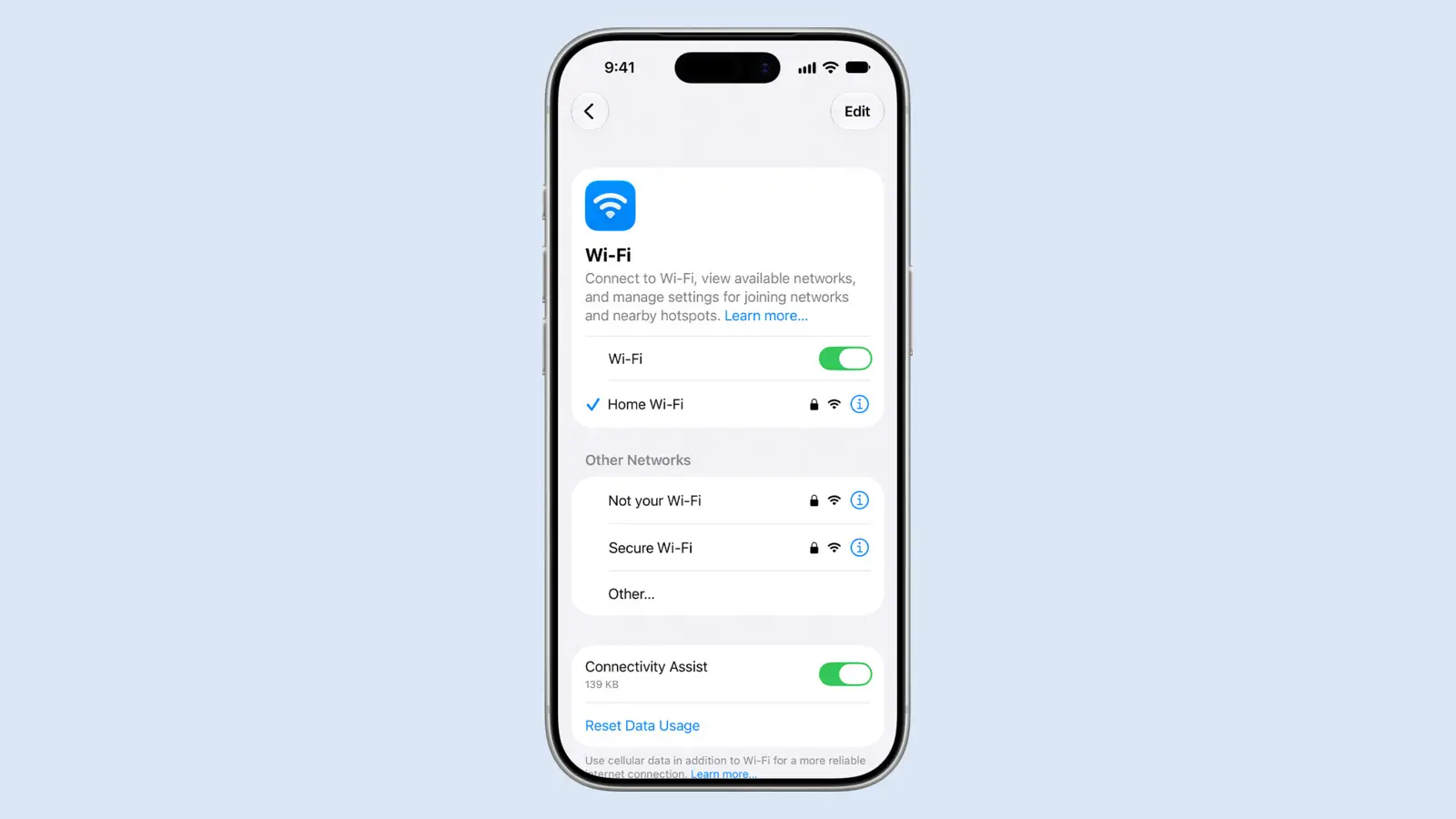
To switch Wi-Fi fully off or on, use Settings > Wi-Fi instead. Now open Control Center, make sure the Wi-Fi button is lit, then tap your network in Settings > Wi-Fi until a blue checkmark appears.
Step 3: Check the basics, restart and update
- Open Settings, tap Wi-Fi, and make sure Wi-Fi is on.
- Go back to Settings and make sure Airplane Mode is off.
- Back in Wi-Fi, scroll down and turn Connectivity Assist off (Apple's Wi-Fi page lists this check). If the Wi-Fi setting is dimmed, restart the iPhone.
- Restart. On iPhone X and later, except iPhone SE (2nd and 3rd generation), press and hold either volume button and the side button until the power-off slider appears.
- On iPhone SE (2nd and 3rd generation), hold the side button instead.
- Drag the slider and wait 30 seconds.
- Hold the side button until the Apple logo shows.
- Other models use different buttons; see Apple's restart page.
- Update iOS in Settings > General > Software Update. Plug in and use Wi-Fi first. If the update needs room, see how to fix a full iPhone.
Step 4: Forget the network and rejoin
- Open Settings, then tap Wi-Fi.
- Tap the info button next to your network.
- Tap Forget This Network, then tap Forget.
- Tap the network name again and enter the password.
Before you forget the network:
- Have the Wi-Fi password ready.
- Apple notes that other devices on the same Apple Account with iCloud Keychain forget the network too.
Before you walk away, check the network's info screen (the info button next to its name) for three settings:
- Auto-Join. Make sure it is on. If it is off, the iPhone will not rejoin the network after a drop.
- Low Data Mode. Turn it off for this network while you test.
- Private Wi-Fi Address. Apple says the feature doesn't affect most networks, and that if a device can't stay online on one, you should update first. If you have updated, our test is to set it to Fixed, rejoin and watch for drops, then try Off.
- Off gives up the tracking protection that private addresses provide, so turn it back on once the test is done, wherever the network supports it.
If you use a VPN or security app, uninstall it, restart, and test. If that fixes it and you need the app, ask its provider. This is Apple's troubleshooting step.
Step 5: Router and modem
- Make sure the router is on and within range.
- If it has separate frequencies, join 5 GHz instead of 2.4 GHz.
- Update the router's firmware through its maker's app or web page.
- Unplug the router and cable modem, plug them back in, and wait for both to restart.
If your 2.4 GHz and 5 GHz bands have different network names, Apple's router guidance says devices might not connect reliably. Use one name on every band. If the router is old, see whether you need a Wi-Fi 7 router.
If no device can get online even with the router working, there may be an outage. Contact your internet provider.
If other devices are fine but your iPhone drops
Work Steps 2 to 4, then try the iPhone on a different network. If it holds there, the home network is the likely cause, so go to Step 5. An internet provider outage is also possible. If it drops everywhere, contact Apple.
If it only drops when the iPhone is locked
This is our own test, not Apple guidance. After each change below, lock the iPhone for five minutes, wake it, and look for the blue checkmark in Settings > Wi-Fi.
- Set Private Wi-Fi Address to Fixed for your network (Step 4), then turn it back to the default afterwards if it made no difference.
- Forget the network and rejoin.
- Restart the router and modem (Step 5).
Stop at the change that fixes it. If none does, use the reset below.
Last resort: reset network settings
Before you start:
- Ask IT first if a school or business set up your network.
- This removes saved Wi-Fi networks and passwords.
- It also removes cellular settings and VPN and APN settings.
Then:
- Open Settings, then tap General.
- Tap Transfer or Reset iPhone, then tap Reset.
- Tap Reset Network Settings.
If the iPhone then joins Wi-Fi but you still can't get online, Apple says to contact your internet provider. If no Wi-Fi works anywhere, contact Apple.
Why it matters
The trade-offs are in two settings. Switching Private Wi-Fi Address off can end a drop on a stubborn network, but it gives up tracking protection, and the reset costs every saved password.