This guide covers settings that reduce battery use, a charge limit, and when to replace the battery, based on Apple's documentation. Menu paths are for iOS 27. Where iPhone 14 and earlier differ, the steps and tables give both paths.
Do these 5 first
These five settings reduce what the iPhone uses. All are available on iPhones running iOS 27, though Always On Display is only on supported models.
- Turn on Low Power Mode when you need to stretch a day. Control Center also toggles it.
- Turn off Background App Refresh for apps that don't need it.
- Dim the screen and leave Auto-Brightness on.
- Shorten Auto-Lock.
- Turn off Always On Display if you don't use it.
Paths are in the sections below. The charge limit has its own section.
Use Low Power Mode
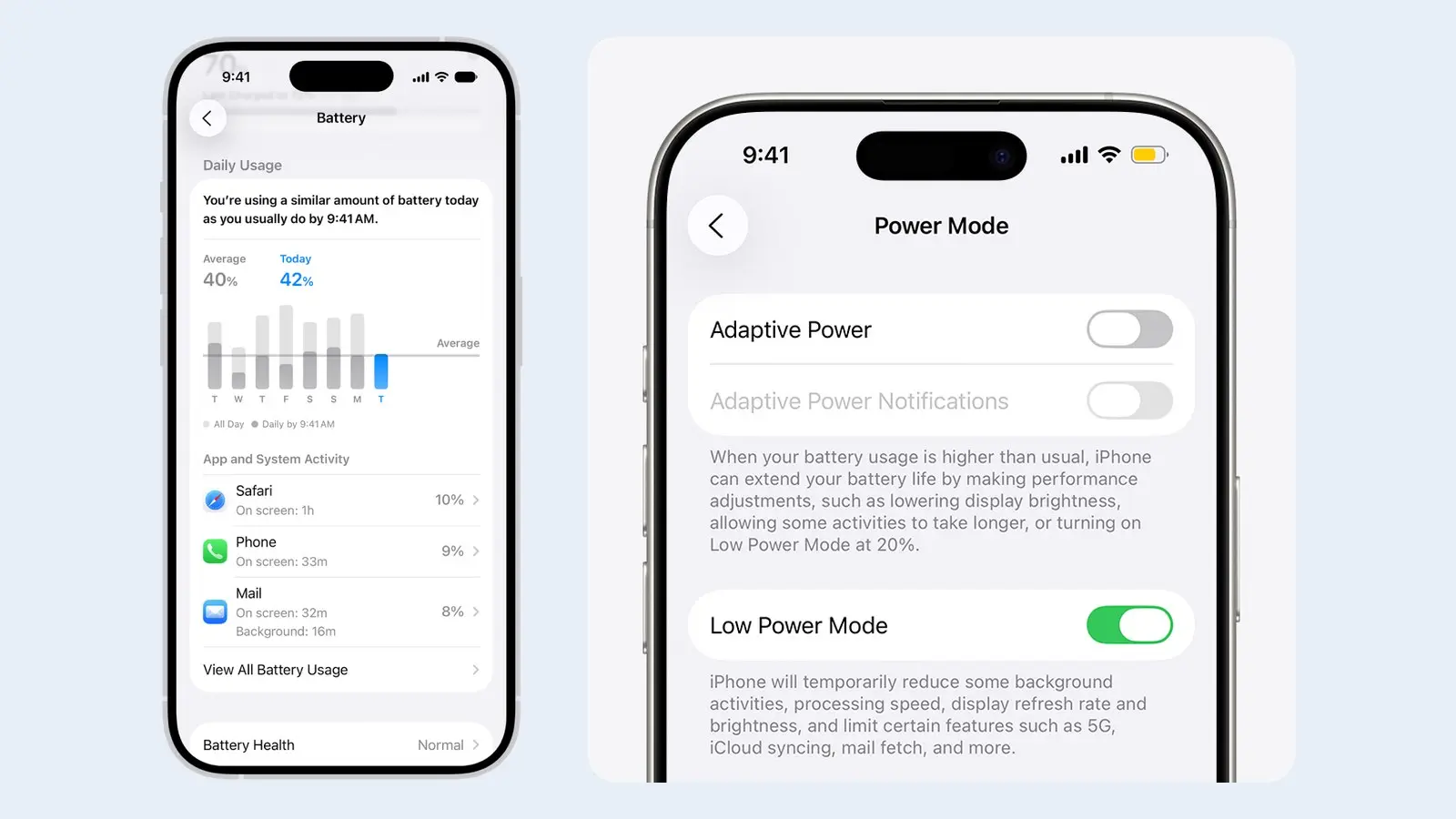
Low Power Mode trades speed for battery. Apple's list of what it reduces:
- Auto-Lock drops to 30 seconds.
- Brightness goes down and some visual effects turn off.
- iCloud Photos pauses, and automatic downloads, email fetch and Background App Refresh stop.
- On ProMotion models, the display refresh rate is limited to 60 fps.
The battery icon turns yellow while it is on. When you charge the device to 80% or higher, Low Power Mode turns off.
- Adaptive Power: on iPhones that support it, with it turned on, Low Power Mode turns on when the battery goes below 20%.
| iPhone | Low Power Mode path |
|---|---|
| iPhone 15 or later | Settings > Battery > Power Mode > Low Power Mode |
| iPhone 14 or earlier | Settings > Battery > Low Power Mode |
Trim Background App Refresh and notifications
Background App Refresh lets apps update when you are not using them. The path is Settings > General > Background App Refresh, where you choose Wi-Fi, Wi-Fi & Cellular Data, or Off.
To find the apps to trim, open Settings > Battery and read App and System Activity. An app's Background time explains high usage, and notifications wake the device, per the battery usage guide. Turn off notifications for apps you never act on.
Adjust the display
The display settings to change:
- Brightness: dimming extends battery life. Use the Control Center slider, or Settings > Display & Brightness.
- Auto-Brightness: leave it on. Turning it off may increase power consumption. It lives at Settings > Accessibility > Display & Text Size.
- Auto-Lock: Settings > Display & Brightness > Auto-Lock. Delaying or preventing it may increase power consumption, so pick a short time.
- Dark Mode: a dark color scheme at Settings > Display & Brightness. Apple makes no battery claim for it.
- A 2021 Purdue University study tested six Google apps on four Android OLED phones. It did not test iPhones.
- At 100% brightness, dark mode saved 39%-47% of battery power on average.
- At 30%-50% brightness, it saved only 3%-9%.
- Always On Display: on by default on supported models. Turn it off at Settings > Display & Brightness > Always On Display. It already turns off in Low Power Mode, in Sleep Focus, and when the phone is face down.
- Refresh rate: on ProMotion models, Settings > Accessibility > Motion > Limit Frame Rate caps the display at 60 fps. This is documented as a frame-rate cap, not a battery setting, so use Low Power Mode when battery is the goal.
Review Location Services
Go to Settings > Privacy & Security > Location Services and tap an app to change its access, including Precise Location.
Apple's battery troubleshooting page lists background activity such as tracking location among the things that use power. Switching Location Services off entirely stops many features, so trim app by app instead.
Why closing apps doesn't help
Apple's iPhone User Guide says: "iPhone automatically manages how apps run in the background, so quitting apps you're not using doesn't prolong battery life." Force-quit an app only when it stops responding.
Slow battery wear with a charge limit
A charge limit is for long-term battery wear, not runtime. Apple's charge-limit guide frames it as extending battery lifespan by reducing time spent fully charged, and it costs daily range. Pick 80% if you charge overnight or sit at a desk. Skip it on days you need every percent.
| Item | Detail |
|---|---|
| Charge Limit | iPhone 15 and later: Settings > Battery > Charging. Range 80% to 100% in 5% steps. |
| Optimized Battery Charging | Available when the limit is 100%. iPhone 14 and earlier: Settings > Battery > Battery Health & Charging. |
| Resume Charging | Overrides Optimized Battery Charging, on the Battery screen. |
| Learning period | After setup, at least 14 days to learn your habits, plus at least 9 charges of 5 hours or more in a given location, before it engages. |
- The iPhone still charges to 100% now and then, so the battery percentage stays accurate.
- If the level drops more than 5% while plugged in, charging resumes.
- "Allow Until Tomorrow" lifts the limit until 6:00 a.m. "Charge to 100%" is on the Battery screen for a day you need it.
- Optimized Battery Charging pauses at 80%, then finishes near your usual unplug time. It may not activate when you travel.
Details are in Apple's Optimized Battery Charging, Charge Limit and learning requirement pages. Apple also says charging every night is fine and advises avoiding ambient temperatures above 95°F (35°C).
Check Battery Health
| iPhone | Battery Health path |
|---|---|
| iPhone 15 or later | Settings > Battery > Battery Health |
| iPhone 14 or earlier | Settings > Battery > Battery Health & Charging |
Maximum Capacity compares the battery against a new one.
Other quick wins
Apple's battery troubleshooting page adds three:
- Wi-Fi uses less power than cellular.
- 5G Auto, at Settings > Cellular > Cellular Data Options > Voice & Data, can help on iPhone 12 and later.
- Give the phone a few days after a software update before judging its battery.
When a battery service is worth it
Open Battery Health. If it shows Service, Apple says to consider replacing the battery to restore full performance and capacity. Apple's pages give no general percentage cutoff for replacing it.
| iPhone | Designed to retain 80% of capacity at |
|---|---|
| iPhone 14 and earlier | 500 complete charge cycles |
| iPhone 15 models | 1,000 complete charge cycles |
Apple's design benchmark applies under ideal conditions, so compare your Maximum Capacity against it as a guide, not a rule.
If the phone shows a "significantly degraded" message, an Apple Authorized Service Provider can replace the battery. Whether it is free depends on warranty or coverage, and out of warranty Apple offers the service for a fee. Apple lists the current US price on its battery replacement page.
The catch
Each saving costs a feature. Low Power Mode slows background syncing and mail, a short Auto-Lock means more unlocking, and a charge limit caps how full the battery gets. Start with Low Power Mode and the display settings, and add the rest only if the battery still falls short.
Related guides: fix a full iPhone storage and free up iPhone storage without deleting photos.