There is no button to clear System Data on iPhone, and Apple does not say any step below clears it. Our steps are based on Apple's support pages and our research.
If you need space today, delete a few large videos or offload apps.
Open Settings > General > iPhone Storage and read the app list, which shows each app's storage use, to find the largest apps.
What System Data is
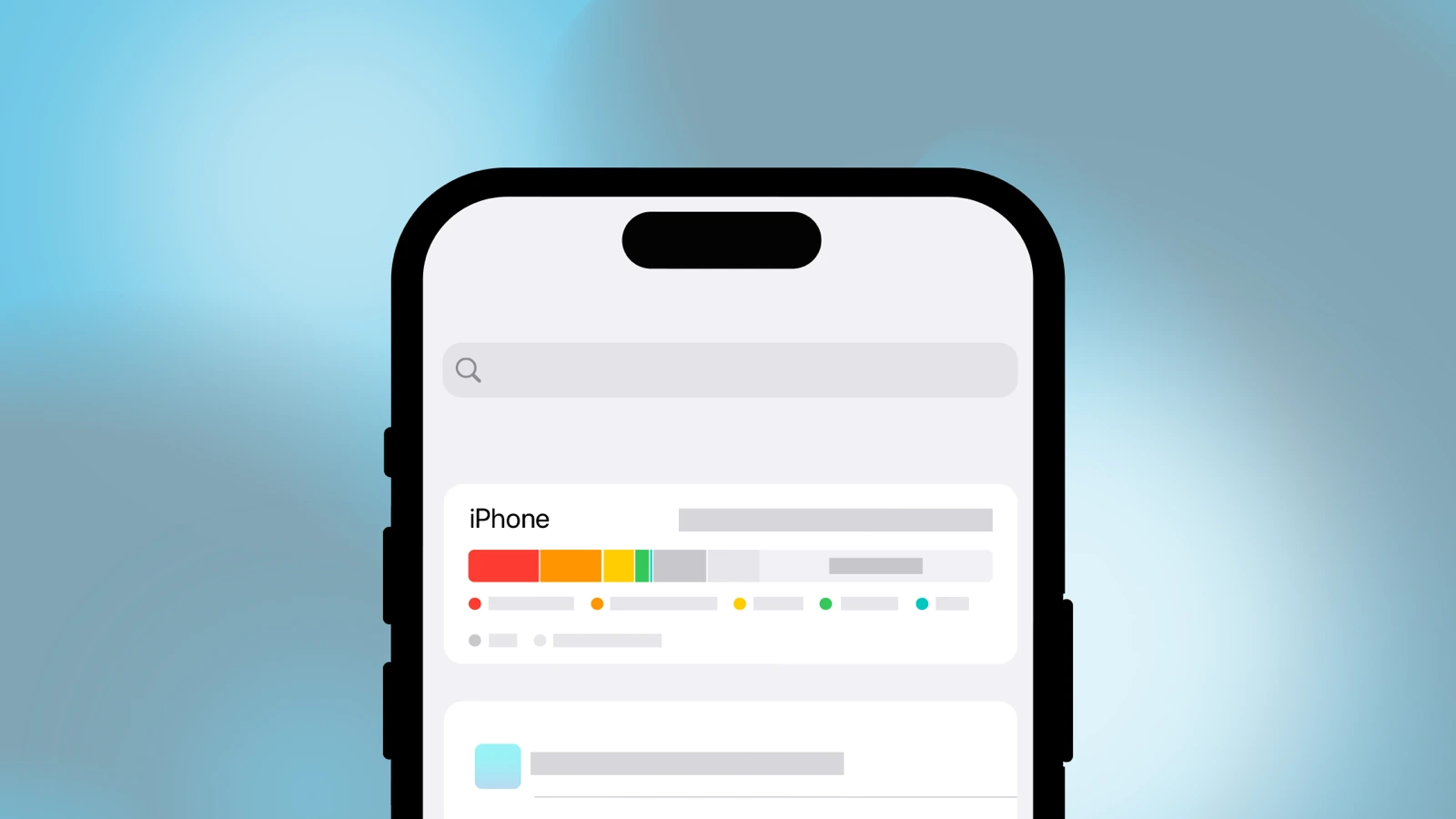
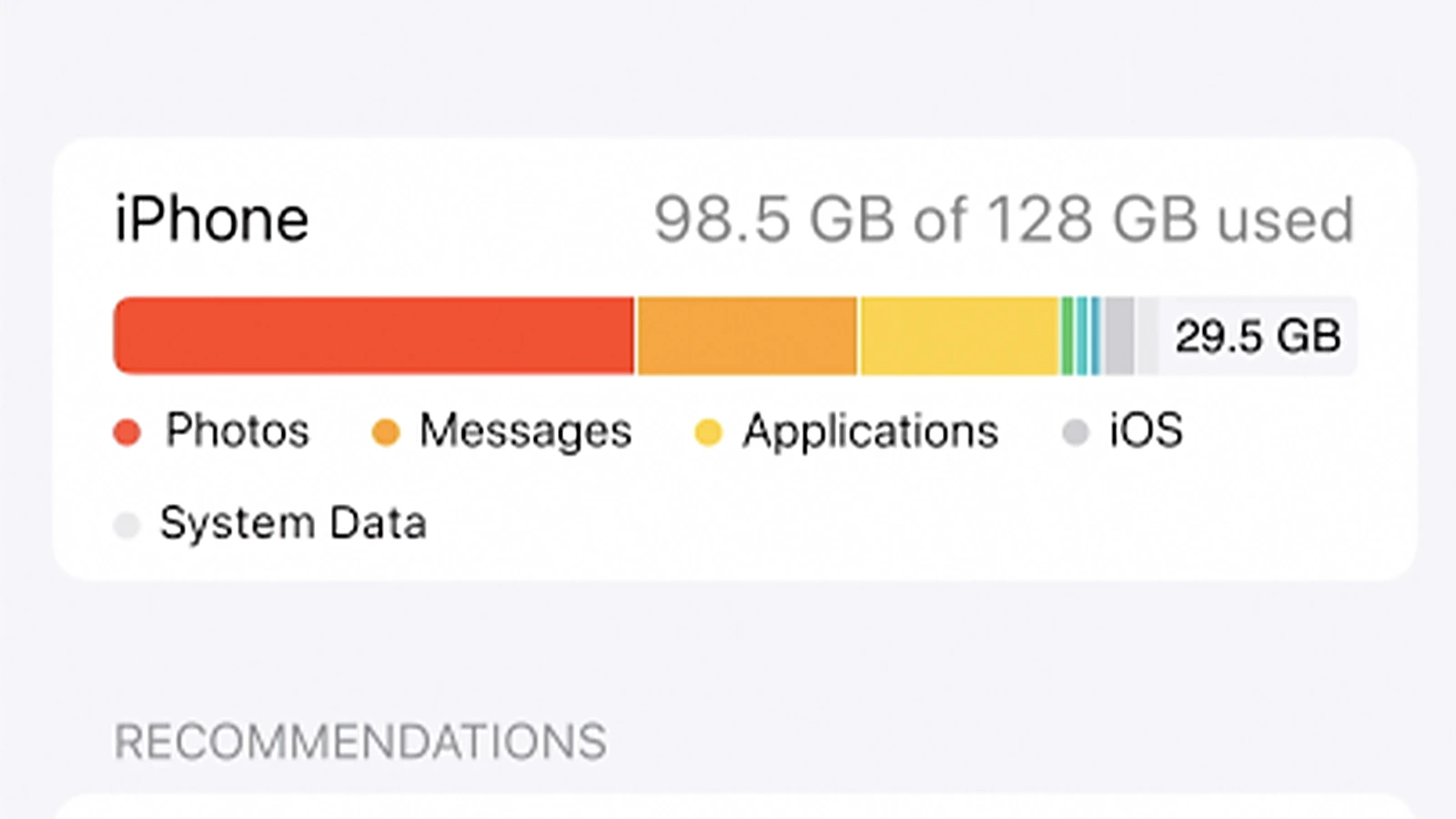
Open Settings > General > iPhone Storage and look at the usage bar. SlashGear says System Data was called Other on iOS 14 and earlier. Apple's storage page names two catch-all categories:
- System: space taken by the operating system. It varies by device and model.
- Other: non-removable items such as Siri voices, fonts, dictionaries, logs, caches, the Spotlight index, and system data such as Keychain and CloudKit database.
Apple also says cached and temporary data might not count as usage in the app list.
Why it can grow
Apple does not publish a list of what makes the row grow. Its pages say:
- Your device creates cached files when you stream or view content, so it loads faster next time.
- The device removes cached and temporary files itself when it needs more space.
- A software update can need extra room while it installs.
Why storage stays full after you delete things
If you deleted photos and apps and the bar barely moved, check these before blaming System Data.
- Recently Deleted keeps photos for 30 days. Per Apple, you can remove them sooner. Our iPhone storage full guide has the steps.
- Offloading keeps an app's data. Apple says offload frees the app itself but keeps its documents and data.
- Optimize iPhone Storage. With iCloud Photos on, Apple says originals stay in iCloud while storage-saving versions stay on the iPhone. Our no-deletion guide covers it.
Steps that free space
Reopen iPhone Storage after each step to see what changed.
1. Clear Safari website data
Go to Settings > Apps > Safari > Clear History and Website Data, confirm the timeframe, then tap Clear History. Apple says this does not change AutoFill.
To keep your history, tap Advanced > Website Data > Remove All Website Data > Remove Now. Apple says this clears data websites use to save login information.
- Some sites will ask you to sign in again.
2. Trim Messages
Save any attachment you want to keep first. Then, per Apple:
- Open a conversation and tap the contact or group icon at the top.
- Tap a category, such as Photos, then tap Edit, then Select.
- Tap each attachment, tap the delete icon, then tap to confirm the number to delete.
- To free the space sooner, go to the conversation list, tap the icon at the top, tap Recently Deleted, select the items, then tap Delete.
Deleted items stay in Recently Deleted for up to 30 days.
- Permanent removal from Recently Deleted can't be undone.
- With Messages in iCloud on, deleting a message or conversation on your iPhone deletes it from all your devices that use Messages in iCloud.
To delete old messages automatically, go to Settings > Apps > Messages > Keep Messages and choose 30 Days or 1 Year.
- Anything other than Forever automatically removes conversations, attachments included, after that period.
3. Delete and reinstall a heavy app
In iPhone Storage, tap the app, then tap Delete App. Apple says deleting removes the app and its related data. Then reinstall it from the App Store.
- Export anything you need from the app first.
4. Offload apps you rarely open
When storage is low, the phone can offload unused apps for you. Go to Settings > Apps > App Store and turn on Offload Unused Apps, per Apple's guide. The icon stays with a cloud symbol; tap it to reinstall.
Other steps Apple documents
If an update asks for room
If a software update message appears, Apple says it may ask to temporarily remove apps so the update has room. Tap Continue and the apps reinstall automatically afterward. If you tap Cancel, you can delete content to make room yourself.
Restart the iPhone
Go to Settings > General, scroll down, then tap Shut Down and drag the slider. Wait a few seconds, then press and hold the side button until the Apple logo appears, per Apple's guide. Apple says you can try restarting a phone that isn't working as expected. It does not say a restart frees storage.
Back up, erase, restore
Erasing returns the iPhone to factory settings. Apple documents the steps but does not say they free storage or shrink System Data.
- Back up first. For iCloud, go to Settings > your name > iCloud > iCloud Backup, then tap Back Up Now and wait for it to finish. You can instead back up to a Mac or Windows computer.
- Go to Settings > General > Transfer or Reset iPhone > Erase All Content and Settings. If you have an eSIM, erasing it means contacting your carrier to reactivate your plan.
- Restore, per Apple's restore steps:
- From iCloud: on the Hello screen, tap Set Up Manually, then Restore from iCloud Backup.
- From a computer: connect by USB. On a Mac running macOS 10.15 or later, select the iPhone in the Finder sidebar, click Trust, then click Restore from this backup. On Windows or an older Mac, open iTunes, click the iPhone button, click Summary, then Restore Backup. Enter the password first if the backup is encrypted.
Do not erase until the backup has finished.
Why it matters
Apple says the iPhone removes cached and temporary files itself when it needs space, so a large System Data row is not something Apple expects you to clear by hand. The rows you can act on are the app list, Photos and Messages, which is where the steps above free space you can see.