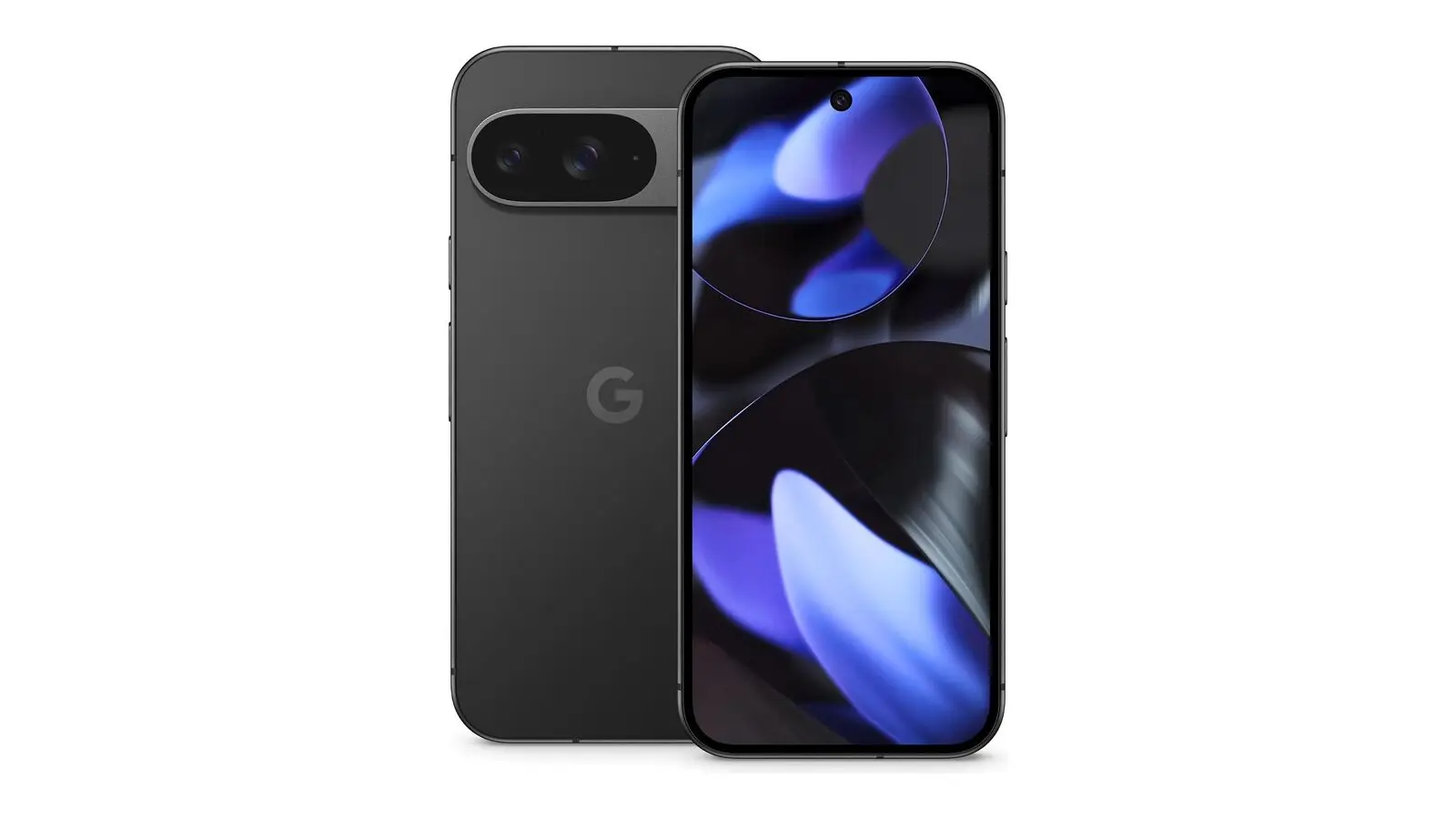
To screenshot on Android, press the Power and Volume down buttons at the same time. Google says a preview appears at the bottom left. This guide covers the button combo, Pixel and Samsung shortcuts, scrolling captures and where files go, per Google and Samsung support.
Quick answer
- Open the screen you want to capture.
- Press Power and Volume down together (Samsung: hold briefly, then release).
- Tap the preview to open it, or find it later in Photos > Collections > On this device > Screenshots (Samsung: Gallery > Albums > Screenshots).
- For a long page, tap Capture more (Pixel, Android 12 and up) or the Scroll capture icon (Samsung).
Menus and labels vary by Android version and phone maker. If these steps don't match your phone, check its maker's support site.
Jump to: Button combo · Pixel shortcuts · Samsung shortcuts · Scrolling captures · Where screenshots go · Blocked screenshots · Not verified
Button combo
Google's Android Help page says to press the Power and Volume down buttons at the same time. If that doesn't work, press and hold Power for a few seconds, then tap Screenshot. If neither works, the page points you to your phone maker's support site.
Samsung's support page says to press and hold Power (Side) and Volume Down together for a moment, then release. The screen flashes to confirm. The buttons are usually on the right side, but placement can vary.
Pixel shortcuts
Google's Pixel Phone Help page lists these, depending on how your Pixel navigates:
- Voice: say "Hey Google, take a screenshot."
- Gesture navigation: swipe up from the bottom and hold, choose an open app, then tap Screenshot.
- 3-button navigation: tap Overview, choose an open app, then tap Screenshot.
- 2-button navigation (Pixel 3a and earlier): press the Power button, then tap Screenshot.
The page says some steps need Android 11 or later.
Samsung shortcuts
Samsung's page lists several other ways.
Palm swipe. Turn it on first: swipe down from the top right corner with two fingers to open the Quick panel, tap the gear icon for Settings, tap Advanced features, tap Palm swipe to capture, and turn on its switch. Then swipe the edge of your hand across the screen.
Voice. Say "Hey Bixby, take a screenshot" or "Hey Google, take a screenshot."
Edge panel. Add Take screenshot to the Tasks panel: swipe left on the Edge panel handle, tap the Settings icon, select the Tasks panel, tap Edit and add Take screenshot. You can have up to twelve shortcuts. To use it, swipe left on the handle, swipe again to open the Tasks panel, then tap Take screenshot.
S Pen. Remove the S Pen, tap the Air command icon, then tap Screen write. You can write or draw on the capture, then tap Save to store it in Gallery.
Scrolling captures
Pixel. Press Power and Volume down together, tap Capture more at the bottom, then use the crop guidelines to select what you want. Google says this works on Android 12 and up, on most screens that scroll.
Samsung. Take a standard screenshot, then tap the Scroll capture icon, which shows two downward-pointing arrows.
Where screenshots go
On a Pixel, the phone saves the screenshot automatically. To find all of them, open Photos, tap Collections, then On this device and Screenshots. From there, tap Share or Edit. Google says that if you don't have the Photos app, you're likely on an older Android version. Open Gallery, tap Album view, then the Screenshots folder.
On Samsung, open Gallery, tap the Albums tab, then the Screenshots folder. You can also open My Files and tap Images. Right after capturing, tap the Draw (pencil) option at the bottom to draw on or crop the screenshot before saving.
Backing up the phone is a separate job; see our guide to backing up an Android phone. For other settings worth a look, see Android 17 features worth turning on.
When a screenshot is blocked
Samsung says some apps or screens block screenshots for privacy or security reasons. It also says that available screens and settings, and whether screenshots work in Secure Folder, can vary by wireless provider, software version and model. If a screenshot fails, Google's page sends you to your phone maker's support site.
What we did not verify
We did not run these steps on a device. Everything comes from three support pages we read on Nov. 25, 2026. None of them covers work profiles or other work or school restrictions, so we say nothing about them. Google's Android Help page did not list gesture or Quick Settings screenshot options, so those appear only where the Pixel and Samsung pages name them.