To back up an Android phone, start by checking that Google's own backup is on, because it covers apps and app data, call history, contacts, device settings, and SMS and MMS. Samsung owners can add Samsung Cloud, and anyone can copy files to a Windows PC over USB.
Menu names vary by phone and Android version, and Google says some steps work only on Android 9 and up. If a label below does not match yours, search Settings for "backup".
Does your Android phone back itself up?
It can, if the setting is on. Google's backup is tied to your Google Account. Google lists what it covers:
- Apps and app data
- Call history
- Contacts
- Device settings
- SMS and MMS
Some items depend on the app. RCS messages in Google Messages, phone call settings and blocked numbers in Phone by Google, and pictures and videos in Google Photos are covered when you use those apps.
Confirm it is on. Go to Settings > Google > All services > Backup and restore > Backup. The switch is labelled "Backup by Google One".
Back up now. On the same screen, tap Back up now. Google says when your data is saved, "On" appears below the data types you selected.
What to expect.
- Every Google account comes with up to 15 GB of storage.
- Google says your backup can take up to 24 hours.
- Paid Google One plans cover total storage for Google Photos, Drive and Gmail.
How do I backup my Samsung phone?
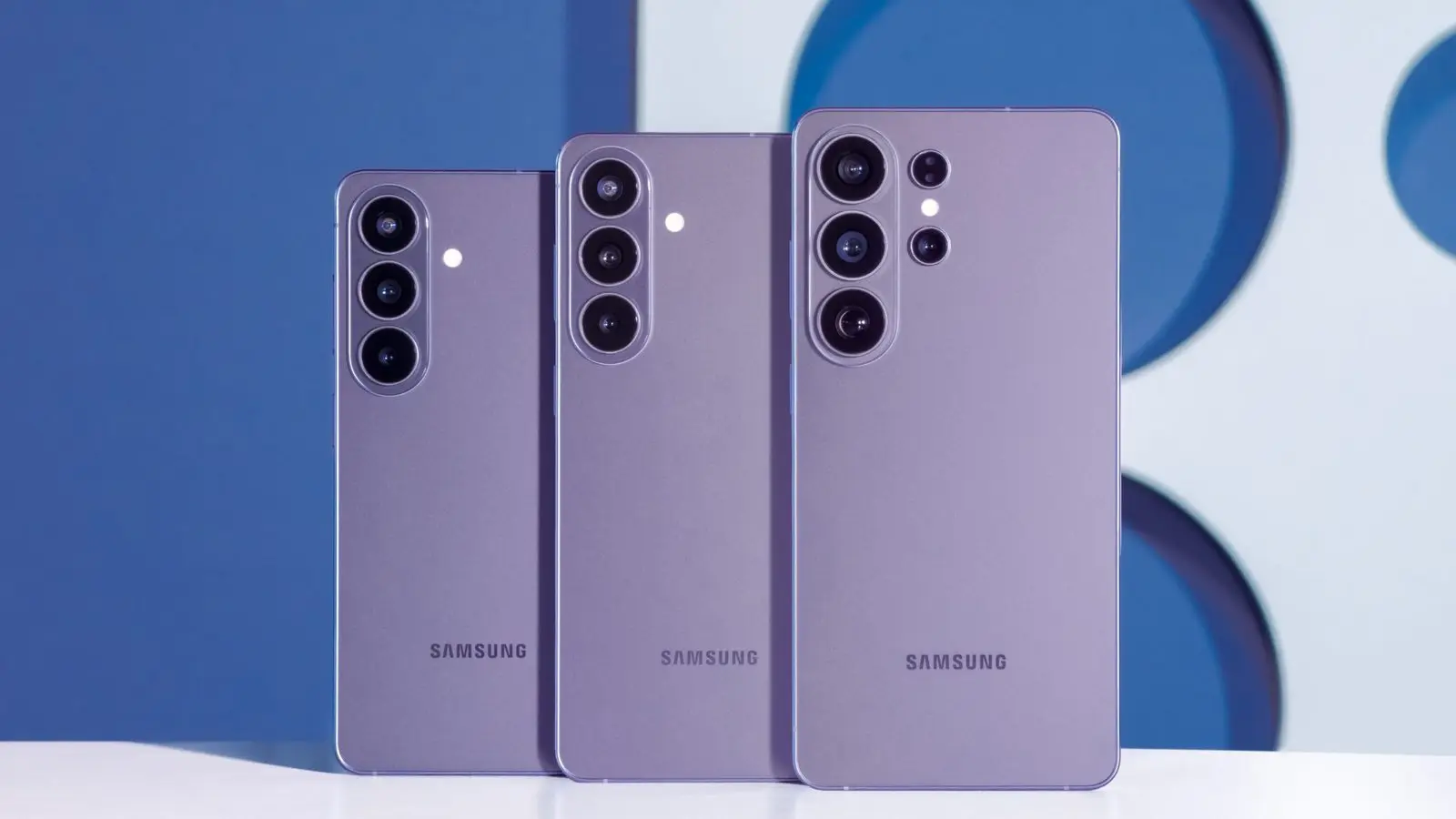
Samsung gives you two tools: Samsung Cloud and Smart Switch.
Samsung Cloud. Go to Settings, tap your Samsung account name, tap Samsung Cloud, then tap Back up data. Samsung says it covers call logs, messages and settings, with a 1 GB limit per file.
Smart Switch to a computer. Samsung's steps:
- Install Smart Switch on the computer and on the phone.
- Connect the phone to the computer with a USB cable.
- Tap Allow on the phone.
- Open Smart Switch on the computer and click Backup.
- Leave Select all as the default and click Backup again.
Samsung says this may take several minutes. Check how much Samsung Cloud storage your phone offers before you rely on it.
Backing up to a PC over USB (Windows)
A cable copy saves files to the PC. Google's steps for a Windows PC:
- Unlock the phone and connect it with a USB cable.
- Tap the "Charging this device via USB" notification.
- Under "Use USB for", choose File Transfer.
- In the window that opens on the PC, drag the files you want to keep into a folder.
- Eject the phone in Windows, then unplug the cable.
This copies only the files you choose.
Photos and videos: check the status label
Photos have their own switch in Google Photos. Tap your profile picture, tap Photos settings, then tap Backup to turn it on or off. Google lists five statuses:
- No backup
- Preparing backup
- Backing up photos
- Backup complete
- Backup paused
Tap your profile picture and look for "Backup complete" before you trust it. Google's other backup page shows the same check: under Settings > Back up or copy data > Back up data, Photos reads "Backup complete." when it is done and "Backup is off." when it is not, per Google.
Check it finished, then reset or switch
Do these before a factory reset or a new phone:
- Open Backup and restore and tap Back up now, then wait for "On" under each data type.
- Open Google Photos and confirm "Backup complete".
- Copy anything irreplaceable to a PC over USB.
- On a Samsung, run Smart Switch or Samsung Cloud too.
Allow time. Google says backups can take up to 24 hours and a restore can take up to 24 hours too. Google also says when you add your Google Account to your new phone, you can restore your previous backup.
One catch: Google says you cannot restore a backup from a higher Android version to a lower one. If the new phone runs an older Android version than the old one, the restore will not work.
If you use Microsoft Authenticator on Android, see Microsoft Authenticator backup moves to Google One. After the new phone is set up, see Android 17 features worth turning on or browse mobile.
Which backup is best for Android?
For most people, Google's backup plus Google Photos for pictures, with a PC copy of anything irreplaceable. Google's backup covers apps, contacts, call history, settings and messages. Its limits are the 15 GB free tier, the wait of up to 24 hours, and the Android-version rule on restore.
Samsung owners gain a second copy from Smart Switch. Do not treat any one of these as complete.
How can I backup all my phone data? Combine them: Google backup for apps and settings, Google Photos for media, and a PC copy of your files.
Are Android phones automatically backed up? Not unless the backup is on: check that Backup by Google One is on, and that Google Photos backup is on for pictures and videos.