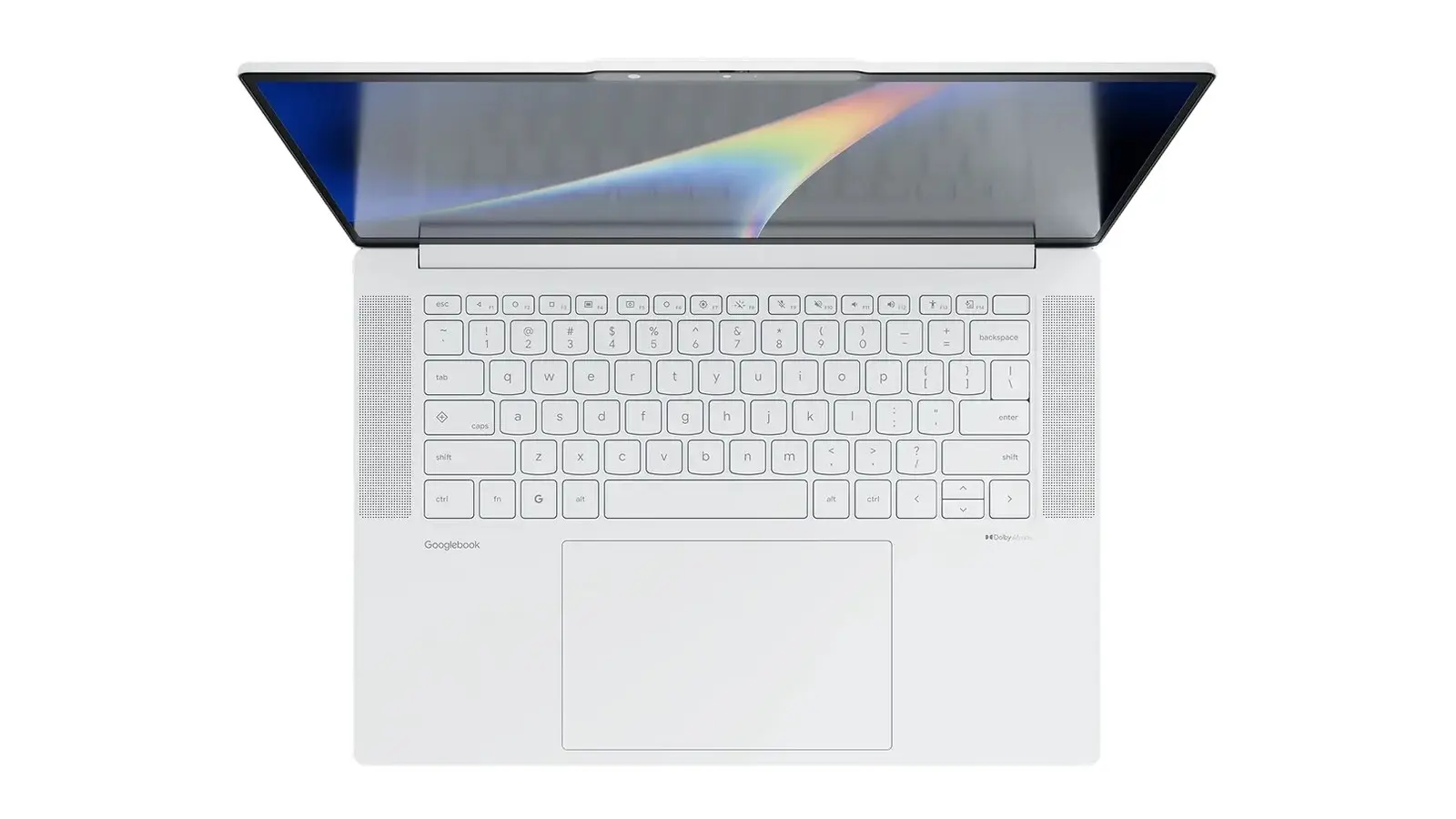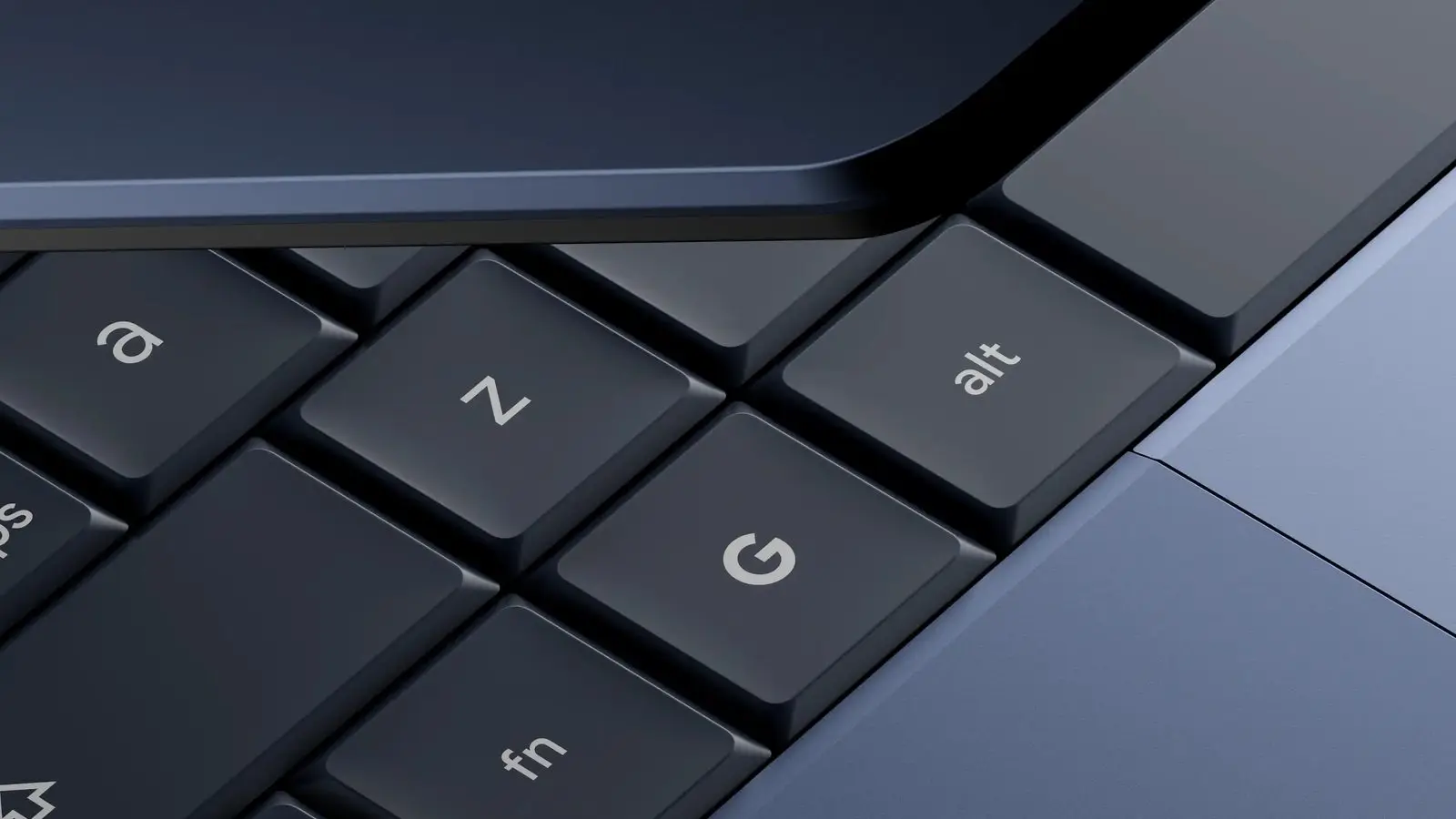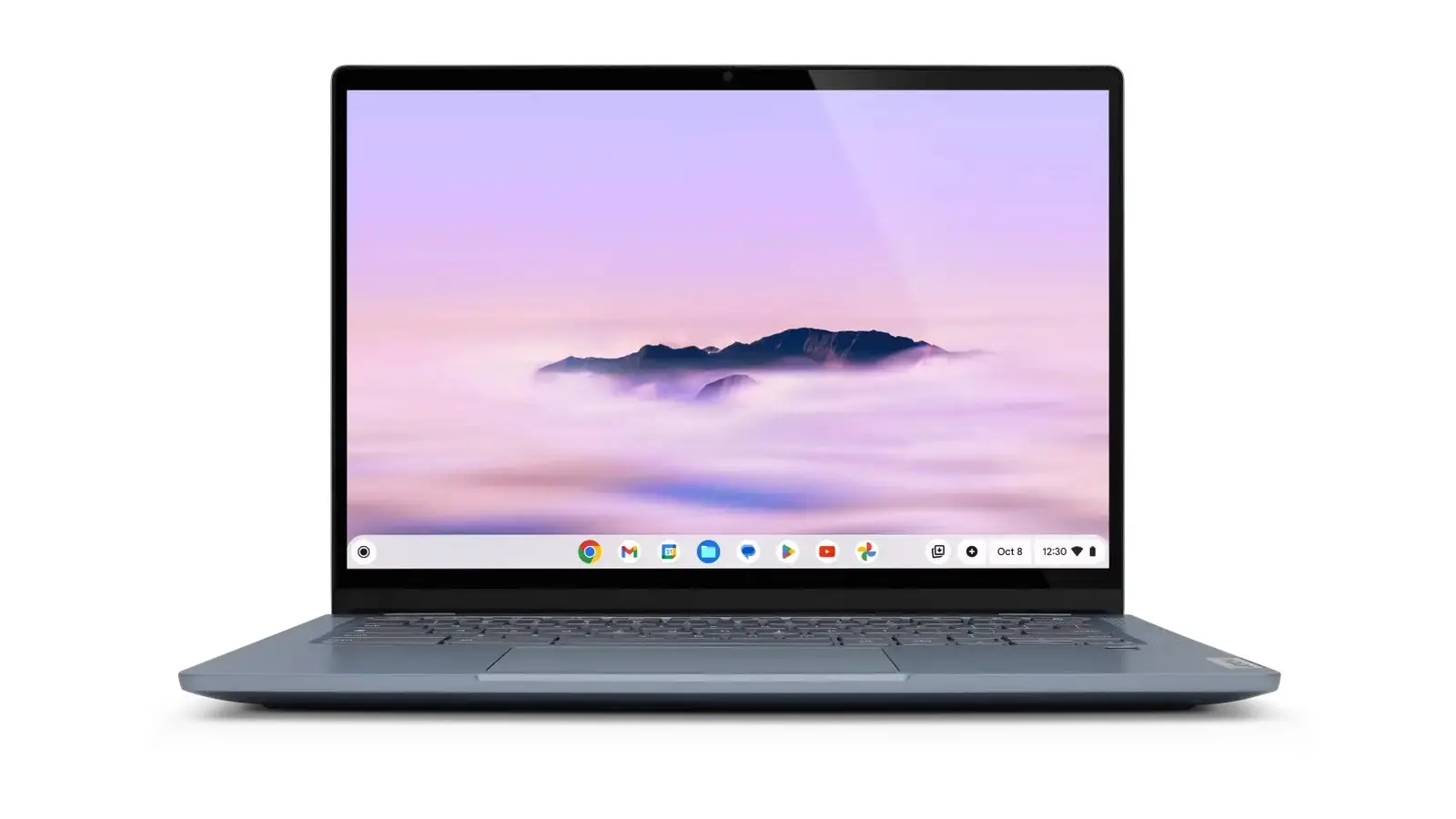
To take a screenshot of the whole screen on a Chromebook, press Ctrl + Show windows. To choose a partial or window capture, press Shift + Ctrl + Show windows. The Screenshot key opens the same capture menu if your keyboard has one, as described on Google's Chromebook Help page, "Take a screenshot or record your screen."
Full screen: Ctrl + Show windows
The keyboard shortcuts page lists Ctrl + Show windows as the shortcut to take a screenshot.
Partial screenshot or the capture menu
Press Shift + Ctrl + Show windows, then select and drag to choose the area. The same shortcut opens the capture menu, as does the Screenshot key if your Chromebook has one.
- No Screenshot key. Open Settings at the bottom right and select Screen Capture, or press Shift + Ctrl + Show windows.
- External keyboard with no Show windows key. Press Ctrl + Shift + F5.
Choose what to capture
In the menu at the bottom of the screen, select Screenshot. Then choose a full screen, partial or window capture.
For a partial capture, use the space bar to switch the capture mode. Press Tab until a corner of the selection is highlighted, then use the arrow keys to resize it. You can also select the time, then Screen capture.
In tablet mode
Press the Power button and the Volume down button together.
Record the screen instead
Press Shift + Ctrl + Show windows, then select Screen record. Choose full screen, partial screen or window.
- Settings: turn on Front Camera, choose Device audio, Microphone or both, or turn on "Show clicks and keys."
- Formats: a partial recording can be Record video (.webm) or Record GIF (.gif). GIFs do not capture audio or camera input.
- Stop: select Stop recording at the bottom right, or press Search + Shift + X.
Where screenshots go
The screenshot help page says screenshots and recordings are automatically copied to your clipboard. Files save to the Downloads folder by default.
To change the location, press Shift + Ctrl + Show windows, select Settings, then Select folder.
What this means for you
For a quick full-screen grab, use Ctrl + Show windows. To pick an area, change the save folder or record video, open the menu with Shift + Ctrl + Show windows. On a Mac, the shortcuts differ: see how to screenshot on Mac.
What we could not confirm
- We have not tested these steps on a Chromebook. Key names and menu labels follow the help pages as of Nov. 24, 2026.
- We found no Chromebook Help page that documents stylus capture, so it is not covered here.
What we checked
The steps above come from three Chromebook Help pages read on Nov. 24, 2026: one on screenshots and recording, one on keyboard shortcuts, one on tablet mode.
Related: Googlebook OS on a Chromebook Plus, how to screenshot on Mac.