Chrome now has two levels of site warning for people who use Enhanced Protection. A "suspicious" warning covers pages with lower-confidence signs of harm. The full-page red "dangerous" warning stays for known-malicious pages, according to Google's Chrome security post, published Oct. 20.
What you will see
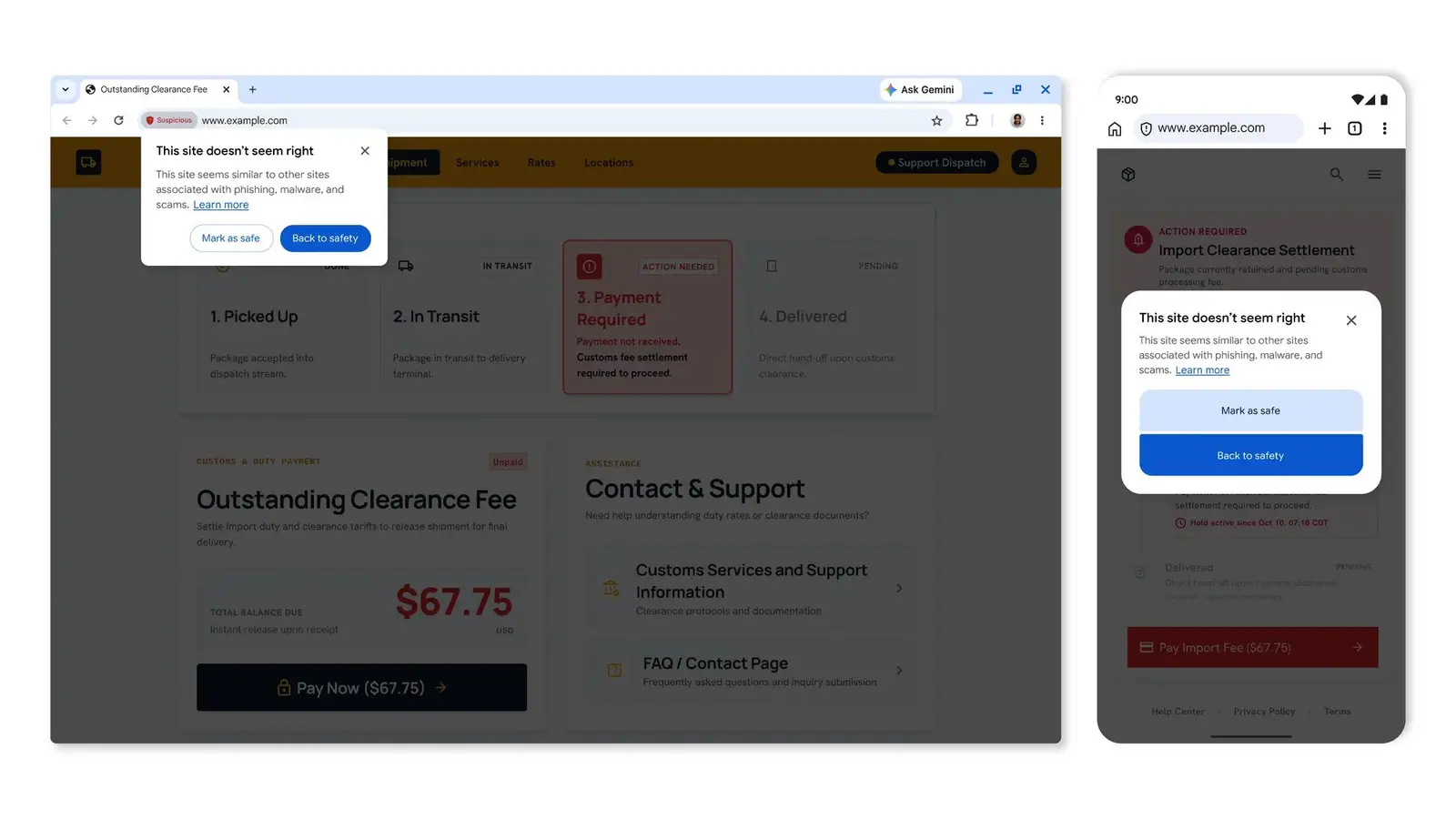
Google's example shows a pop-up under the address bar that reads "This site doesn't seem right." It says the site resembles others tied to phishing, malware and scams, and offers "Mark as safe" and "Back to safety." The desktop example also shows a red "Suspicious" label in the address bar.
The page stays visible but darkened behind the pop-up, and the post says the new warnings differ from the red page in format, icon, color and text. Dangerous-site warnings keep the full-page red screen.
If you see the pop-up, go back unless you are sure the site is yours or one you trust. A suspicious flag is a lower-confidence verdict, so it can be wrong, which is what "Mark as safe" is for.
Two more changes
Enhanced Protection users now get server-side Gemini checks on pages, which Google says covers scams such as fake antivirus and browser-update pages. Chrome sends page text only when a site shows high-confidence scam signs, and Google says that text is never logged, retained or used to train models.
Chrome also now watches for ClickFix, a trick that has you copy and run a command on your own computer to "fix" a fake problem. If Chrome sees a suspicious command copied, it strips personal data from the clipboard text and sends it to Safe Browsing. A dangerous verdict triggers a warning.
The "10x" figure
The post says Enhanced Protection users are ten times safer from phishing, social engineering, notifications abuse and other scams than Standard Protection users. It ties this to features added since the 2025 milestone it mentions, when Google said more than 1 billion Chrome users had the mode on.
A footnote gives the method: the average number of safety warnings shown to Enhanced Protection users compared with Standard Protection users. It is Google's own figure, and it compares only those two modes.
How to turn it on
The warnings apply when Enhanced Protection is on. On a computer, open Chrome, select More, then Settings, then Privacy and security, then Security, and choose Enhanced protection, per Chrome's help page.
Chrome's help page says Enhanced protection sends the site URL and a small sample of page content to Google Safe Browsing. Standard protection is the default.
What Google has not said
The post gives no rollout date and does not say which platforms get each feature. To see which mode you are on, open Settings, then Privacy and security, then Security.
For related reading, see our look at Android's new scam protections and how to spot a fake Chrome app.