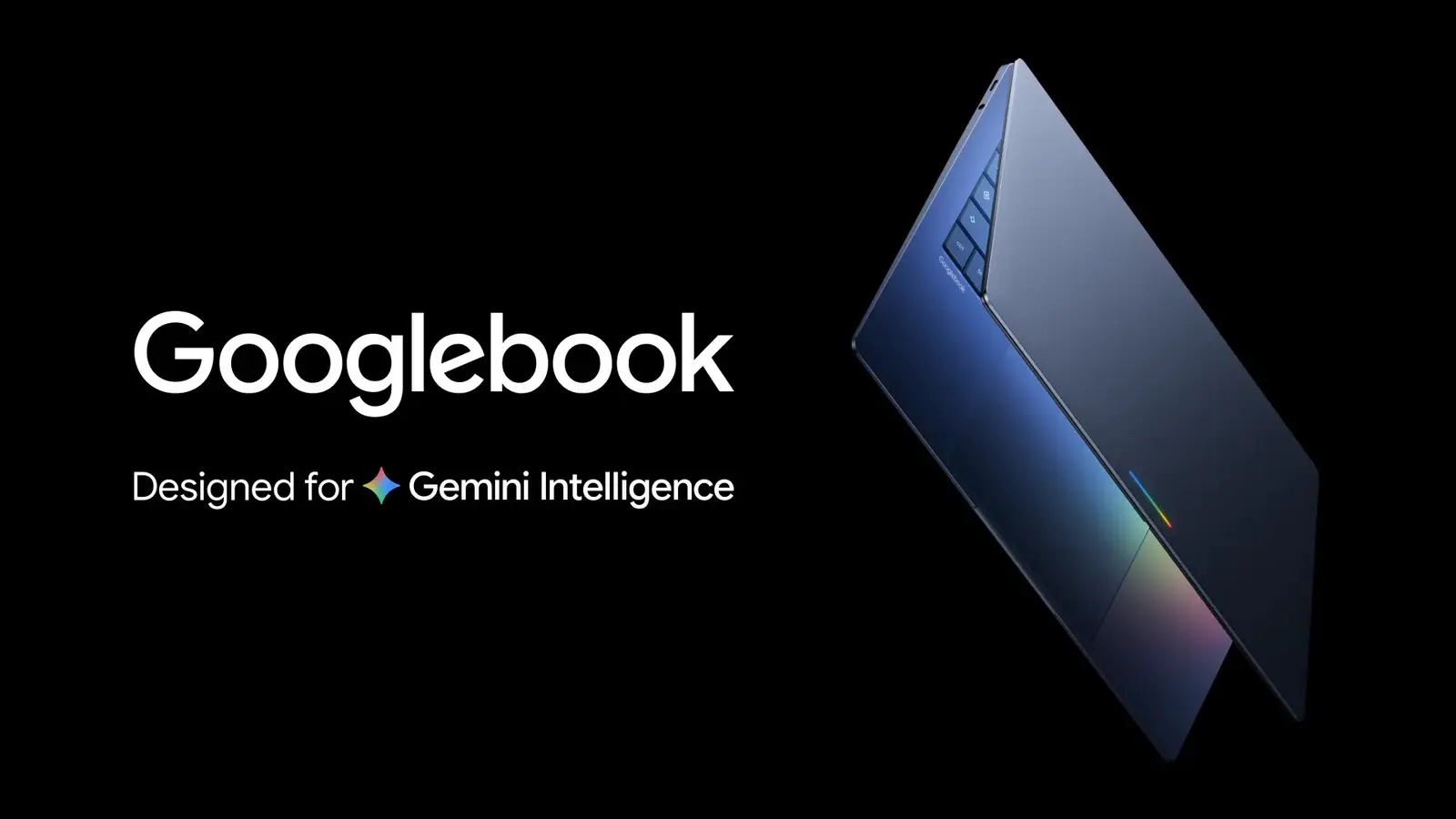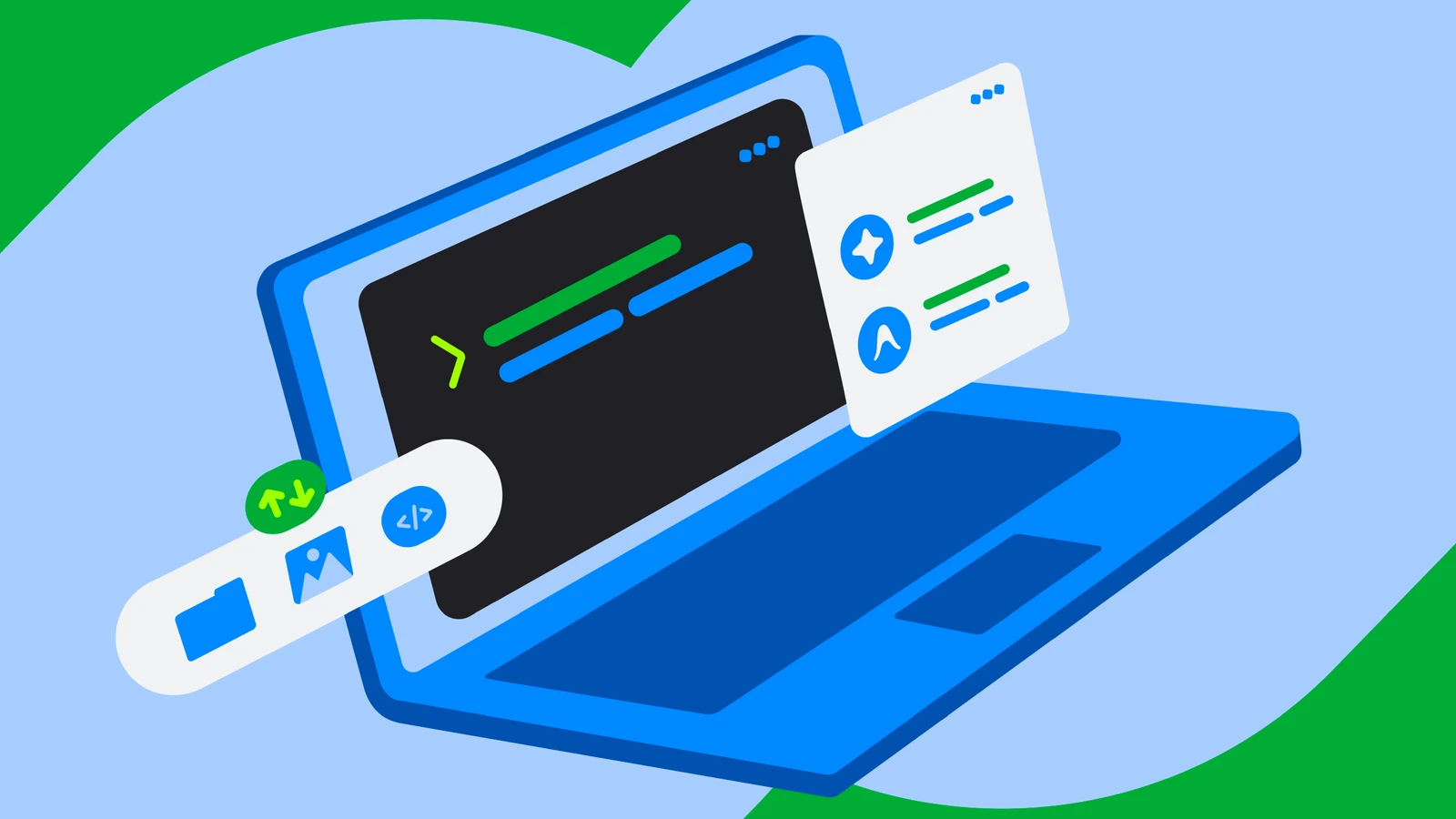
Google has put a Linux terminal on Googlebook in preview. Its Android Developers Blog post of October 12 says all terminal commands run inside a Debian Linux virtual machine (VM), an isolated sandbox. You do not need to be a programmer to use it; Google pitches it at people who want to run AI tools.
What it is
Google's help page calls it the Terminal app: a Debian Linux command-line environment on your Googlebook, where you can install developer tools and other Linux software. The blog post says the VM boundary helps protect the host system and files you have not shared.
Google says each folder is made available to the VM only after you give explicit permission. A one-click reset wipes the VM while files on the host stay put.
What works today
Per Google's post and help page:
- Debian Linux with
apt,git,sshand common compilers. - Runtimes including Node.js, Python, Ruby, Go and Rust.
- Files: Linux files show in the Files app under "Linux VM", and you can share local folders with the Terminal.
- Browser access: localhost ports are forwarded automatically to the host browser.
- Memory: you can adjust how much the VM gets, under Settings, Advanced.
- Connections: network passthrough and wireless ADB (Android's debugging tool) work now.
- AI tools: because commands are sandboxed, Google says users can give
sudo(administrator) rights to tools such as Antigravity.
Google's help page says command-line programs run in the Terminal, and graphical Linux apps open in a separate graphics screen inside the Terminal window, reached by the computer icon at its top right.
What is missing in preview
Google lists these as coming, with no dates:
- Linux GUI apps in the app launcher, which the post names as an area of work.
- USB passthrough and ADB over USB, for debugging a phone from the Linux VM.
- Dynamic memory and storage scaling for the VM.
- GPU and NPU hardware acceleration for heavier local work.
- VM persistence separate from the terminal window, for long-running processes.
These are planned, not promised. Google gives no timeline for any of them.
How to turn it on
Google's Googlebook help page gives these steps:
- Open the Terminal app.
- Select Install at the prompt. The page says installing the VM image takes several minutes.
- A Linux terminal window opens when it finishes.
Google's Antigravity help page lists these requirements for Antigravity, a beta that is pre-installed on supported Googlebooks and opens the Terminal app for you:
- Age: 18 or older.
- Account: a Google Account signed in to the Antigravity app.
- Subscription: a Google AI plan.
- Region: Antigravity must be available in your country.
- Terminal: the Terminal app must be installed and set up, and kept open while you use Antigravity.
The Terminal app can also uninstall the VM image, with an option to back up your data first.
How it differs from Linux on Chromebooks
We found no Google page comparing the two, but its help pages differ on setup. On a Chromebook, per Google's help page, Linux is off by default and you turn it on in Settings, under About ChromeOS, Developers. On a Googlebook, you install the VM image from the Terminal app.
The Chromebook page says Android devices are supported over USB. On Googlebook, USB passthrough is on the planned list.
Why it matters
For a buyer, Google says the VM boundary helps protect the host system and files you have not shared, which matters when AI tools get administrator rights. We have not tested that. The trade-off is the preview's limits: no ADB over USB, no GPU acceleration, and GUI apps not yet in the launcher. If you rely on Linux desktop apps, Google's roadmap says that part is unfinished.
For other Googlebook coverage, see Googlebook's launch problems, Googlebook OS running on a Mac and Googlebook phone setup and Samsung support.
What we could not confirm
We have not run the Terminal on a Googlebook. Google's post gives no dates for the roadmap items and no list of supported models. Its blog post and help page also read differently on GUI apps: the post lists launcher integration as upcoming, while the help page describes graphical apps opening in a graphics screen in the Terminal today.