Street-level photos can show your front door to anyone who types your address into a map. Google and Apple each let you ask for your home to be blurred. Their steps below come from Google's help page and from Apple's pages, with Apple's menu path as two recent how-to guides describe it. We did not submit a request.
The short answer
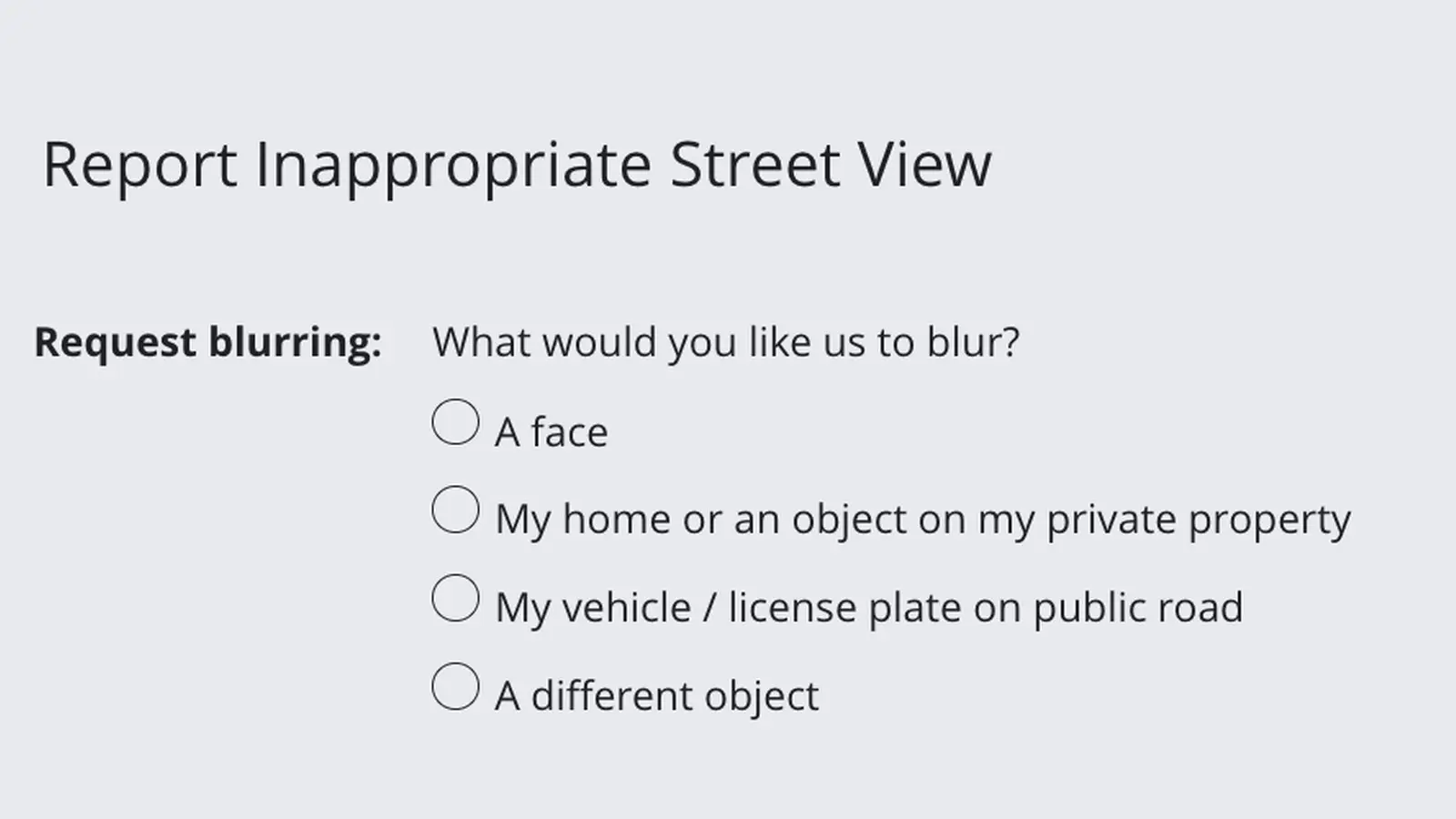
- Google Maps: open your home in Street View, click Report a Problem, choose My home or an object on my private property, and upload proof of address. Only the owner or tenant can ask.
- Apple Maps: open Look Around on your address, choose Report an Issue, then Privacy Concerns, then Obscure imagery of my home. Or email Apple.
- Bing Maps: we found no current route. Streetside shows "Streetside preview not available" and Wikipedia says it was removed in October 2025.
- A blur is permanent, according to Google. It is a request, not an instant switch.
Blur your house on Google Maps
Google says only the home owner or tenant can request a house blur, and the request needs a document that proves your address. The same steps appear for computer, Android and iPhone.
- Find your home in Google Maps.
- Open the Street View image you want to blur.
- In the bottom right, click Report a Problem.
- Select My home or an object on my private property.
- Tick the box that certifies you have the authority to make the request.
- Click Choose file and upload your proof of address.
- Enter the address of the home to be blurred. If it has no formal address, tick the box that says so.
- Complete the form and submit it.
Google says it will review the report as fast as it can. If you enter an email address, it may contact you for more information or with an update.
What Google accepts as proof of address
- Accepted: a letter, utility bill or bank statement showing the address, dated within 6 months of the request. A lease of any age. Homeowners insurance and property tax records.
- Rejected: documents that do not match the address, or that show only a P.O. box. Do not send handwritten documents or government IDs.
- Redact first: cover your name and any account, payment or health details. Leave the address and the document date.
- File rules: PNG, JPG or PDF, under 10 MB.
- Retention: Google says uploaded documents are permanently deleted from all systems after 60 days.
What Google says the blur does
Google says the blur is permanent once it applies it. It also says the newly blurred image is excluded from generative AI prompting from then on. New blur requests do not affect AI-generated imagery that third parties already created or published.
Blur your house on Apple Maps
Apple's own pages confirm two routes but do not list the menu names. Apple's Image Collection page says to contact it to request that your own house be blurred, and gives the email address [email protected]. Apple's privacy page for Maps reports also names a "request to blur Look Around imagery" inside Report an Issue.
The menu path below is from Mashable (Oct. 8, 2026) and Tom's Guide (Oct. 9, 2026), which agree on it.
- Search for your exact home address in Apple Maps.
- Tap the binoculars icon to open Look Around. If there is no icon, one of the guides says Look Around is not available for your area. On a desktop, select the small photo at the bottom of the screen.
- Swipe up from the bottom, or tap the address, and choose Report an Issue. On a desktop, use the three-dot menu.
- Choose Privacy Concerns.
- Choose Obscure imagery of my home.
- Check the street address and enter your email address, then submit.
Both guides say Apple then emails you. Both also list a second option, Obscure personal information, for details such as a license plate. One says you may need to give more identifying information or home ownership details. The other says Apple will ask for verification or proof of homeownership. There is no guaranteed timeline, according to the first.
Emailing Apple instead
One guide says you can email [email protected] with your full name, the exact address, and a description or screenshot of your property. Apple's Image Collection page gives that address but does not list what to include.
What Apple collects with the request
Apple's privacy page says a Look Around blur request is stored with your Apple Account. On Apple Maps on the web it collects your email address instead. It is shown on screen before you submit.
Apple may also collect the direction and angle of your view in Look Around. It says it may store report data for up to two years, or up to five years for certain copyright-related reports.
Faces, license plates and cars
Both companies say they blur faces and license plates automatically. Google says it uses technology designed to blur identifiable faces and license plates in Street View. Apple says it blurs faces and license plates in Look Around.
Google's page says that if you prefer your home, vehicle or full body not be shown, you can request a blur. Apple's Image Collection page says you can ask it to blur a face, a license plate or your own house.
Bing Maps: no current route found
Bing Maps' street-level layer was called Streetside. We opened Microsoft's Streetside page at bing.com/maps/streetside on Oct. 12, 2026 and it showed only "Streetside preview not available". Wikipedia's Bing Maps entry says the feature was removed in October 2025 and is no longer accessible.
Microsoft publishes no current blur steps that we could find, so we can't give a Bing route.
What a blur does not remove
Google's and Apple's pages each describe a request about its own street-level photos. None of the pages we read says the request changes anything else.
- Other companies' maps. Google's page covers Google Street View and Apple's pages cover Look Around. Neither says a request changes the other's imagery.
- Photos taken by other people. A house-blur request covers Google's own imagery. For a photo someone else uploaded, Google has a separate report route, and for Photo Spheres the photographer decides what to blur.
- Older AI-generated images. Google says its blur does not affect AI-generated imagery that third parties already made or published.
- Satellite and aerial views. Neither Google's nor Apple's page mentions them. Do not assume a street-level blur covers them.
- Listing photos and people-search sites. Real-estate photos and data brokers are not Google or Apple map imagery, and neither company's page says a request reaches them.
- Your saved Home address. Google's blur page covers photos only. To change the Home address saved in Google Maps, see how to change your home address in Google Maps.
Why it matters
Google describes a blur as permanent, so a later owner may not be able to undo it, and Google asks for paperwork you must redact before uploading. Apple's path asks for less up front, though some third-party guides say it may ask for ownership proof later. Neither company's page gives a completion date.
What we could not confirm
- The Apple email contents. Only one guide lists a name, exact address and screenshot. Apple's Image Collection page gives the address but does not say what to attach, so treat that list as one outlet's advice.
- Apple's menu names. We read them from the two guides above. Apple's own pages we read do not list them, and we did not test them in the app. The "Obscure personal information" option is also from those two guides only.
- Whether Apple Maps shows your street yet. Look Around is not in every area. For other Apple Maps changes, see our report on Apple Maps' reported Austin city view.
- A current Bing route. We found no Microsoft page with blur steps.
- Turnaround time. Neither Google nor Apple gives one on the pages we read.