To fix a slow Windows 11 PC, work through the steps below in order and check speed after each one. They come from Microsoft Support's performance page, which says to try all of its solutions because several factors can cause slowdowns. The steps come from those pages; the order is ours.
Why Windows 11 gets slow
The support page does not rank causes. Its fixes point at the usual suspects:
- Pending Windows and driver updates.
- Malware.
- A nearly full drive.
- Apps that launch at sign-in or keep running in the background.
- Visual effects and a power mode that favors battery life.
- Too many open apps and tabs.
The page also says older PCs with outdated hardware may not improve much, and upgrading may be the better long-term fix.
Quick order checklist
- Restart the PC.
- Install Windows updates and optional driver updates.
- Run a quick malware scan.
- Free disk space.
- Disable startup apps.
- Set power mode to Best performance.
Steps 7 to 12 below cover the rest.
The 12 steps
1. Close unused apps and restart
Close apps and browser tabs you don't need. If speed doesn't improve, select Start > Power > Restart.
2. Install Windows updates and optional driver updates
Go to Settings > Windows Update > Check for updates and install what appears. Then open Advanced options > Optional updates for driver updates. The PC may restart during installation.
3. Run a malware scan
Go to Settings > Privacy & security > Windows Security > Virus & threat protection > Quick scan.
4. Free up disk space
Go to Settings > System > Storage > Storage Sense > Run Storage Sense now. You can also open Settings > System > Storage > Temporary files, select what to clear and choose Remove files, or search Start for Disk Cleanup and select the drive.
- Check what you select before you remove it.
5. Disable startup apps
Press Ctrl + Shift + Esc to open Task Manager, select Startup apps, right-click an app and choose Disable. You can also go to Settings > Apps > Startup and switch an app off.
Task Manager also shows a Startup impact column, with labels that include Not measured, Low, Medium and High.
- High impact means more than 1 second of CPU time or more than 3 MB of disk use at startup.
- Disabling a startup app stops it launching at sign-in. It does not uninstall it.
6. Set power mode to Best performance
Go to Settings > System > Power & battery and set Power mode to Best performance. This uses more power, so a laptop battery can drain faster and the PC can run hotter.
7. Uninstall apps you don't use
Go to Settings > Apps > Installed apps, select More options (the three dots) next to the app, then Uninstall.
8. Turn off background activity for an app
Go to Settings > Apps > Installed apps, select More options > Advanced options, then under Background app permissions set "Let this app run in the background" to Never.
9. Adjust for best performance
Search Start for "Adjust the appearance and performance of Windows", open it, and on the Visual Effects tab select Adjust for best performance.
- This changes how Windows looks, as the option name suggests.
10. Optimize drives
Search Start for "Defragment and Optimize Drives", select the drive and choose Optimize.
11. Check what is using resources
In Task Manager, open the Processes tab and close apps you aren't using. Check the Performance and Startup apps tabs for high resource use.
12. Turn off notifications you don't need
Go to Settings > System > Notifications and turn off notifications for apps you don't need.
If it is still slow
Microsoft Support says older PCs with outdated hardware may not improve much. Our portable SSD guide covers extra storage, and a full reinstall is the last resort; see our report on Windows 11's Cloud rebuild.
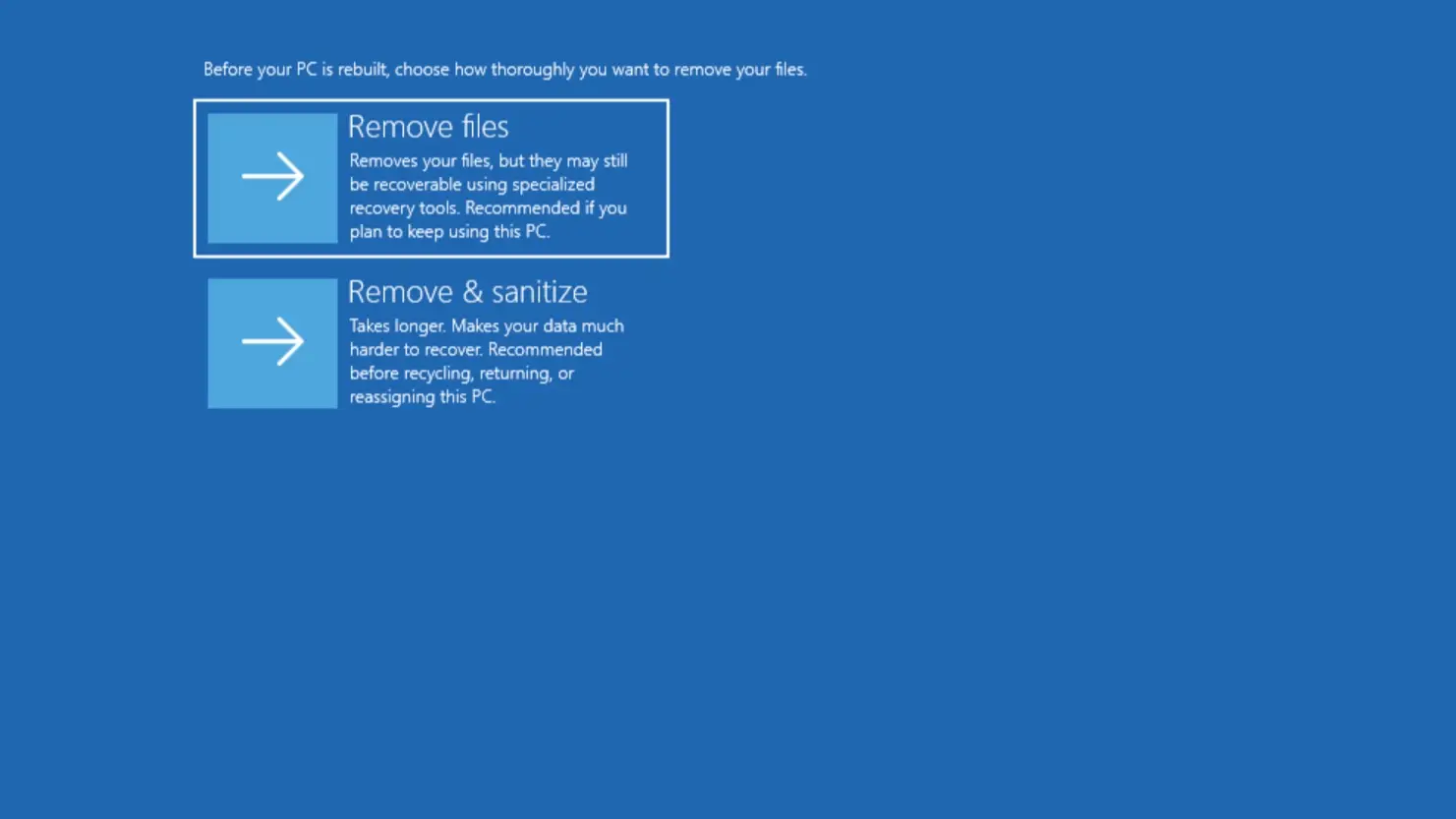
For what Windows 11 itself changed on low-memory PCs, read our 8GB RAM report. More PC help is on our computing topic page.
Why it matters
Updating, scanning and trimming startup apps do not change how Windows looks or how long a laptop battery lasts. Best performance power mode (step 6) and visual effects (step 9) trade battery life and appearance for speed, so on a laptop you carry, try the other steps first and switch them back if you notice no difference.