To fix a full iPhone, open Settings > General > iPhone Storage, see what is using space, then offload apps, clear Safari website data, check Optimize iPhone Storage, trim Messages and Mail, delete old files and check your iCloud plan. None needs you to delete from your Photos library, but Messages attachments include photos, so read that step's warning.
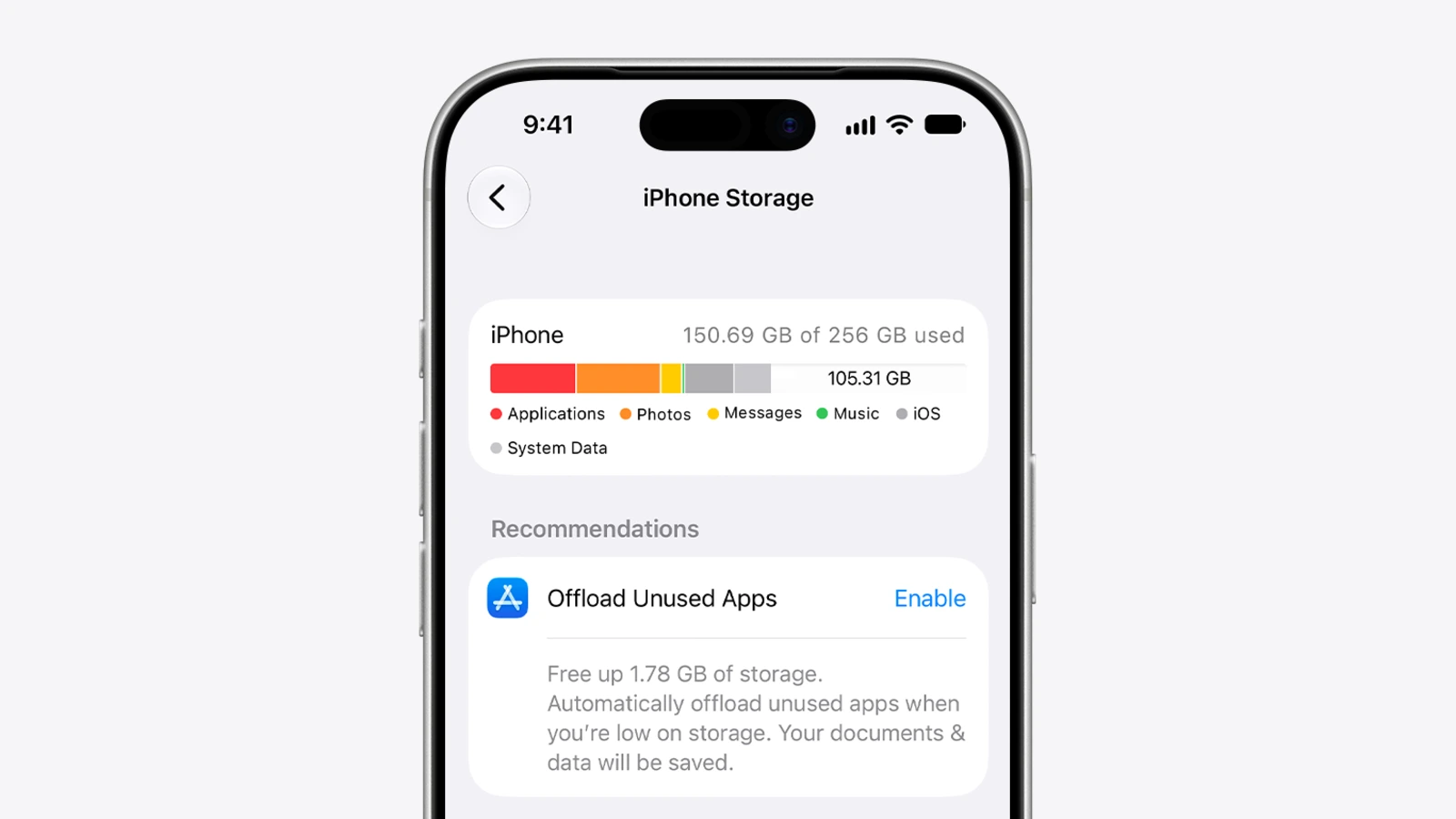
Check what is using space
- Open Settings, tap General, then tap iPhone Storage.
- The available storage shows at the top.
- Tap an app's name for its details.
Apple's support page says this screen lists recommendations and the apps using the most space. It also notes that cached and temporary data might not count as usage, so usage may not add up to everything on the phone.
Fix it in this order
Start at the top. Each step is safe to stop after if you have enough room.
1. Turn on a storage recommendation
In iPhone Storage, tap Show All to see recommendations for your device.
Some recommendations remove content from the phone, so read what each one deletes and save anything you need first. Read each description, then tap Enable to turn one on, or tap the recommendation to review what you can delete. For a Storage Almost Full alert, Apple says to check the recommendations or remove some content.
2. Offload apps you rarely open
Offloading frees the space an app uses but keeps its documents and data. To do it per app, go to Settings > General > iPhone Storage, tap the app and choose Offload.
To let iPhone do it when space is low, go to Settings > Apps > App Store and turn on Offload Unused Apps. The icon stays on your Home Screen with a cloud symbol. Tap it to reinstall.
3. Delete apps you no longer use
Touch and hold the app on the Home Screen, tap Remove App, then tap Delete App. Unlike offloading, this removes the app and its related data.
Save or export any data you need from the app first, because deleting an app can remove its data and a redownload may not bring it back. Apple says you can download it again later if it is still in the App Store.
4. Clear Safari website data
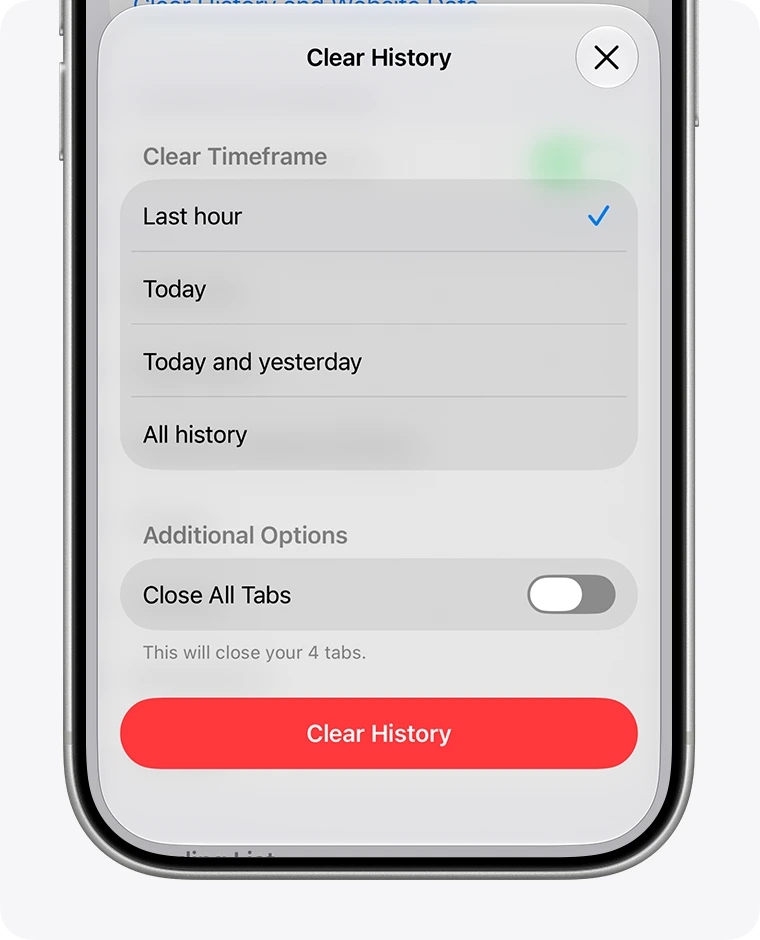
Go to Settings > Apps > Safari. Tap Clear History and Website Data, choose the timeframe, then tap Clear History. Save any links you need first, using a bookmark or the Reading List. Apple says this does not change your AutoFill information.
To keep your history, use the Website Data option instead. Go to Settings > Apps > Safari > Advanced > Website Data, tap Remove All Website Data, then tap Remove Now. Apple says this clears data websites use to save login information, so expect to sign in again on some sites.
5. Check Optimize iPhone Storage
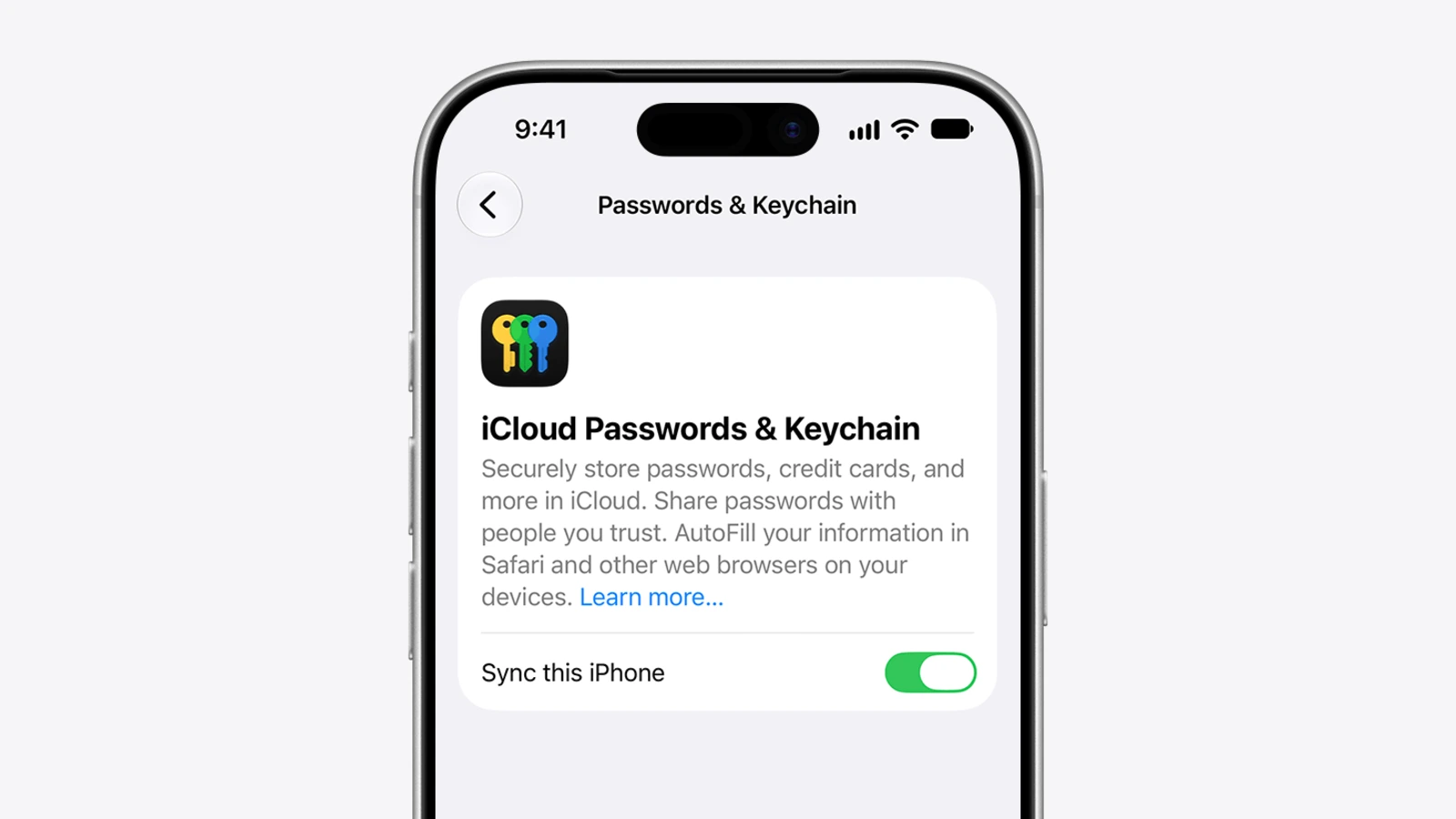
This step removes nothing from your library. With iCloud Photos on, Apple says full-resolution originals stay in iCloud while storage-saving versions stay on the iPhone when Optimize iPhone Storage is on. It is on by default. To turn on iCloud Photos, go to Settings, tap your name, tap iCloud, tap Photos, then turn on Sync this iPhone.
Originals stay on the phone if iCloud Photos or Optimize iPhone Storage is off, or Download and Keep Originals is chosen. Apple lists the setting under Settings > your name > iCloud > Photos > iPhone Storage. Download and Keep Originals keeps full-size copies on the iPhone. Optimize iPhone Storage keeps smaller copies there and the originals in iCloud.
Apple's iOS 27 storage page also suggests backing photos up to iCloud before removing them from the device, which is outside this guide.
6. Trim Messages attachments
Save anything you want to keep to Photos or Files first. Deleting an attachment removes it from the conversation, and it may be the only copy.
Open a conversation, tap the contact or group icon at the top, then tap a category such as Photos, tap Edit, then Select. Tap each attachment you want gone, tap delete and confirm. Apple says deleting a message or conversation also deletes it on your other devices when Messages in iCloud is on, so expect attachments to go too.
Deleted items sit in Recently Deleted for 30 days. To clear them sooner, tap the icon at the top of the conversation list, tap Recently Deleted, select the items, then tap Delete. Apple warns this can't be undone.
7. Set Messages to delete old history
This also removes attachments, so save any you want first.
Go to Settings > Apps > Messages, scroll to Keep Messages under Message History and pick a period. Anything other than Forever removes conversations, including attachments, automatically once that time passes.
If you use Messages in iCloud, a delete on your iPhone also deletes the message on every device with Messages in iCloud on.
8. Clear Mail
In Mail, select messages and tap the trash icon. Deleted mail goes to the Trash mailbox. Apple notes iCloud doesn't keep deleted messages longer than 30 days, even if you set it to Never.
9. Delete files and downloads
Check first that the file is not your only copy. If you use iCloud Drive, deleting a file there can remove it from your other devices too. If you also use OneDrive, see Microsoft 365 Family OneDrive storage drops from 6TB to 2TB.
In the Files app, tap Browse, find the file or folder, touch and hold it, then tap Delete. Apple's storage guide also says you can review items you downloaded in the TV app and remove ones you already watched.
10. Check your iCloud storage and plan
Apple does not say more iCloud space frees space on the phone. Free iCloud comes with 5 GB. In Photos, Apple says a yellow warning icon means iCloud storage is almost full, and a red exclamation mark means it is full. Tap your account icon for details.
To change plans, go to Settings > your name > iCloud > Storage > Change Storage Plan. Apple's US prices, as of October 20, 2026: 50 GB is $0.99 a month, 200 GB is $2.99 and 2 TB is $9.99. Apple also lists 6 TB and 12 TB plans and says prices vary by country.
What not to expect
Apple describes two catch-all categories. System is the space the operating system takes, and Apple says it can vary by device and model. Other lists non-removable items such as Siri voices, fonts, dictionaries, logs, caches, the Spotlight index and system data, such as Keychain and CloudKit database.
Apple calls the Other items non-removable.
If it is still full
Check iPhone Storage again to see which row is biggest now. Apple also says synced content can only be removed from a computer, by deselecting it in Finder, the Apple Devices app or iTunes and syncing.
Once you have room, see iOS 27 features worth turning on. For more phone how-tos, see mobile.