On iPhone, turn on iCloud Keychain, then save a passkey when a supported site or app offers one. On Android, Google requires a screen lock; then create a passkey for your Google Account from the passkeys page in your Google Account settings. Sign in afterwards with your face, fingerprint or PIN.
What a passkey is
A passkey replaces a password on supported sites and apps. Apple says your device creates a unique key pair for each account, and the server never learns the private key. Face ID or Touch ID authorizes it.
Google says you can use a fingerprint, face scan or phone screen lock PIN instead.
Before you start
On iPhone:
- Update your iPhone and turn on two-factor authentication for your Apple Account.
- Open Settings, tap your name, then tap iCloud.
- Under Saved to iCloud, tap Passwords (iOS 17 or earlier: Passwords and Keychain).
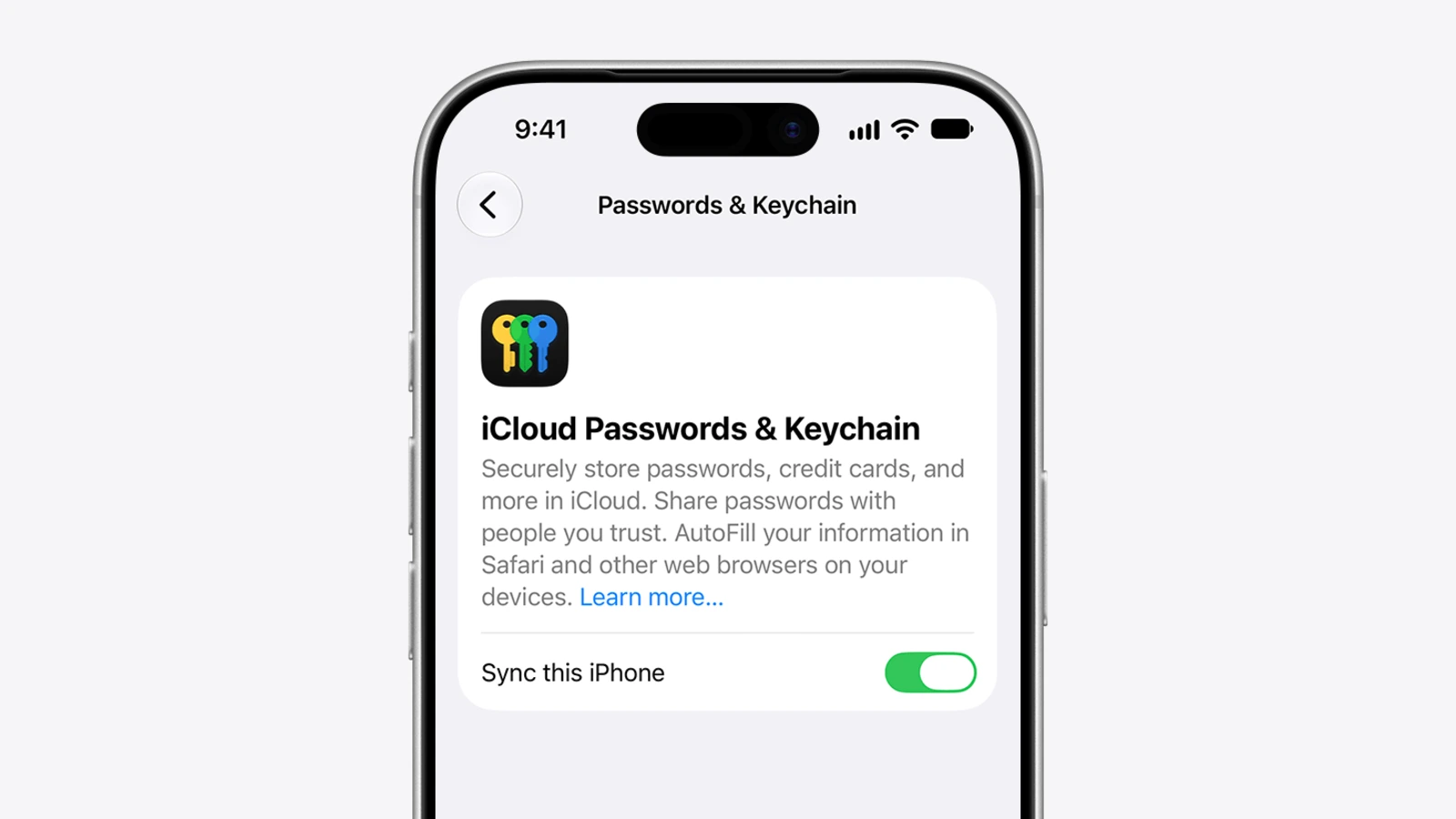
- Turn on Sync this iPhone. You may need your passcode or Apple Account password.
Apple's Passwords guide says passkeys need iCloud Keychain and two-factor authentication. Apple's iCloud Keychain page gives the steps above.
On Android:
- Turn on your phone's screen lock.
- Turn on Bluetooth if you want to use the phone's passkey to sign in on a computer.
- Keep your operating system and browser up to date.
Google's help page lists Android 9 or later for phones. Its supported browsers include Chrome 109 or up, and it says you may not be able to create or use passkeys in Incognito mode.
Set up a passkey on iPhone
Apple says the exact steps vary by app, website and browser, but typically go like this.
- Go to the sign-in screen of a supported site or app.
- New account: tap the button or link to set one up, then follow the prompts. Existing account: sign in with your password, then open account settings.
- When you see the option to save a passkey, tap Continue.
Your passkey is saved. If you do not see a passkey option, Apple says the site or app does not currently support passkeys.
Apple says passkeys you create are stored in the Passwords app, and you can have a passkey and a password for the same account.
Sign in with it
- Tap the account name field on the sign-in screen.
- Tap the suggested account name.
- Use Face ID or Touch ID. If neither is set up, enter your device passcode.
Set up a passkey on Android
For a Google Account, Google's steps are short.
- On your phone, open the passkeys page of your Google Account.
- Tap Create a passkey.
- Unlock your device when asked.
You may need to sign in or verify your identity first. To create passkeys on more devices, repeat the steps on each one.
A few Google details from the same page:
- Android may register passkeys for you automatically when a device is signed in to your account. To remove one, go to Manage all devices, tap the device, then tap Sign out.
- If your account uses 2-Step Verification, Google says a passkey bypasses the second step.
- After you sign out of an Android device, you can sign back in with the passkey there for up to 6 hours. After that, use another method.
Other sites and apps
Google's help pages give Google Account steps only. They give no Android Settings path for creating passkeys in other apps, so follow each app's own prompt.
On a computer, Google's Chrome help says a site may ask if you want to create a passkey in Google Password Manager. Select Create. Google says passkeys saved there sync across devices where you sign in to Chrome or Android with the same Google Account.
Sign in with it
Open the Google sign-in page and enter your username. Google says you may see a list of passkeys when you tap the username field. Pick one, then follow the prompts to unlock your device.
Sign in on a computer with your phone's passkey
Use this to sign in on a computer or other device with your phone's passkey. You need your phone with you. The Android steps below are Google's instructions for signing in to your Google Account, not a rule for every site.
From an iPhone, per Apple:
- On the other device, enter your username on the sign-in screen.
- Select Other options, Passkey from nearby device or similar, to show a QR code.
- Scan the QR code with your iPhone camera.
To sign in to your Google Account on a computer with an Android phone's passkey, per Google: enter your username, click Try another way, then Use your passkey. Scan the QR code, tap Use passkey to sign in on your phone and verify with fingerprint, face unlock or PIN. Keep Bluetooth on.
Use a password manager instead
You can save passkeys in a password manager. 1Password's browser guide covers browsers only and says 1Password offers to save a passkey when you choose to create one on a supported site. If you already have a login saved there, you can add the passkey to it.
To sign in, 1Password says to choose Use passkey.
Before you rely on it
Two warnings from Google. Only create passkeys on devices you own and do not share. Google says once you create one, anyone who can unlock that device can access your Google Account, even if you sign out.
Google also says a new passkey may take up to 7 days to be available at sign-in. Plan for that before you drop your password.
If you have a Google Workspace account from school or work, Google says you may not be able to sign in with only a passkey.
Remove a passkey
On iPhone, per Apple: open the Passwords app, tap Passkeys, tap the account, tap Edit, then tap Delete and Delete Passkey. You can create a new one any time.
On Google Accounts, Google says to go to Security & sign-in, tap Passkeys and security keys under How you sign in to Google, pick the passkey and tap Remove.
Deleting a passkey saved in 1Password does not remove it from the website's account. Remove it on the website too.
If you lose a phone
Apple says passkeys sync across your devices through iCloud Keychain and can be recovered even if you lose all your devices. Google says to sign in to your Google Account on a device you can access and remove the passkey on the lost one.
Next steps
For more phone settings worth a look, see iOS 27 features worth turning on and Android 17 features worth turning on. More how-tos are under mobile.