To transfer an eSIM to a new phone, start on the new phone: iPhone users go to Settings, Cellular, and Android users to the SIM settings. Both platforms can pull the plan from your old phone without a call to the carrier, but only when your carrier, both phones and their software support it.
If they do not, the carrier has to send a new eSIM.
Which route you need
- iPhone to iPhone: eSIM Quick Transfer or Transfer From Nearby iPhone.
- Android to Android: the transfer option in the new phone's SIM settings or setup.
- iPhone to Android, or Android to iPhone: a direct transfer on some carriers; otherwise, a new eSIM from the carrier.
- Any case where a flow is missing: your carrier's app or a QR code.
Apple, Google and Samsung each say the process can differ by carrier. This guide follows their help pages and Verizon's.
Before you start
- Keep the old phone on, unlocked and nearby until the new plan works. Apple says the plan on the new iPhone deactivates your previous SIM when it activates. Verizon says service is deactivated on the old phone after the move.
- Turn on Wi-Fi and Bluetooth on both. Apple's Android-to-iPhone page requires both; Google asks for a screen lock on both for automatic transfer.
- Check that the new phone is carrier-unlocked if it did not come from your carrier. Verizon's guides say a bring-your-own device must be unlocked.
iPhone to iPhone
Apple says eSIM Quick Transfer needs:
- You signed in to both iPhones with your Apple Account.
- The old iPhone unlocked, with its passcode.
- Both iPhones nearby with Bluetooth on.
- Both iPhones on iOS 18.4 or later.
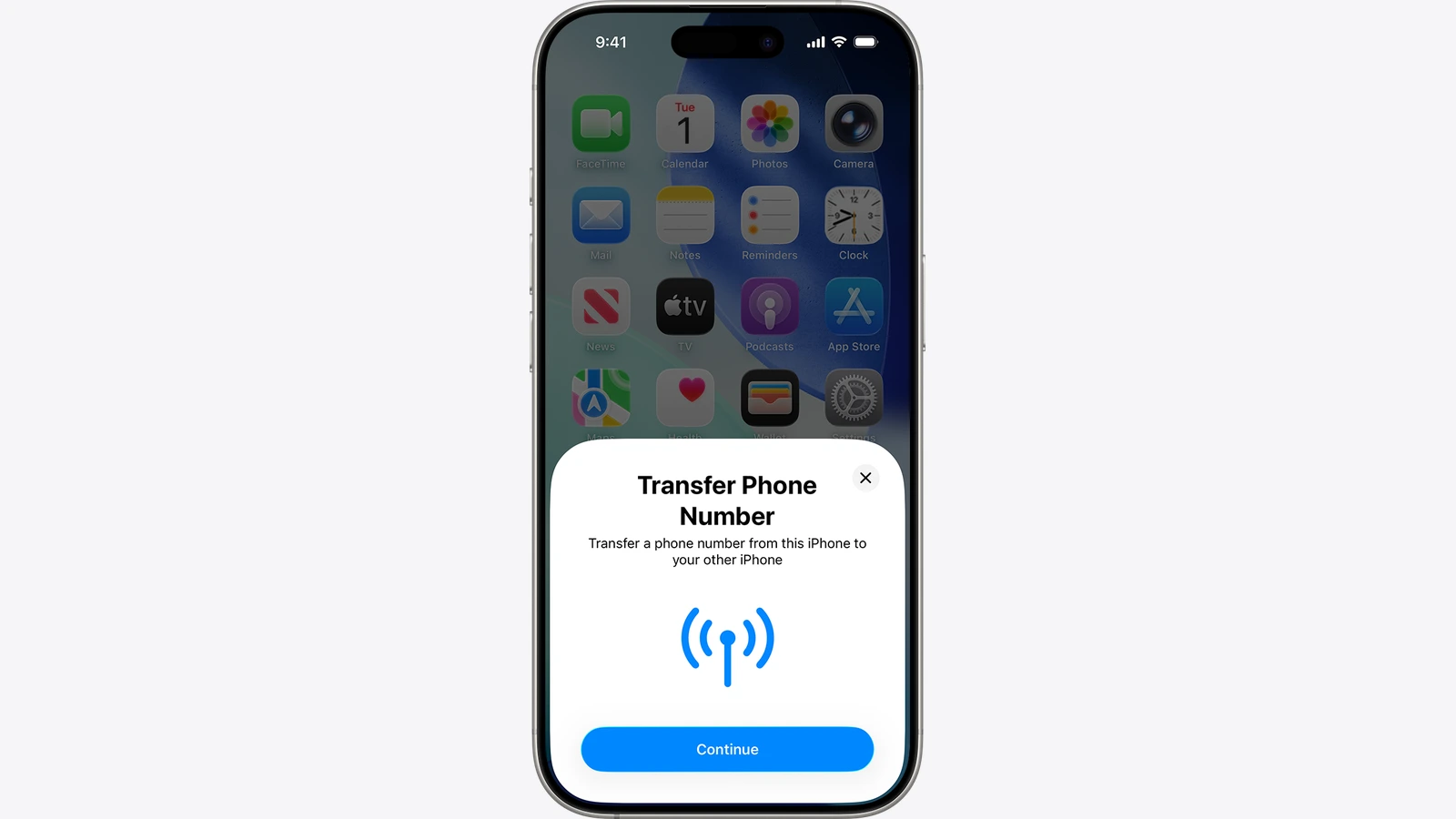
If the new iPhone asks during setup whether to transfer your phone number, follow the prompts. With iOS 26 or later, Apple says you can move more than one number.
After setup, do this on the new iPhone:
- Open Settings and tap Cellular.
- Tap Set Up Cellular or Add eSIM.
- Choose the plan to transfer. If no numbers are listed, tap Transfer From Nearby iPhone.
- On the old iPhone, tap Transfer. If asked for a verification code, enter the one the new iPhone shows.
- Wait for the plan to activate.
If a banner says "Finish Setting Up Your Carrier's Cellular Plan", tap it. Apple says it opens your carrier's page to finish the transfer, and to contact the carrier for help.
Verizon's iPhone page lists tighter conditions for bring-your-own iPhones: an iPhone 11 or newer as the old one, an iPhone 12 or newer as the new one, iOS 15.6 or later, the same iCloud account with two-factor authentication, and a screen passcode on both.
Apple's erase-an-eSIM page says deleting an eSIM does not cancel the plan: to cancel, contact your carrier. After you erase an eSIM, you need your carrier to issue a new one.
If Quick Transfer is not offered
Apple lists other ways to activate an eSIM:
- QR code: during setup, tap Use QR code on the Set Up Cellular screen. After setup, scan the code with the Camera app and tap Cellular Plan Detected.
- Carrier link: on iOS 17.4 or later, tap the link and then Allow.
- Carrier app: Apple says some carriers let you transfer a number from the old phone this way.
- Manual entry: Settings, Cellular, Add Cellular Plan, Enter Details Manually.
Android to Android
Google says automatic transfer needs Android 12 or later, the current Google Play Services and a screen lock on both phones. Depending on your carrier, it may run during setup.
During setup on a Pixel:
- Keep the other phone nearby and go through the setup flow.
- Choose the SIM to transfer.
- Tap Transfer, then Activate, and follow the prompts.
Later, from Settings: Network & internet, SIMs, Add SIM, Transfer SIM from another device. Google says that if the transfer is not detected, contact your carrier, and your existing eSIM can still work after a failed transfer.
Samsung Galaxy
Samsung's US page gives these steps on the new Galaxy:
- Open Settings, tap Connections, then SIM manager.
- Tap Add eSIM, then Transfer SIM from another phone.
- On the old phone, tap Transfer and enter the code shown on the new phone.
- On the new phone, pick the SIM to move and tap Transfer, then tap Transfer on the old phone.
- Tap Done on the old phone. The SIM on the new phone activates.
Samsung says only some carriers allow this "instant transfer". In the US it lists AT&T, Boost Mobile, Cricket, FirstNet, Mint Mobile, Spectrum Mobile, T-Mobile, U.S. Cellular, Verizon and Xfinity Mobile.
Verizon's Samsung page adds that the Galaxy S24 and S25 series need One UI 6.1 or later. During setup it uses a QR code on the Easy setup screen.
iPhone to Android and back
Apple's iPhone-to-Android route. Apple's page says iOS 26.3 (or iPadOS 26.3) can transfer data and an eSIM to an Android device. You need the latest software, Wi-Fi on the iPhone and Bluetooth on both, and "a compatible version of Android 17", so check with the Android maker.
For the eSIM you need a supported carrier; in the US Apple lists AT&T, FirstNet, T-Mobile and Verizon. Availability varies by carrier.
- Start setup on the Android phone.
- On the iPhone, scan the setup QR code with the Camera app. Or go to Settings, General, Transfer or Reset iPhone, Transfer to Android, tap Continue and scan.
- Choose the data to move, tap Continue, then tap Continue again to transfer the eSIM.
- Double-click the side button when asked to confirm.
To move only the eSIM, begin eSIM setup on the Android phone, then on the iPhone go to Settings, Cellular, Transfer eSIM under Transfer to Android, scan the code and pick the number. Apple says the number then stops working on the iPhone.
If the code will not scan, tap Other Options on both phones and enter the session ID and pairing code.
Apple's two pages set different minimums by direction: iOS 26.3 with Android 17 for iPhone to Android, iOS 26 with Android 16 for Android to iPhone. Google and Samsung give their own carrier lists below.
iPhone to Pixel. Google says the experience varies by carrier and where you bought the phone. On the Pixel, go to Network and Internet, SIMs, Add SIM, Transfer a SIM from another phone, iPhone, then pair with the iPhone by QR scan.
Google says the iPhone needs iOS 26 or later for T-Mobile, and for AT&T and Verizon when you did not buy the Pixel directly from them. Google's US carrier list also names Cricket, FirstNet, Google Fi and Xfinity Mobile.
iPhone to Galaxy. Samsung says you can transfer "seamlessly" without contacting your carrier on supported carriers: AT&T, FirstNet, T-Mobile and Verizon in the US. On the Galaxy, go to Settings, Connections, SIM manager, Add eSIM, Transfer SIM from iPhone, and scan the QR code with the iPhone. Both phones need current software, Wi-Fi and Bluetooth.
Android to iPhone. Apple says you need a supported carrier (US: AT&T, Cricket, FirstNet, T-Mobile, Verizon, Xfinity Mobile), an iPhone 11 or newer on iOS 26 or later, and an Android phone on Android 16 or later.
On the iPhone, tap Set Up Cellular, then Transfer from Android (or Cellular, Add eSIM, Transfer from Android). Scan the QR code with the Android camera, pick the number and tap Transfer.
If the QR code will not scan, Apple's fallback is Other Options on the iPhone, then on the Android: Settings, Google services, All services, Pair with iPhone or iPad, Transfer eSIM, and enter the session ID and pairing code.
If your carrier or phone is not supported, Apple says to contact the carrier. They will transfer the number through eSIM Carrier Activation or give you a QR code.
Use your carrier's app
Google's pages say AT&T and Verizon customers can also transfer through the carrier's app. Verizon says the My Verizon app can move an existing line to another eSIM phone with no QR code and no fee. You must be the Account Owner or an Account Manager, have an unlocked eSIM-compatible phone, and be on a standard monthly plan.
Verizon says you need the old phone for authentication if the account has one line. With several lines, another device on the account can do it.
One limit from Verizon's iPhone page: its "Transfer Android Plan" option is listed as available only for the Pixel 10.
Why it matters
The old phone stops working on that number the moment the new plan activates. Apple and Verizon both say so. Do the transfer while the old phone still has power, a signal and its screen passcode, because several flows need it to approve the move.
Also, "supported" is a carrier list, not a promise. The US carrier lists differ by route, such as Apple's Android-to-iPhone list and Samsung's iPhone-to-Galaxy list. Check the exact pair of phones against your carrier first.
Prepaid and business lines may have different eligibility, so ask your carrier. AT&T and T-Mobile publish their own transfer steps, so check theirs for your plan.
If it fails
Apple and Google both say to contact your carrier. Apple suggests making a call on the new iPhone to check connectivity after the transfer. Google says your existing eSIM can still work after a failed transfer. Do not erase or sell the old phone until the new one makes a call.
Next steps
If your new phone came from abroad, see can you use an imported phone in the US. Once the number works, set up passkeys on iPhone and Android.