If a device is already on the network, an iPhone, iPad, Mac or Windows 11 PC can show the saved password. Android's help pages only describe sharing it by QR code. A router's label or admin page covers every other case.
iPhone and iPad
Apple's page says that in iOS 16, iPadOS 16.1 and later you can use your passcode, Face ID or Touch ID to see and copy Wi-Fi passwords. For the network you are on now:
- In the Settings app, tap Wi-Fi.
- Find the Wi-Fi network that you're currently using.
- Tap the Info button.
- Tap the Password field.
- Use your passcode, Face ID, or Touch ID to unlock and reveal the password.
For a network you joined before:
- In the Settings app, tap Wi-Fi.
- Tap Edit in the upper-right corner.
- Use your passcode, Face ID, or Touch ID to unlock and reveal networks that your device previously joined.
- Tap the Info button next to a network with a lock icon.
- Tap the Password field to reveal it.
In iOS 18 you can also open Passwords, tap Wi-Fi, tap the network and tap the Password field. If the iPhone keeps dropping the network, see our fix for an iPhone that keeps disconnecting from Wi-Fi.
Sharing instead of reading it
If you only need a friend to join, you don't have to read the password out. Apple's sharing page lists these requirements:
- Both devices run the latest iOS, iPadOS or macOS.
- Wi-Fi and Bluetooth are on, and each person is signed in with their Apple Account.
- Personal Hotspot is off on both.
- Each person has the other's Apple Account email or phone number saved in Contacts.
- The devices are close together.
Then:
- Ask the person requesting the password to tap the Wi-Fi network name on their device.
- Make sure your own device is unlocked and connected to Wi-Fi.
- When prompted on your device, tap Share Password, then tap Done.
If the setup animation doesn't appear, Apple says to restart both devices and try again, or have the other person enter the password manually.
Mac
Apple's Passwords guide for Mac gives these steps:
- Go to the Passwords app on your Mac.
- Click Wi-Fi in the sidebar.
- Select a Wi-Fi network.
- Hold the pointer over the series of dots next to Password to show the password.
- To copy the password to use elsewhere, click the series of dots.
Apple's general Passwords page says the Passwords app requires macOS Sequoia or later. For macOS Sonoma or earlier, Apple's pages we read do not document a route for Wi-Fi passwords, so we give none.
Windows 11
Microsoft's page for Windows 11 says to go to Settings, then Network & internet > Properties, then select Show next to Wi-Fi network password. The same page also notes that saved passwords appear under Manage known networks.
Microsoft documents a Control Panel route (Network and Sharing Center > Wireless Properties > Security tab > Show characters) for the Windows 10 tab only. Microsoft's netsh page documents exporting a profile with key=clear to include the key in plain text when run as a local administrator, but gives no show-the-password walkthrough.
Android
Google's help pages for Pixel and Android describe sharing the network, not displaying the password as text. Neither says how to read a saved password. The steps below are from Google's Pixel page and need you to be connected to the network you want to share:
- Go to Settings > Network & internet > Internet.
- Make sure that Wi-Fi is on and you're connected to the network you want to share.
- Next to the Wi-Fi network, tap Settings, then Share.
- If needed, verify your identity on your device.
- Use the QR code to share the network.
Google's Pixel page also offers Quick Settings: swipe down from the top of the screen, tap Internet, then at the bottom left tap Share Wi-Fi.
The Pixel page says some steps work only on Android 11 and up; the Android Help page says some of its steps work only on Android 12 and up.
On Samsung, the Samsung Singapore page (last updated Aug 1, 2022) says to go to Settings > Connections > Wi-Fi, tap the Settings icon beside the connected network, then tap QR code. Samsung's page doesn't show the password as text either.
Router label and admin page
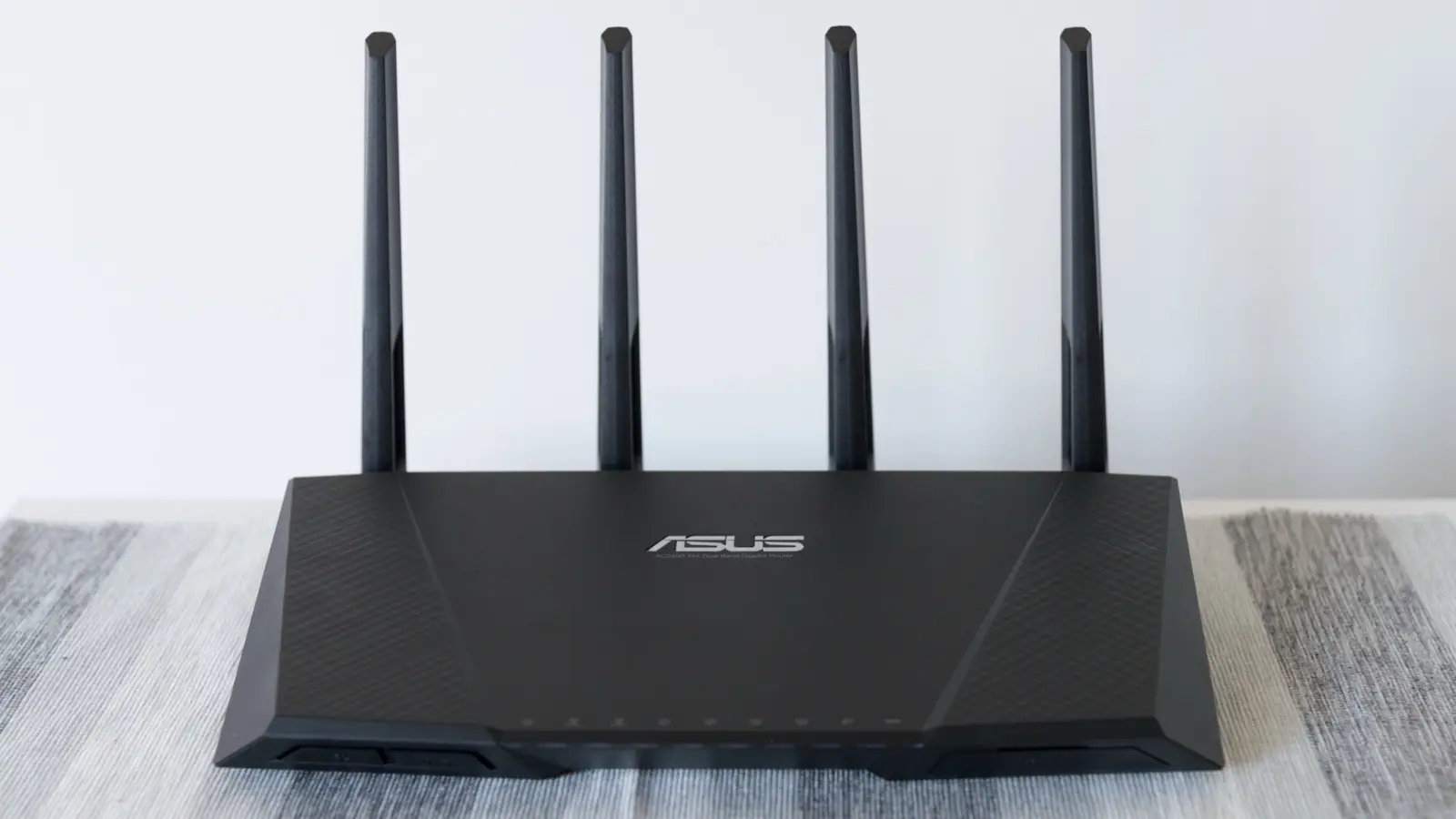
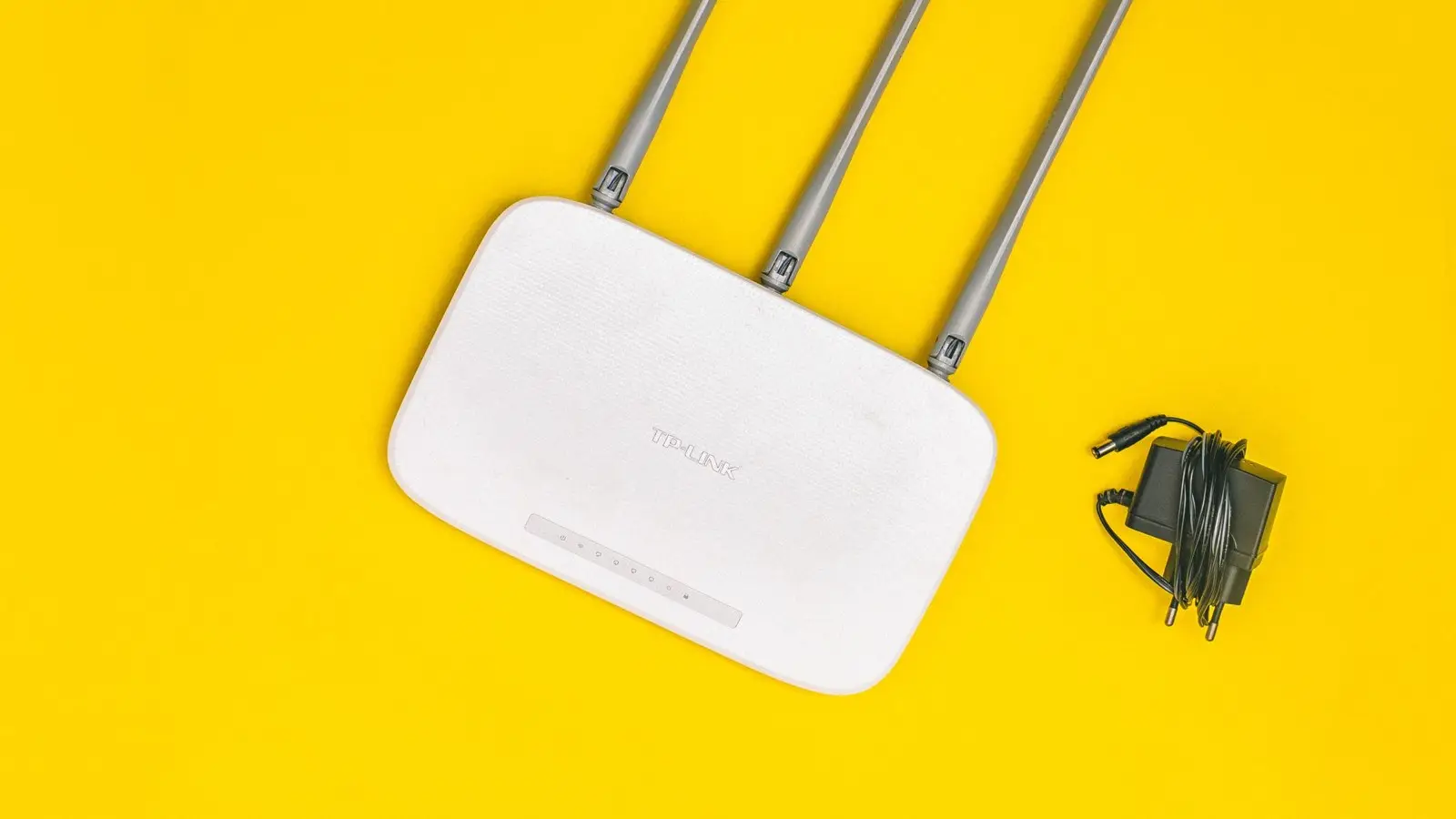
Your router may print its default network name and password on a label. TP-Link's support page says the label sits on the bottom of the router.
If you or your provider changed the password, the label won't show the new one. It lists only the default.
For the admin page, TP-Link's page says to open a browser and go to tplinkwifi.net or 192.168.0.1, log in, then open Wireless > Wireless Settings or Basic > Wireless. The menu names and address vary by model, so check your router's own instructions. If your router is old, see whether you need a Wi-Fi 7 router.
What we checked
We read these vendor support pages on Nov. 13, 2026 and did not test the steps on devices. The Samsung page is a Singapore page from 2022, and the TP-Link page is vendor-specific and dated 2012, so labels and menus can differ on your model.
Why it matters
The password is easy to find on Apple and Windows, but Android's help pages stop at a QR code, so sharing there needs the connected phone. A router label can also be out of date after a change.