Here is how to factory reset an iPhone. If you can unlock it, back it up, sign out of your Apple Account, then go to Settings > General > Transfer or Reset iPhone > Erase All Content and Settings. If you are locked out, put the iPhone in recovery mode and restore it with a Mac or a Windows PC. Both paths erase your data.
Before you erase
Apple's guide to preparing a device for selling, giving away or trading in lists these steps. Work through them first.
- Back up your iPhone.
- Unpair your Apple Watch.
- Handle AppleCare if it applies to the device.
- Sign out of your Apple Account (steps below).
- Switching to a non-Apple phone? Deregister iMessage first.
Apple also says erasing does not delete content from iCloud. For help with the backup step, see how to free up iPhone storage without deleting photos.
Sign out of your Apple Account
On iOS 26 or later:
- Open Settings and tap your name.
- Scroll down and tap Sign Out.
- Choose "Erase this iPhone" or "Sign Out But Don't Erase".
- If asked which account, choose "Sign out of iCloud and Store".
On iOS 18 or earlier:
- Open Settings and tap your name.
- Tap Sign Out.
- Enter your Apple Account password and tap Turn Off.
Path 1: erase from Settings
Use this when you can still unlock the iPhone.
- Open Settings, tap General, then tap Transfer or Reset iPhone.
- Tap Erase All Content and Settings.
- Enter your passcode if prompted.
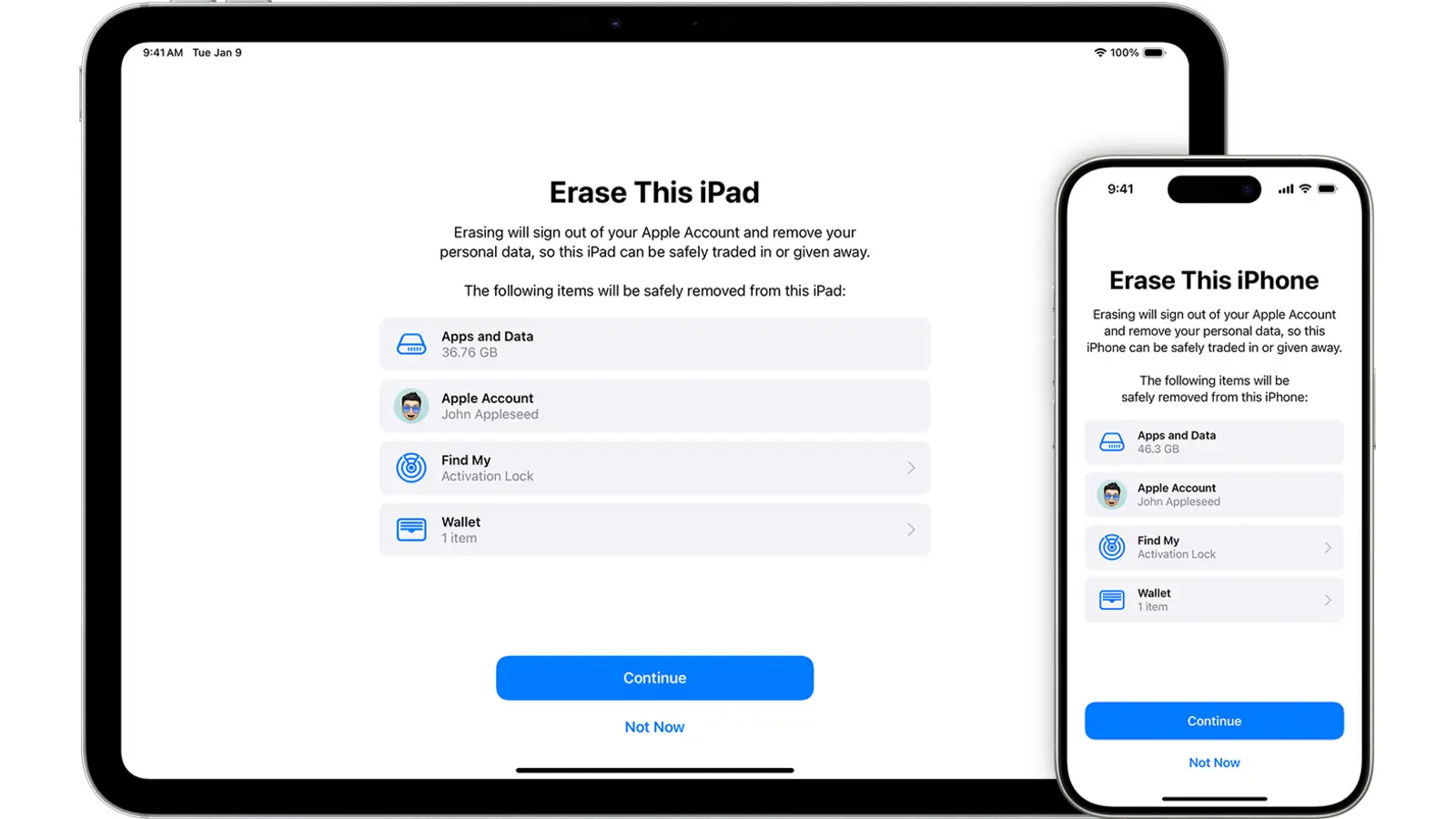
- On the Erase This iPhone screen, tap Continue, then Erase iPhone if asked.
- If the iPhone uses an eSIM, choose to erase the eSIM profile when asked. With no SIM in the phone, Apple says to contact your carrier.
Apple says that if Find My is on, you might need to enter your Apple Account and password. It also says erasing turns off Find My and Activation Lock.
Afterward, Apple says to remove the device from your trusted devices list.
If your iPhone is lost or stolen
Apple says to erase it in Find Devices on iCloud.com, then change your Apple Account password.
Path 2: reset with a Mac or PC when you're locked out
Apple points to two options before this one: try Passcode Reset first (support.apple.com/105039), then resetting without a computer (support.apple.com/105090). If neither works, use a computer. This method erases all data.
You need:
- A Mac or a Windows PC.
- A cable that can charge your iPhone.
- An internet connection.
- Up to 60 minutes.
1. Power off the iPhone
- Face ID models: hold the side button and Volume down until the power-off slider appears.
- Models with a Home button or top button: hold the top or side button until the slider appears.
2. Enter recovery mode
Connect the cable to the computer first, then to the iPhone. Then:
- Face ID models, iPhone 8, iPhone 8 Plus, iPhone SE (2nd and 3rd generation): quickly press and hold the side button, and keep holding through the Apple logo, until the computer-and-cable image appears.
- iPhone 7 and 7 Plus: do the same with the Volume down button.
- iPhone 6s and earlier, iPhone SE (1st generation): do the same with the Home button.
If the buttons do not respond and you cannot reach the recovery screen, Apple says you may need service.
3. Restore
On a Mac: open a Finder window, select your iPhone under Locations, click Allow if asked about the accessory, then click Restore.
On a Windows PC: open the Apple Devices app (from the Microsoft Store), select your iPhone, click Trust if prompted, go to General, then click Restore.
If the download takes more than 15 minutes and the iPhone leaves recovery mode, Apple says to let the download finish. If the iPhone restarts, power it off and enter recovery mode again.
When it finishes, the Hello screen appears and you can set the iPhone up.
What it does not do, and what we could not confirm
- Erasing does not delete content from iCloud, per Apple.
- We have not tested these steps on a device. Menu names are Apple's, as of Nov. 12, 2026, and can differ by iOS version.
- Apple's recovery-mode page does not mention Activation Lock, so we cannot say how the computer method interacts with it.
What we checked
Everything above comes from two Apple Support pages, checked on Nov. 12, 2026: what to do before you sell, give away, or trade in your iPhone or iPad and use a computer to reset your iPhone and your passcode.
Related: free up iPhone storage without deleting photos, how to stop spam calls on iPhone, how to set up passkeys on iPhone and Android.