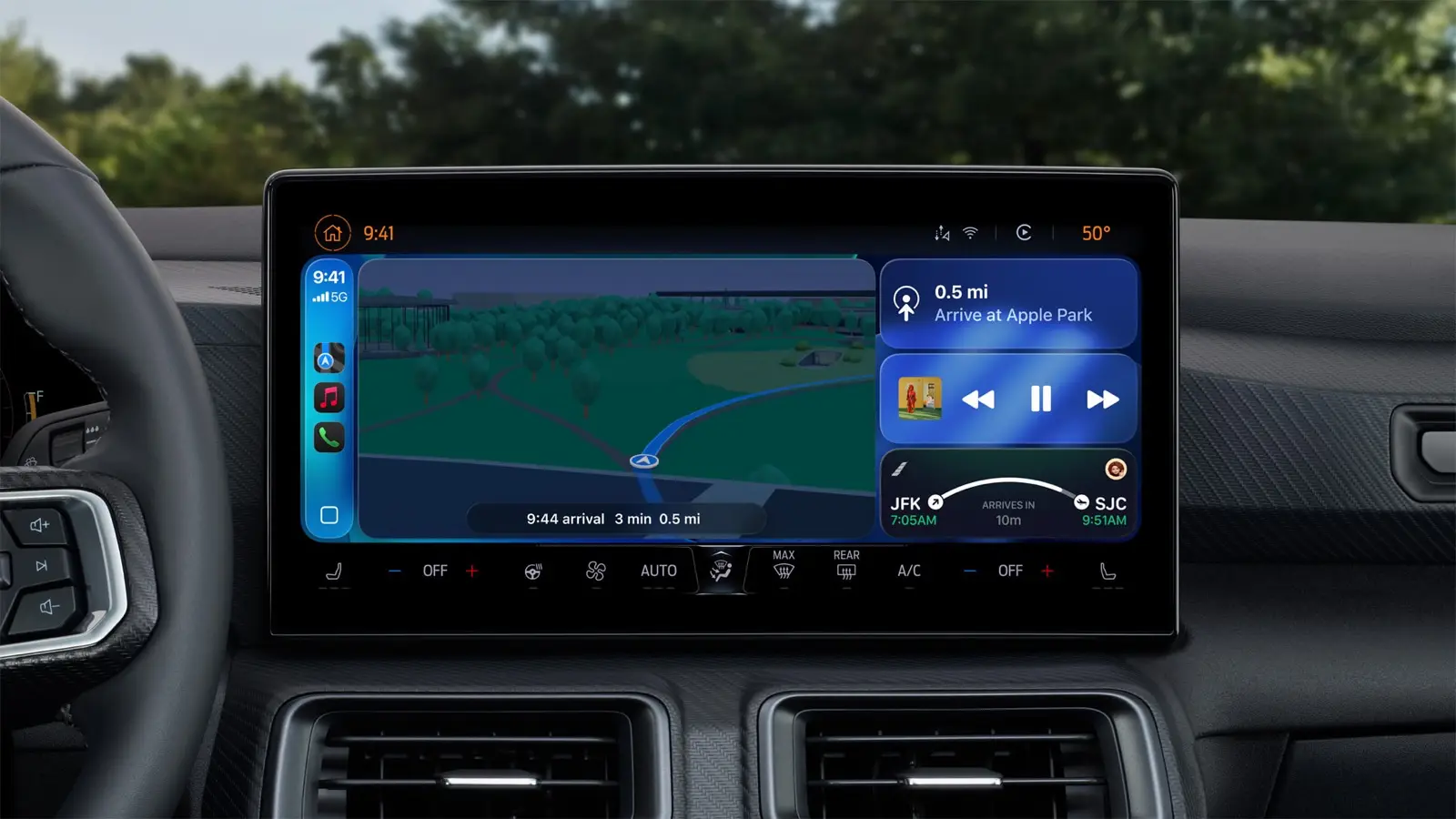
To turn on Live Activities in CarPlay, check the app's switch on your iPhone and the Live Activities toggle on the car screen. Apple says they then appear on the CarPlay Dashboard, such as directions in Maps, live sports updates and food delivery estimates.
Here is how to turn them on and off, what does not appear, and what to check when nothing shows. We did not test any of this in a car, so every step comes from Apple Support, Engadget or iDownloadBlog.
What you get
Engadget reports that Live Activities appear on the Dashboard automatically. If an app fills the whole screen, they show as a notification at the bottom of the display.
iDownloadBlog found that a new one first appears as an alert at the bottom of the CarPlay screen, then drops out of view. To find it again, swipe right on the first Home Screen page.
Turn them on
iDownloadBlog says CarPlay support is on by default after the iOS 26 update, and Engadget says Live Activities should be enabled by default. Check these four places:
- Per app, on iPhone. Go to Settings, tap Apps, tap the app, then tap Live Activities (Apple Support). Make sure the slider is on (Engadget).
- Lock Screen (optional). Go to Settings > Face ID & Passcode, confirm your passcode, and turn on Live Activities under Allow Access When Locked (Engadget).
- CarPlay toggle, on the car screen. Start CarPlay, open Settings on the car's display, scroll down and make sure Live Activities is on. This is the car's Settings app, not the iPhone's (Engadget; iDownloadBlog).
- Suggestions. Confirm that Suggestions in CarPlay, or Suggestions in Dashboard, is on (Engadget).
Turn them off
To stop all of them on the car screen, start CarPlay, open Settings on the car's display, and switch Live Activities off (iDownloadBlog). They still work on your iPhone, but they stop appearing on the car's screen.
To stop one app, go to Settings > Apps > the app > Live Activities and switch it off (iDownloadBlog; Apple Support gives the path).
What does not show up
iDownloadBlog's author tested several apps. Live Activities from nearly all of them reached the car. An ongoing stopwatch in the Apple Clock app, a file download in Safari and a WhatsApp video upload in the background did not. That is one author's tests. We did not repeat them.
If nothing shows up
The order below is ours. Each step comes from the sources named above.
- Start on the iPhone. Check that the activity appears on the iPhone first. Engadget says they show on the Dynamic Island and the Lock Screen.
- Check the per-app switch. Settings > Apps > the app > Live Activities must be on.
- Turn off Driving Focus. If the activities still don't appear, turn off Driving Focus if it is running (Engadget).
- Check the CarPlay toggle. On the car screen, Live Activities and Suggestions must both be on (Engadget).
- Restart. Restart your iPhone and your car (iDownloadBlog).
- Update. Update iOS (iOS 27 is current). iDownloadBlog also suggests trying another app: if that app's activity appears, update the app that does not show.
Which iOS version
The Apple page we read does not say which iOS version added the feature. iDownloadBlog and AddCarWidgets both say iOS 26 added Live Activities to CarPlay. iOS 27 is current, and Apple documents the feature on both iOS 27 and iOS 26. Apple's guide and Engadget give the same per-app path.
What we could not confirm
We did not test this in a car, so we cannot say how any car or screen behaves. Apple's page names no CarPlay toggle, and its "Change settings in CarPlay" page lists no Live Activities toggle. The page we read also does not say which iOS version added the feature; those details come from Engadget and iDownloadBlog. The list of what does not appear comes from one author's tests.