Samsung's side button settings let you change what a double press and a long press do on a Galaxy phone. Samsung's pages put the settings under Advanced features. This guide lists the options Samsung and How-To Geek document. We did not test them on a phone, and none of the pages we read names a One UI version.
Where the Samsung side button settings are
Samsung gives this path:
- Open Settings.
- Tap Advanced features.
- Tap Side button (the Samsung Australia page says Side key on phones).
From there you choose Double press or Long press. Samsung says menu options vary by device model, region and software version. On a Galaxy Z Flip, Samsung says the phone should be open when you use these shortcuts, because behavior may differ with it closed.
What each press does
Defaults below come from Samsung's pages. Samsung's own pages differ on the long-press default, so your phone may not match.
| Press | What Samsung says it does |
|---|---|
| Single press | Wakes or locks the screen |
| Double press | Opens Camera by default; you can change it |
| Long press | Launches Gemini on the Samsung Canada page (Google Assistant where Gemini is not available); Samsung US lists Bixby |
| Side button + Volume down, short press | Takes a screenshot |
| Side button + Volume down, long press | Opens the power-off menu (Samsung Canada says "Power-off or Emergency SOS") |
| Hold Side button while the phone is off | Powers it on |
Get the power menu on a long press
Samsung US lists three long-press options: Digital assistant, Bixby and Power off menu. To get the power menu back on a long press:
- Go to Settings, Advanced features, Side button.
- Tap Long press.
- Choose Power off menu.
Samsung warns of the reverse: if long press launches a digital assistant app or Bixby, you cannot reach the power-off menu with the Side button alone. Its page lists three other ways: the Quick panel, pressing Side and Volume down together, or saying "Turn off the phone" to Bixby, which works only after Bixby Voice is set up.
Samsung Canada's side button page says its long-press steps let you "tap the app you want to launch when long pressing". Samsung US and Engadget list only the assistant, Bixby and power-menu options, so Samsung's pages differ on this.
Choose the assistant for a long press
Samsung's Canada Gemini page says to open Settings, Advanced features, Side button, Long press, and make sure Digital assistant is selected. Tap the gear icon next to it and check that Google is selected.
How-To Geek says you can install another assistant app and choose it there, naming ChatGPT, Claude and Perplexity as working. It also says compatibility has limits.
Conditions Samsung states for Gemini: Gemini Live needs an internet connection and Google Account sign-in. A personal or school account needs you to be 13 (or the minimum age in your country) or over. A work account needs age 18 or over, and a work or school account needs access enabled by its administrator.
Six double-press setups
This list and its order are ours, not Samsung's. Every option below appears on Samsung's Canada page.
Open Settings, Advanced features, Side button, then Double press. Samsung Australia says to enable Double press first if it is off, then pick the function; Samsung Canada says to tap the app you want. Samsung says an app with a gear icon lets you pick a specific function.
Options vary by region, software version and carrier.
- Camera. Pick Camera. Samsung's Canada page says you can then choose a specific camera function with the gear icon, and gives opening the selfie camera as its example.
- Voice recorder. Pick Voice Recorder > Start recording.
- Voice note. Pick Samsung Notes > Record voice note.
- Flashlight. Pick Flashlight.
- Sleep mode. Pick Modes and Routines > Sleep. How-To Geek says Modes and Routines can also run a mode such as Do Not Disturb.
- Samsung Wallet. Pick Samsung Wallet.
Samsung also lists Magnifier, Samsung Capture > AI select and Apps for a double press.
What the side button cannot do
- Keep an assistant and the power menu on the same long press. Samsung says a long press set to an assistant or Bixby gives up the power-off menu on that gesture.
- Remap the dedicated Bixby button's long press on older phones. Samsung says holding the dedicated Bixby button on devices such as the Galaxy S10 and earlier always starts Bixby Voice.
What we could not confirm
- What changed between One UI 8 and One UI 9. No Samsung page we read names either version, so we cannot say which steps differ. The Samsung Australia page is dated August 18, 2026, and the Canada page August 19, 2025.
- Good Lock RegiStar. GeekChamp reported an update on May 25, 2026, but we could not open Samsung's Galaxy Store listing, so we left it out of the setups.
- Whether the single press can be remapped, or whether other press types exist. The pages we read do not document either; they list single, double and long press only.
- How any step behaves on your phone, which we did not test.
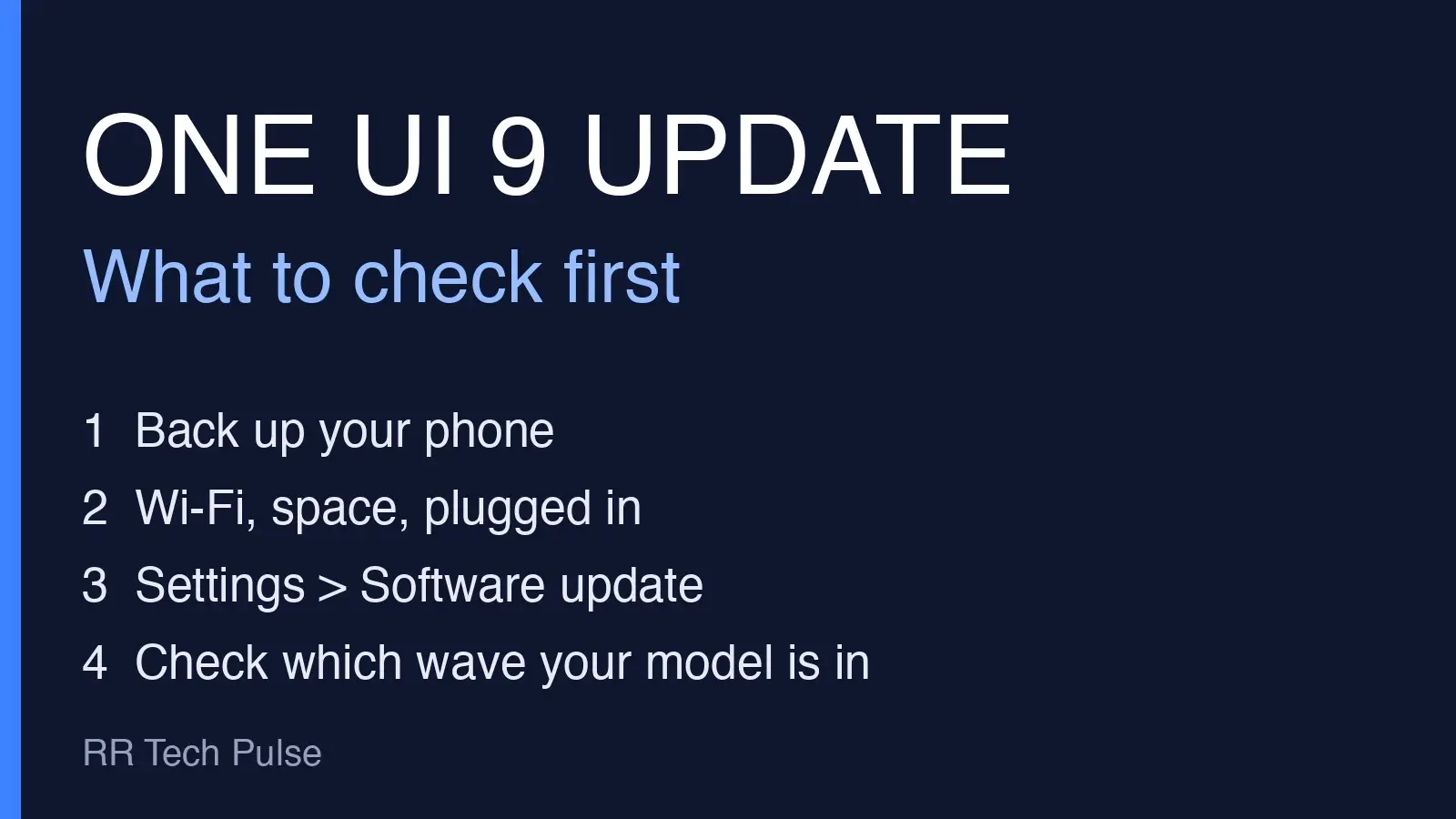
Updating first? See Update your Galaxy to One UI 9: what to check first.