Move in this order: check what your method carries, transfer your data, turn off iMessage and FaceTime, then erase the iPhone last.
We did not test any of this. Every step below comes from the support pages linked in each section, and where those pages are silent we say so.
Before you start
Run through this list first. Each item comes from the support pages linked below.
- Charge both phones beforehand (the Galaxy cable route requires it, since they cannot charge during the transfer). For wireless transfer, put the iPhone on Wi-Fi first.
- Keep the iPhone's charging cable. The cable method and the WhatsApp transfer both need it, and you may need an adapter.
- Stay with the phones. The cable method asks for your PIN throughout.
- Keep the iPhone's SIM in it until you have turned off iMessage. If you have moved it, you will need to put it back.
- Keep the iPhone itself until you have checked that your data arrived.
Pick a transfer method
You have three routes, and they carry different things. Choose by the new phone you are buying.
Android Switch. Google's help page describes a cable method and a wireless one that uses the Android Switch app on the iPhone. The wireless route needs iOS 15 or later.
| Data | Wireless | Cable | Upgraded |
|---|---|---|---|
| Contacts | Yes | Yes | Yes |
| Photos and videos | Yes | Yes | Yes |
| Calendars | Yes | Yes | Yes |
| Messages | No | Yes | Yes |
| Apps | No | Yes | Yes |
| Music | No | Yes | Yes |
| Passwords and passkeys | No | No | Yes |
The upgraded process starts with Android 17 on some devices. The page names Pixel 8 and newer, plus the latest Galaxy Z Flip and Z Fold. Our guide to the new version covers what else that version adds.
Free apps from the Play Store transfer. For paid subscriptions, you have to contact the developer.
The iPhone's own Transfer to Android
Apple's Transfer to Android page needs iOS 26.3 on the iPhone and a compatible version of Android 17 on the new phone. For which phones qualify, the page sends you to the manufacturer.
On the iPhone, go to Settings > General > Transfer or Reset iPhone > Transfer to Android. Scan the QR code on the Android screen with the iPhone camera. If scanning fails, choose Other Options and type the session ID and pairing code shown on the Android phone.
Then pick what to move. The page's examples are photos, contacts, calendars, call history and messages, and it does not say whether that is the full list. Third-party app data moves only once the developer turns that feature on.
Moving your phone number (eSIM)
After the data transfer, the same flow can move your eSIM: tap Continue, then double-click the side button on the iPhone to confirm.
It works only with certain carriers. The Transfer to Android page lists AT&T, FirstNet, T-Mobile and Verizon in the US, KDDI in Japan, DT-DE in Germany, SFR in France and EE in the UK. Once you select a number and finish, the number will no longer work on the iPhone. The page gives no transfer time, cost or size limit.
Moving to a Galaxy
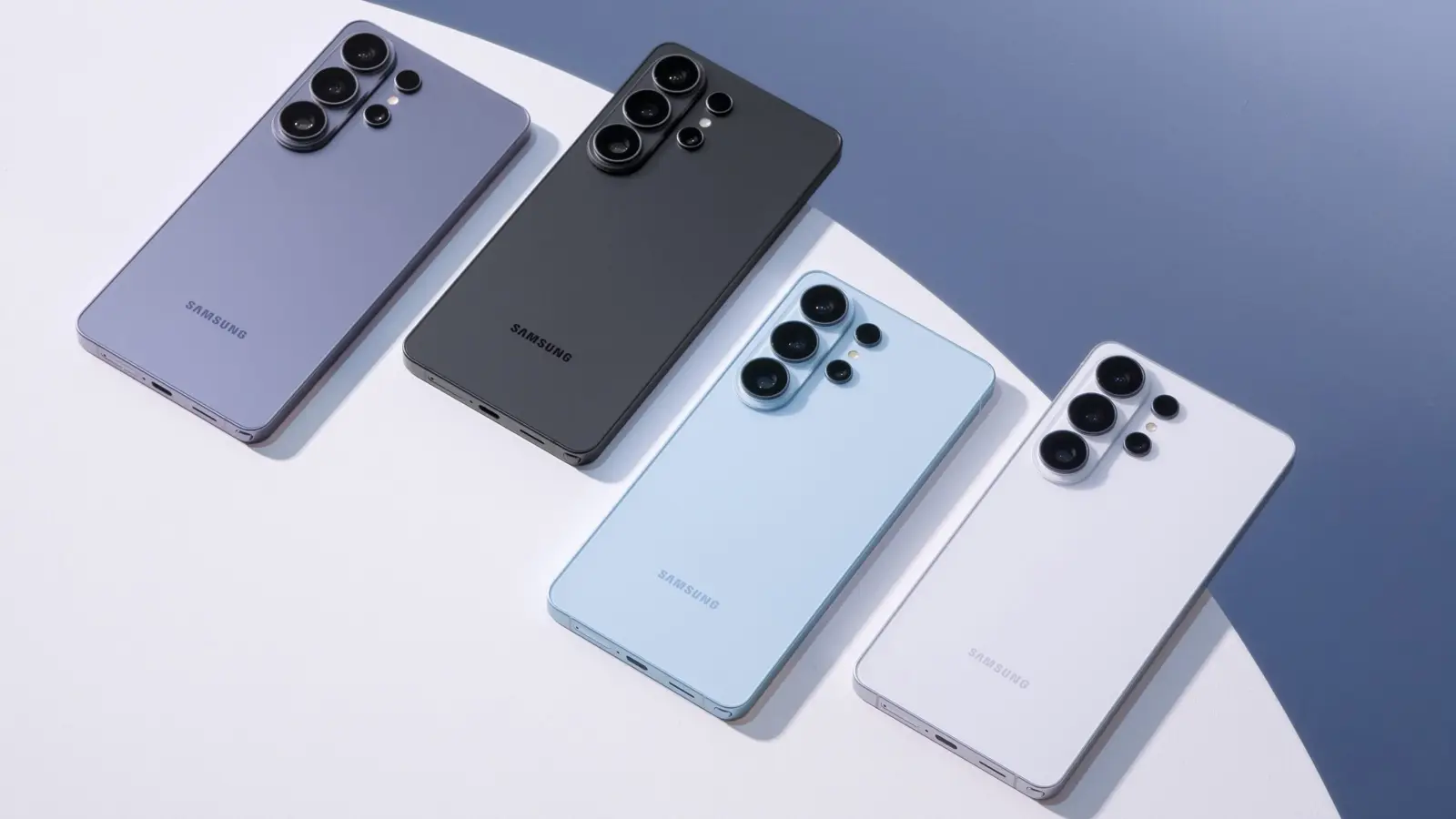
Samsung's Smart Switch page has two routes for an iPhone. Our One UI 9 guide covers the software that ships on newer Galaxy phones.
- Wireless through iCloud. This is the route for a Galaxy running software older than One UI 9.0. Sync the iPhone to iCloud first, then in Smart Switch choose Receive data > iPhone/iPad > Get data from iCloud instead. The page refers One UI 9.0 and newer to a separate guide, which we did not read.
- Cable. You need the iPhone's Lightning cable and a MicroUSB-to-USB OTG adapter. Tap Trust on the iPhone, choose your content, then tap Transfer.
Over iCloud, the Smart Switch page lists contacts, schedule, calendar, notes, call history, bookmarks, photos, Live Photos, videos without DRM, documents, voice memos, alarms and Wi-Fi settings. iTunes music and videos cannot come from iCloud. The cable route adds messages and music without DRM.
Moving WhatsApp chats
WhatsApp chats have their own transfer, and the WhatsApp transfer page describes two flows. You need a Google Account, the same phone number on the new phone and the iPhone's cable. Transfer before you use WhatsApp on the new phone, or new messages can be overwritten.
During setup. On the Copy apps and data screen, choose Copy from iPhone or iPad, connect the cable, tap Trust and make sure Apps is selected with WhatsApp listed. Scan the QR code. If the scan fails, open WhatsApp on the iPhone and go to Settings > Chats > Transfer chat history > Transfer to Android.
After setup (QR flow). Scanning a QR code during setup does not copy chats. Instead, go to Settings > Accounts and backup > Android Switch > Transfer WhatsApp chats, connect the cable, tap Trust on the iPhone, scan the QR code and follow the prompts.
If you skipped the setup copy, the WhatsApp page says you have 3 to 7 days to restore chats from the iPhone. Do not open WhatsApp on the new phone first, or it may need a factory reset. Galaxy phones use Smart Switch for this step.
The Smart Switch page we read does not list WhatsApp. The WhatsApp page names no minimum Android version, so check that your new phone is supported before you rely on it.
What does not move
The Android Switch page lists four things it does not carry over:
- Photos and videos that live only in iCloud.
- Paid apps and in-app purchases.
- Safari bookmarks.
- Health data.
The Galaxy iCloud route above does list photos and bookmarks, so these gaps apply to Android Switch.
Passwords and passkeys move only in the upgraded process in the table above. The iPhone-side pages we read do not say what happens to iCloud Keychain, or whether apps you bought can be used on an Android phone, so plan to sign in to your accounts again.
Turn off iMessage and FaceTime
Do this before you sell, trade in or wipe the iPhone. The iMessage page says that if you moved to an Android phone and are not getting RCS or SMS/MMS messages, you may need to deregister iMessage.
- If you moved your SIM to the new phone, put it back in the iPhone.
- Make sure the iPhone is on its cellular data network.
- Go to Settings > Apps > Messages and turn off iMessage.
- Go to Settings > Apps > FaceTime and turn off FaceTime.
No iPhone to hand? Apple's deregister page says you can deregister iMessage online and links a form. We could not read the form's steps.
Do this last: erase the iPhone
Only erase once you have checked that your data is on the new phone. The pre-sale checklist repeats the deregister step for anyone switching to Android.
On iOS 26 and later, go to Settings > your name, scroll down and tap Sign Out, then choose Erase this iPhone. On iOS 18 or earlier, tap Sign Out, enter your account password and tap Turn Off.
On every version, the pre-sale checklist then has you go to Settings > General > Transfer or Reset iPhone > Erase All Content and Settings, enter your passcode if asked and tap Erase iPhone. Erasing also turns off Find My and Activation Lock, and you may be asked for your account password.
What we could not confirm
The Android Switch page says a transfer usually takes under 30 minutes, and up to a few hours with a lot of data.
None of the Android Switch, Smart Switch or Transfer to Android pages says how much charge each phone needs or which Wi-Fi speed to use. The WhatsApp page does not state a minimum Android version. And we did not test any of these routes on a real phone.