If your phone says a tracker is moving with you, tap the alert and play a sound to find it. Google says you can leave it on if turning it off could be unsafe, and some trackers factory reset when off. If you feel unsafe, go to a public place and contact law enforcement.
What the alert looks like
Apple says iPhone alerts read "AirTag Found Moving With You" or "AirPods Detected." They mean an item separated from its owner has been seen with you over time. "Unknown Accessory Detected" appears for other compatible trackers, not AirTags. Find My shows a map of where it was detected.
On Android, Google says you get an alert when someone else's tracker is separated from its owner and moves with you. The alert shows a map of where the tracker was detected with you.
An alert does not always mean someone is tracking you. The tracker may be in something you borrowed, such as keys, a backpack or someone's AirPods.
Find the tracker on iPhone
Apple's page gives these steps.
- Tap the alert, then tap Continue.
- Tap Play Sound. You can play it again if you need more time.
- If you have an iPhone with Ultra Wideband, tap Find (Find Nearby) for an AirTag. Follow the on-screen directions until your iPhone shows distance and direction.
- Use the sound or the flashlight if you need more light.
If Play Sound is not available, Apple says the item may no longer be with you, may be near its owner, or its identifier may have changed overnight. Search your pockets, bag compartments, jacket and vehicle by hand.
Find the tracker on Android
Google's steps are these.
- Tap the notification to open the map.
- Check where the tracker was detected traveling with you.
- Tap Play sound. Google says this does not notify the owner.
- Follow the sound to find it, then tap Next steps.
If the sound does not play, Google says to move around and tap Play sound again, because the tracker may be out of range or its device ID may have changed. Search pockets, bags and your car.
Scan for trackers yourself
Google says you can check at any time without waiting for an alert.
- Open Settings, then Safety & Emergency.
- Tap Unknown tracker alerts.
- Tap Scan now.
Google says a scan takes about 10 seconds and finds trackers near you that are separated from their owners. A tracker found this way may simply be misplaced, and running several scans can improve accuracy.
When you find it
- Take a screenshot of the alert and map. Google suggests this, and Apple says to consider it for an AirTag's details.
- To see an AirTag's details, hold the top of your iPhone or another NFC phone near its white side and tap the notification. Apple says a webpage shows its serial number and the last four digits of the owner's phone number.
- On Android, hold the AirTag near the back of your phone to see its info, per Google.
Disable the tracker
Disabling is your choice. Google says you can keep a tracker on if you are concerned that turning it off could be unsafe. Some trackers may be factory reset when turned off, which can stop law enforcement learning who owns them.
On iPhone, tap Instructions to Disable and follow the steps. Apple's illustration shows removing the AirTag's battery. The owner then stops receiving location updates, and you stop receiving alerts for it.
Turning off Find My, Bluetooth or Location Services on your own phone is not enough. Apple says that does not stop the owner from seeing the item's location, so you must disable the item itself.
Google says turning off a tracker stops future location updates, but the owner may still see its last location. If you disable one, take a screenshot first.
If you feel unsafe
- Go to a safe public place.
- Contact local law enforcement. Apple says this applies if you cannot find the device and feel at risk.
- Keep the device if you have found it. Apple says police can work with Apple for information about the item and may need the device and its serial number.
Google also advises contacting law enforcement or a trusted contact. Both pages list support resources for the US, UK and Australia.
If you do not get alerts
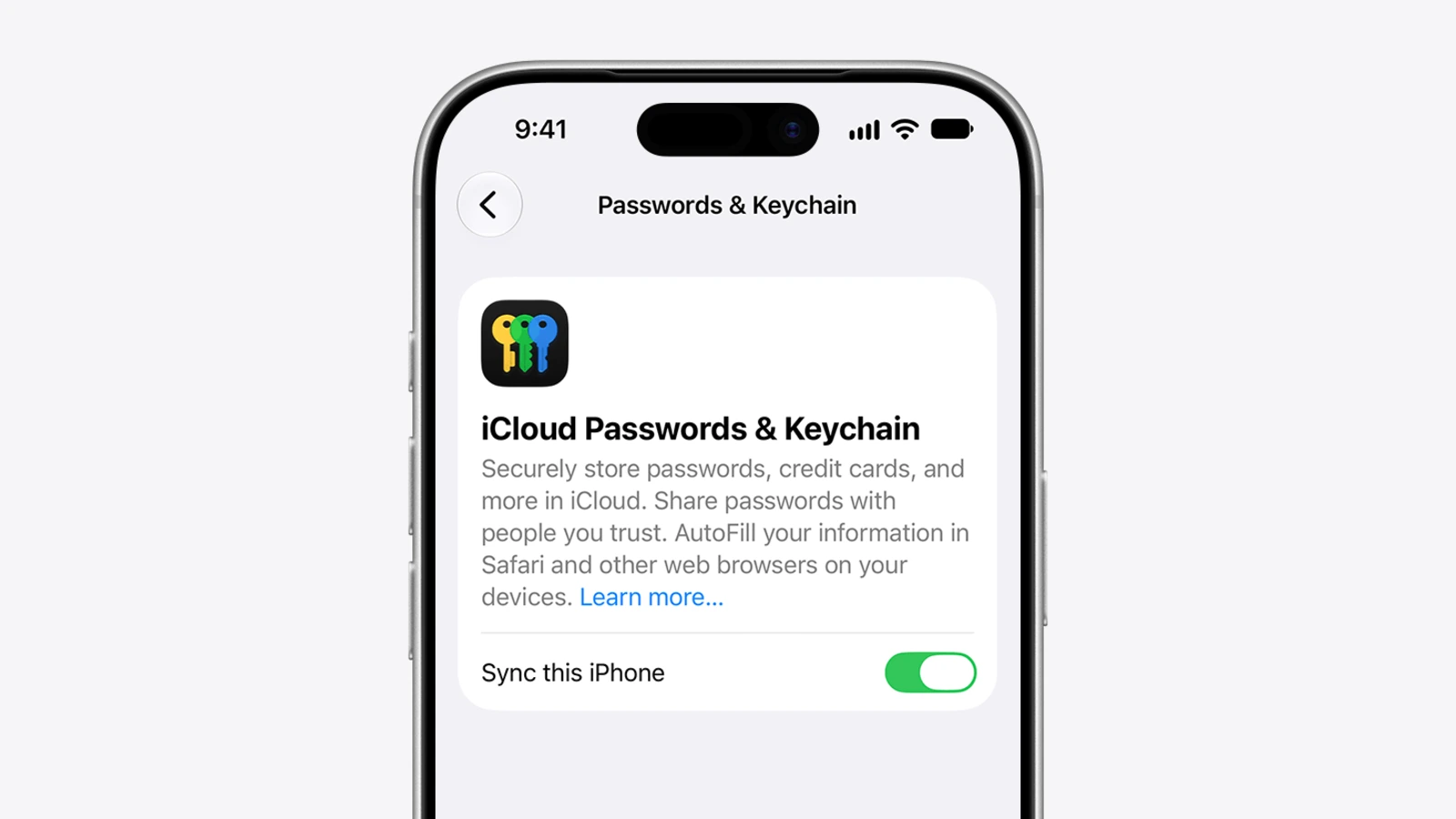
On iPhone, Apple says tracking notifications need iOS or iPadOS 14.5 or later, and compatible non-Apple Bluetooth trackers need 17.5 or later. Also check that:
- Location Services is on.
- Bluetooth is on.
- Notifications are allowed under Tracking Notifications.
- Airplane Mode is off, since it blocks them.
Google lists Android 6 and up. Automatic alerts need Location on. On Android 11 and up, manual scans do not need Location.
Apple's page also says Android 6.0 or later can alert you to nearby trackers, and its Tracker Detect app, from the Google Play Store, finds Find My-compatible trackers. Apple says that app lets you play a sound once a tracker has been near you for at least 10 minutes.
Trackers that are not AirTags
Google says its alerts work with Find Hub network compatible tags and headphones, and with Apple AirTags. Its page links maker instructions for turning off Apple AirTag, Chipolo, Motorola moto tag and Pebblebee trackers.
On iPhone, Apple says instructions for compatible non-Apple trackers come from their own finder networks and are not certified by Apple.
Next steps
If you carry an AirTag yourself, see Apple AirTag 2 at $24 at Amazon. For more on keeping your devices private, see how to lock down a home security camera and webcam.