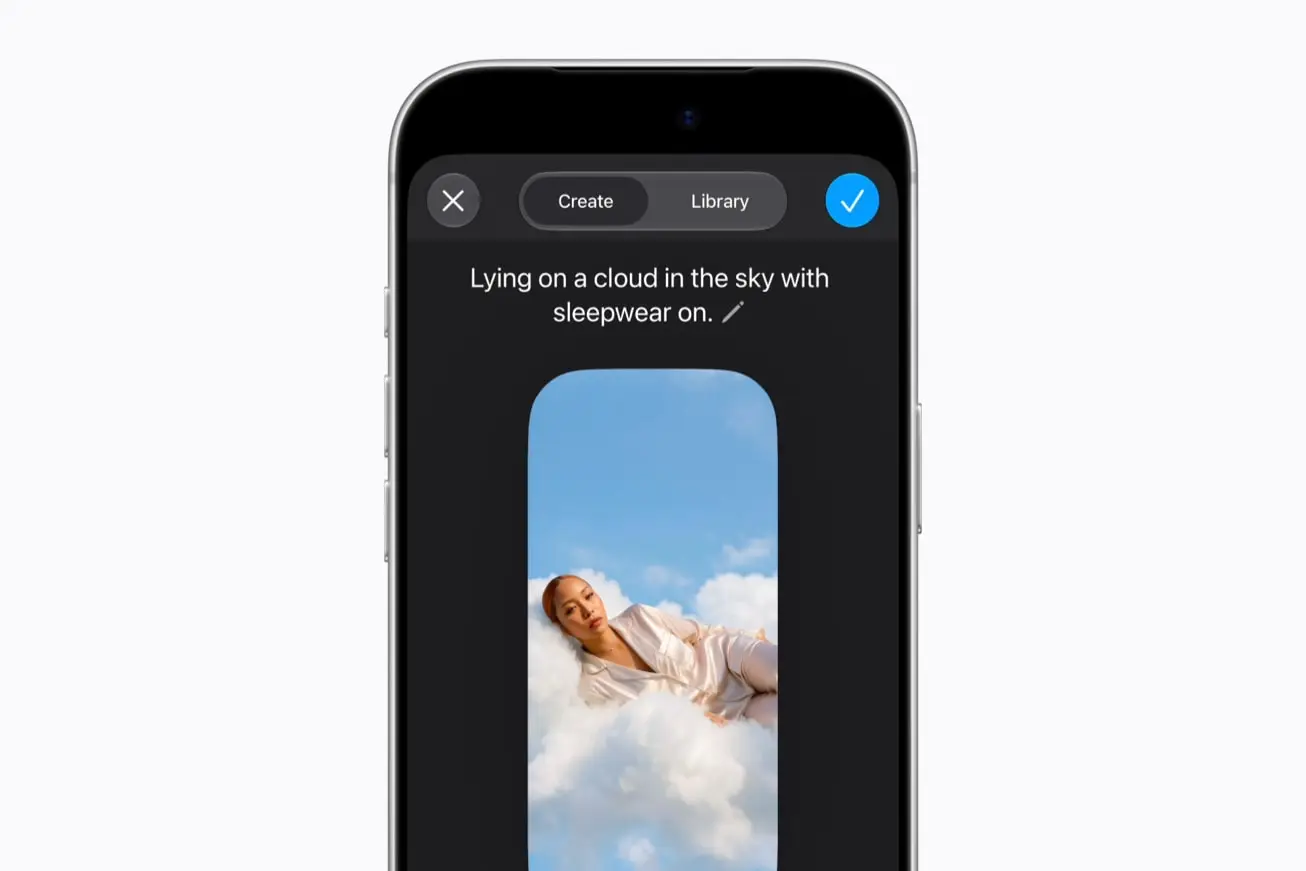
Open the Image Playground app, tap New Image, describe the picture and tap Submit. The steps below follow Apple's iPhone guide, and they need an Apple Intelligence-enabled iPhone on iOS 27.
Which iPhones can run it
Apple's guide says Apple Intelligence on iOS 27 or later runs on an iPhone 15 Pro, iPhone 15 Pro Max or any iPhone 16 model or later. Siri and the device must be set to a supported language, and it is not available in all regions. Apple Intelligence reaches some markets later than others.
Limits and fees
- Daily limits. Apple's footnote says server-side features, Image Playground included, have daily usage limits. They vary by feature, request complexity, system demand and system policies.
- Fees. Apple says expanded access to these features will be available for a fee in the future.
- ChatGPT styles. Apple says that when you use the ChatGPT extension, your request and attachments, plus limited data such as time zone, country and device type, are sent to ChatGPT.
Create an image
- Open the Image Playground app.
- Tap the New Image button.
- Customize the image with any of the options below.
- Tap the Submit button to create it.
Options in step 3, all from Apple's guide:
- Describe it. Enter a description.
- Choose a style. Tap the Style button, then pick an Apple Intelligence style such as Any Style or Illustration. Tap ChatGPT to describe a style of your own.
- Add a person. Tap the Add Person button and select someone from your Photos library. You can add up to three people.
- Add a photo of something else. Tap the Add Photo button, then choose an option. Apple's examples are a pet, nature or food.
- Pick the aspect ratio. Tap the Aspect Ratio button, then choose an option.
If you choose Any Style, Apple says you can describe the style as part of your text. Choose Genmoji and you can save it with your stickers: tap Add Emoji after it is created.
When your text and a person disagree
If your description does not match the person you selected, Apple says the image is personalized from the photo you selected, not from your text description.
Your gallery
Apple says every change saves automatically to your gallery, and all the versions you create for one idea are grouped together. Tap the Back button to view the images in your gallery.
Edit an image
- Open the Image Playground app.
- Tap an image in the gallery.
- Refine it with either option below.
- Tap the Done button when you are finished.
- Describe a change. Enter a description to transform the background, change the style or add something entirely new.
- Make a targeted edit. Tap the Edit button, then tap, brush or circle a specific object. Move it, resize it or swap it for another image. The buttons at the bottom of the screen add elements, or change or remove the selected object. Tap Apply Change to save your targeted edits.
Swipe up or down to move between versions of your image. Apple says you can move to a different version at any time and keep refining from there.
Share, copy or delete
Tap an image in the gallery, then follow Apple's steps:
- Share. Tap the Share button, then choose a share option.
- Copy. Tap the More button, then tap Copy or Duplicate.
- Delete. Tap the Delete button, then tap Delete.
Deleting is not local. Apple says an image you delete from Image Playground is deleted on all your devices where you are signed in to the same Apple Account.
Other places it appears
Image Playground features also work in Messages and Freeform, and Apple says they are available in Keynote, Pages, Apple Invites and supported third-party apps. The guide also lists Lock Screen wallpapers and contact posters. Our iOS 27 features guide covers the Lock Screen wallpaper option.
On Mac and iPad
Apple publishes separate guides, and the steps differ a little.
- iPad. Apple's iPad guide follows the iPhone steps. Apple Intelligence on iPadOS 27 runs on an iPad mini (A17 Pro) and iPad models with M1 or later. To share, copy or delete, touch and hold an image first.
- Mac. Apple's Mac guide has you click instead of tap. It lists the Apple Intelligence styles as Any Style, Animation, Illustration and Sketch, and the aspect ratios as Square, Portrait and Landscape.
- Mac extras. Control-click an image to add a caption, and save targeted edits with Done in the top-right corner.
Parental controls
Apple says you can block image creation features such as Image Playground in Screen Time settings. It recommends 18 and up for realistic images.