Apple's Safari support page, last published Sept. 14, 2026, covers clearing the cache on iPhone in the Settings app. Apple's storage page describes no system-wide cache clear for other apps.
Clear the Safari cache
- Go to Settings, tap Apps, then select Safari.
- Scroll down and tap Clear History and Website Data.
- Confirm the timeframe you want to clear, then tap Clear History.
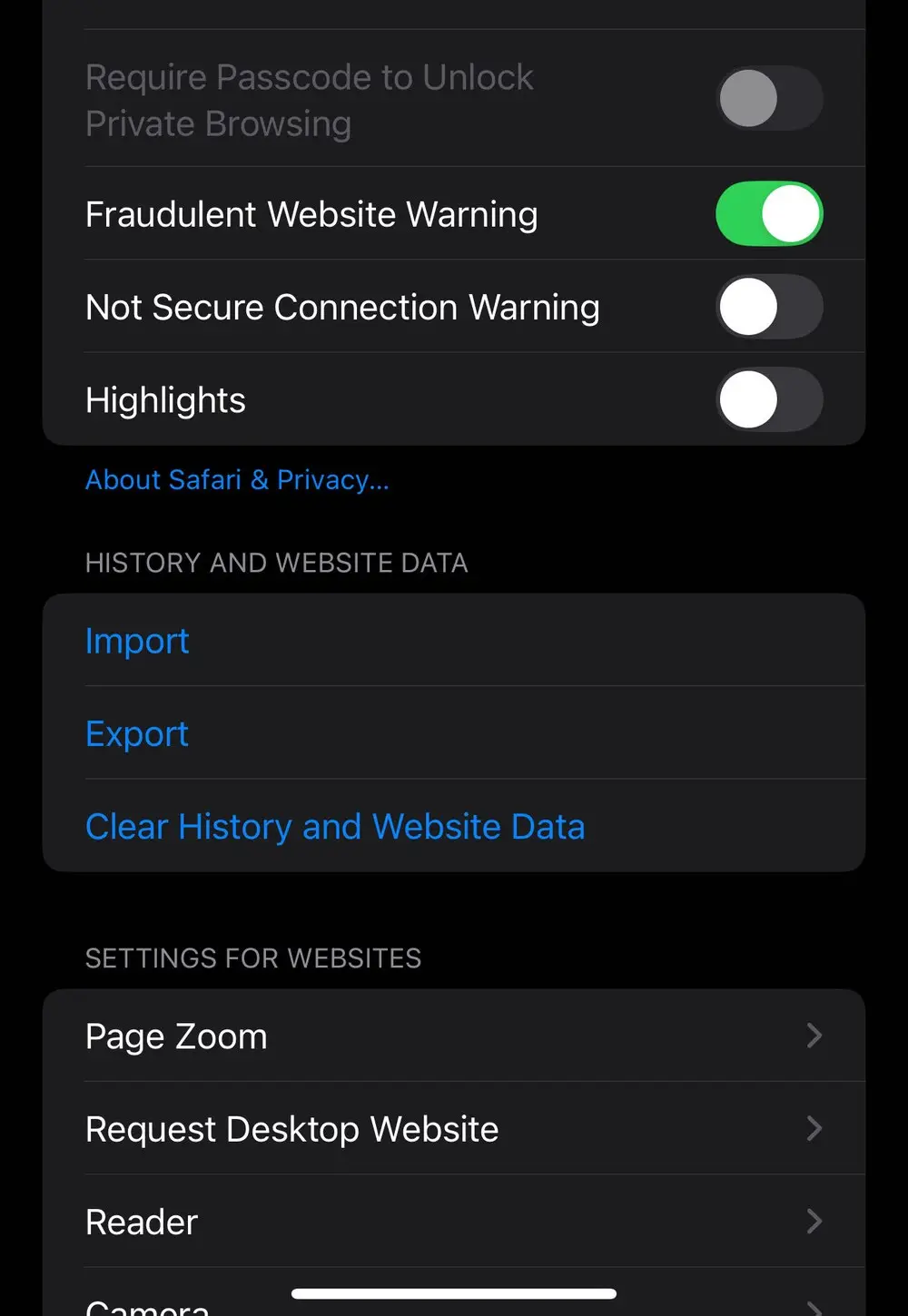
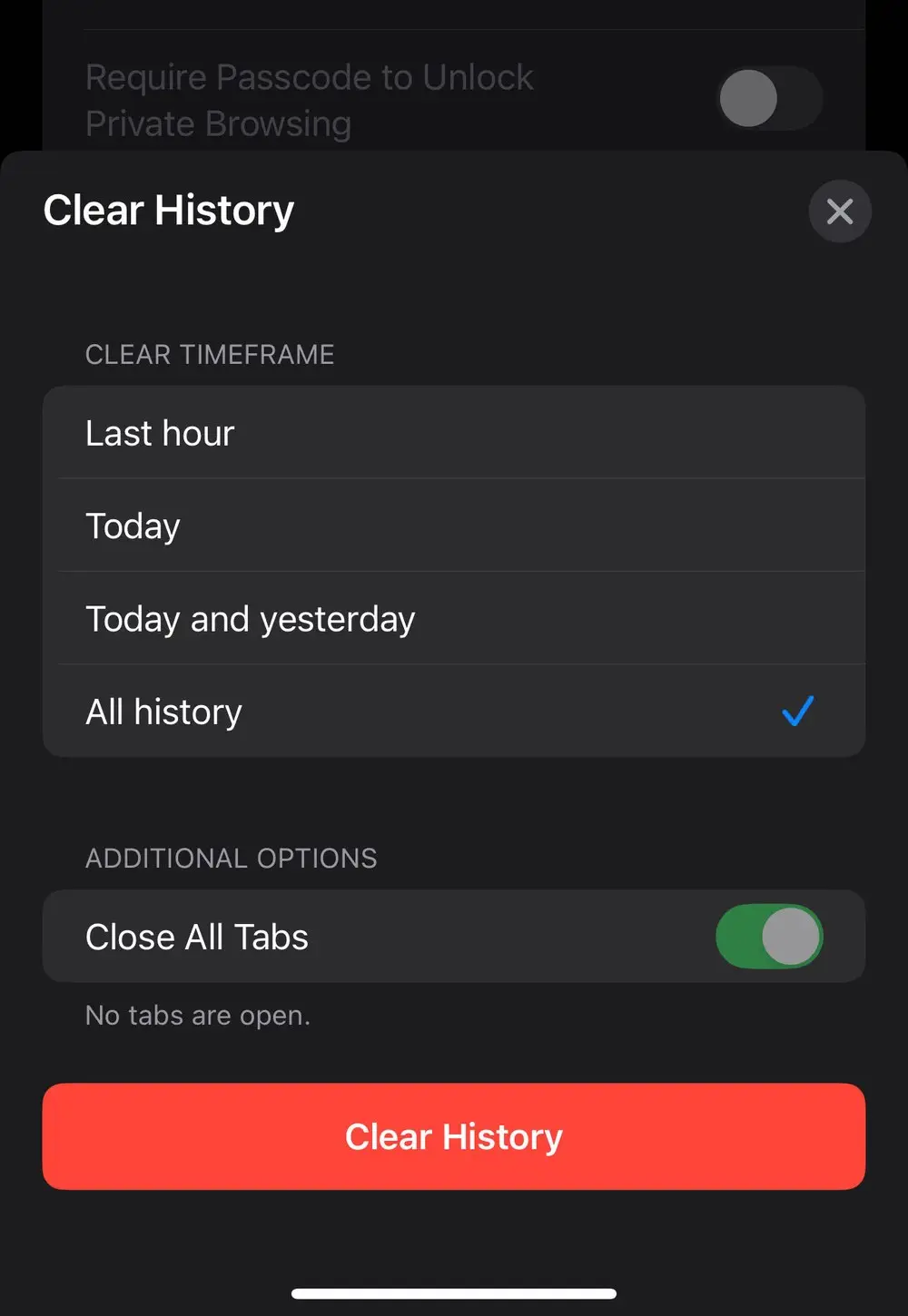
The screenshots are our own, from an iPhone 14 Pro on iOS 18.6, where Safari sits under Settings > Apps. Your screen may look slightly different on another iOS version.
This doesn't change your AutoFill information. If the button is gray, there is either no data to clear or you may need to check your web content restrictions in Screen Time.
Keep history, clear cookies and cache
- Go to Settings, tap Apps, then select Safari.
- Tap Advanced, then choose Website Data.
- Tap Remove All Website Data, then tap Remove Now.
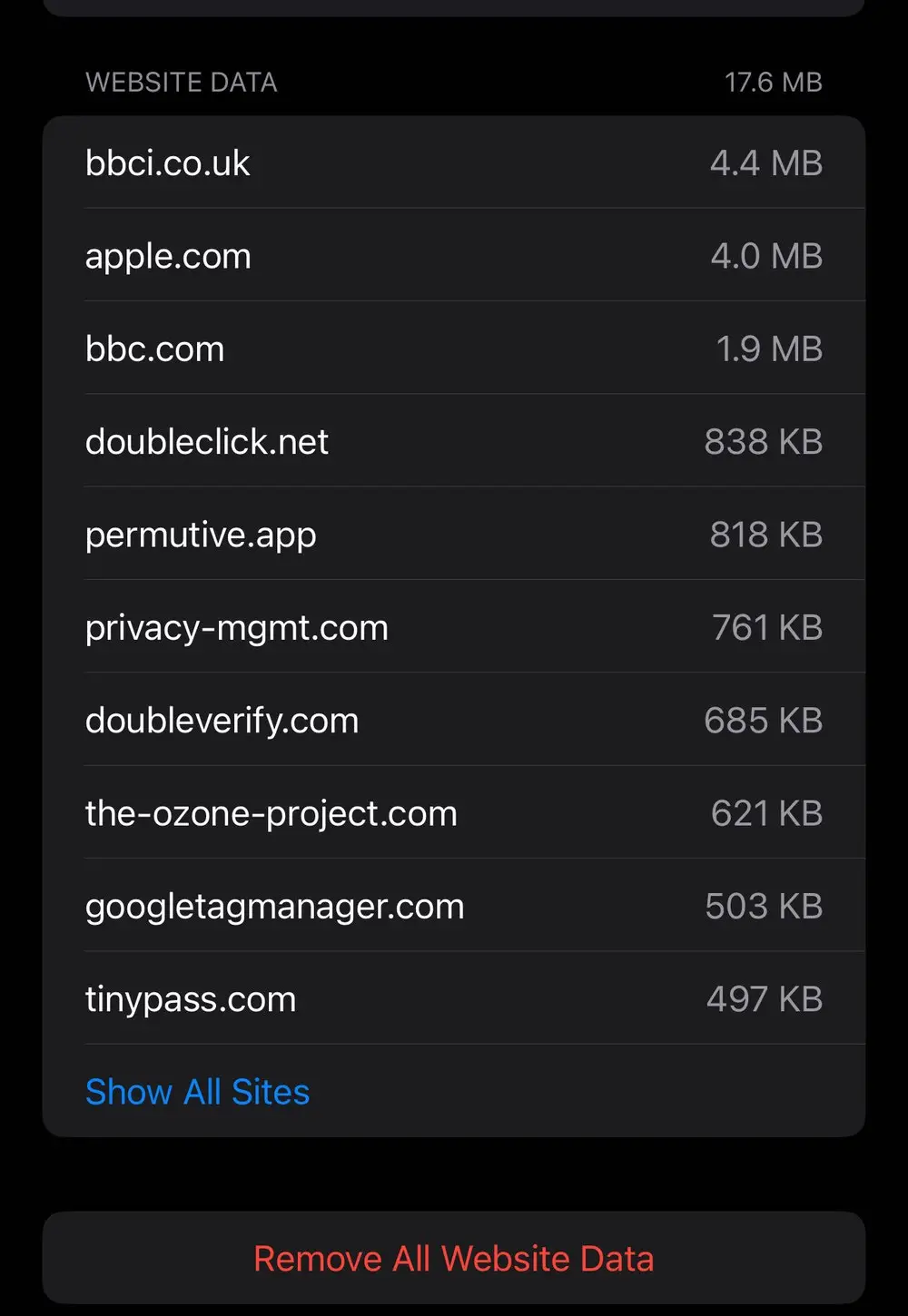
This clears data used for tracking and by websites to save login information for faster browsing. Expect to sign in to some sites again.
Remove one site's history
The page covers history for a single site, not a per-site cache clear:
- Open Safari and go to your Start Page.
- Tap the History button, then tap the More button.
- Tap Select Websites, choose one or more sites, then tap the Trash button.
Clear the Chrome cache
Chrome's own help page gives these iPhone and iPad steps:
- Open Chrome, tap More, then tap Delete Browsing Data.
- Set a duration next to Time Range. The default is 15 minutes.
- Tap Browsing Data and choose the types, such as Cookies, Site Data or Cached Images and Files.
- Tap Confirm, then tap Delete Browsing Data.
The page lists Autofill Data as a separate type; saved passwords are cleared from a different place, Manage other Google data.
Other apps: no system-wide cache clear
To see an app's storage, open Settings, tap General, then tap iPhone Storage, and tap the app's name. Cached and temporary data might not count as usage.
The detailed view offers two options:
- Offload the app. This frees up the storage the app uses but keeps its documents and data.
- Delete the app. This removes the app and its related data. Depending on the app, you may be able to delete some of its documents and data.
Neither option is described as a cache clear. Some apps have their own clear-cache button in their settings; that varies by app, and we did not check any.
If it doesn't work
- The Safari button is gray. The two reasons given are no data to clear, or web content restrictions in Screen Time.
- Sites behave strangely after clearing. Block All Cookies, a separate setting, can stop you signing in to sites.
- You are clearing to free space. See our iPhone storage full guide and how to clear System Data on iPhone.
For another quick iPhone task, see how to screen record on iPhone.
What we checked
We read Apple's and Chrome's help pages on Nov. 15, 2026. The three screenshots are our own captures from an iPhone 14 Pro on iOS 18.6, where we opened the Clear History sheet and the Website Data page and cancelled without clearing anything; we did not test the other steps, including Chrome's.
Why it matters
Clearing the cache can fix a page that loads wrongly, but the website-data options also remove login information websites saved, so you may have to sign in again. Because no cache clear is described for other apps, offloading or deleting are the options described, and deleting removes the app's data.