Apple's iPhone User Guide says you can capture what is happening on the iPhone screen and save it as a video, with the microphone on if you want audio. The control lives in Control Center.
Start and stop a screen recording
- Swipe down from the top-right corner of the screen to open Control Center. On iPhone SE, Apple says to swipe up from the bottom instead.
- If you don't see the Screen Recording control, add it first (see the next section).
- Tap the Screen Recording control, then wait for the 3-second countdown to start recording.
- Swipe up to dismiss Control Center, then do the thing you want to record.
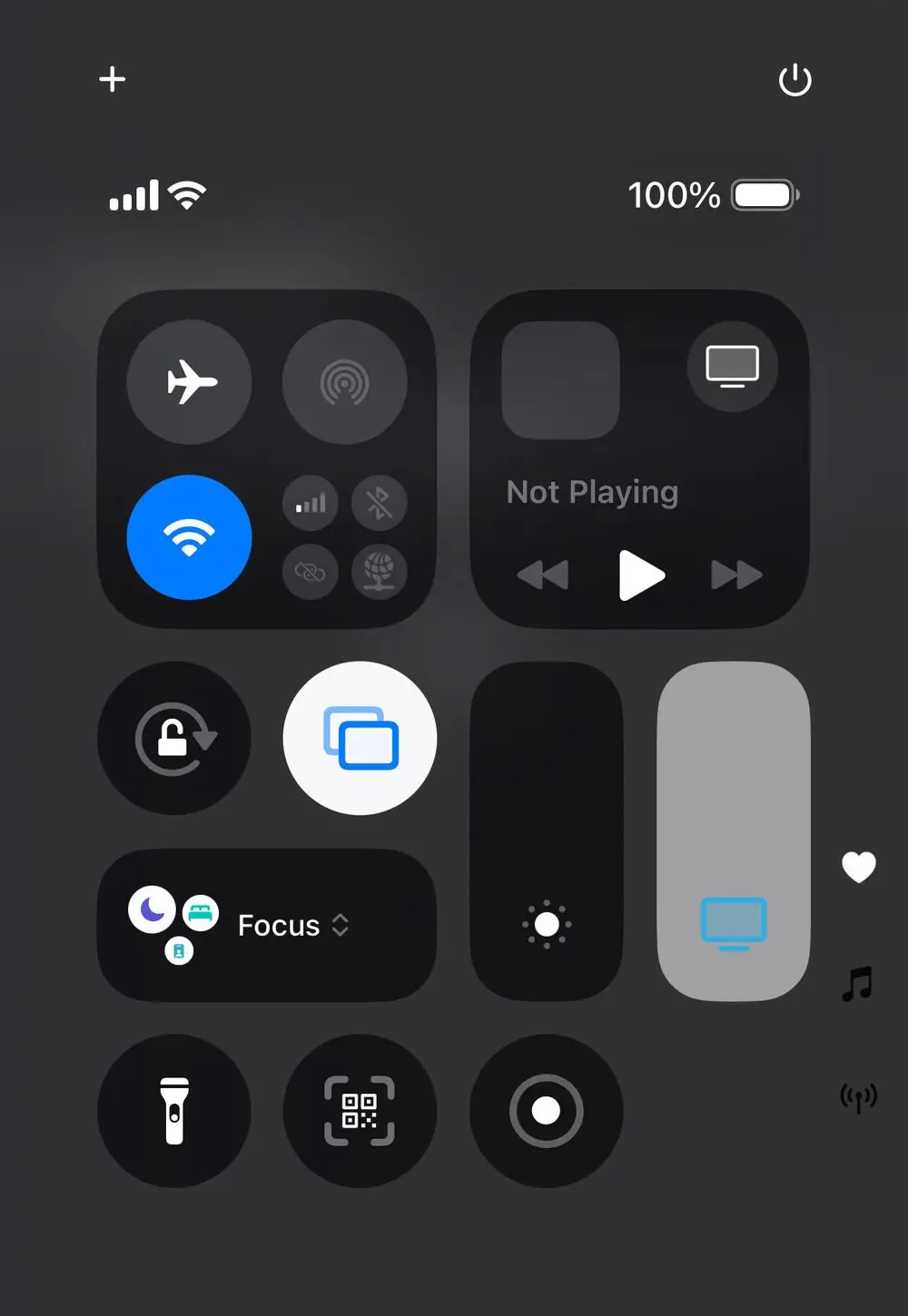
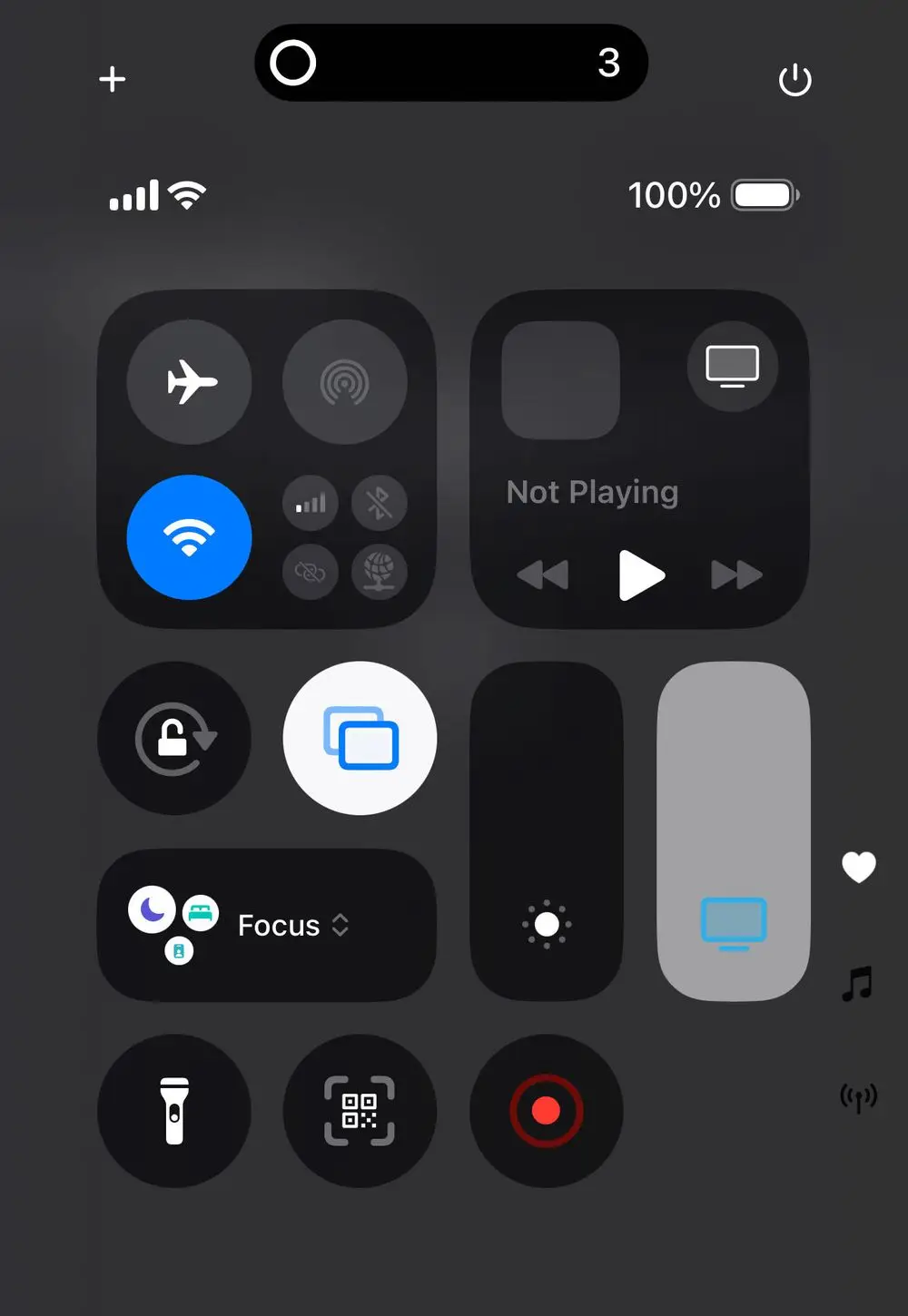
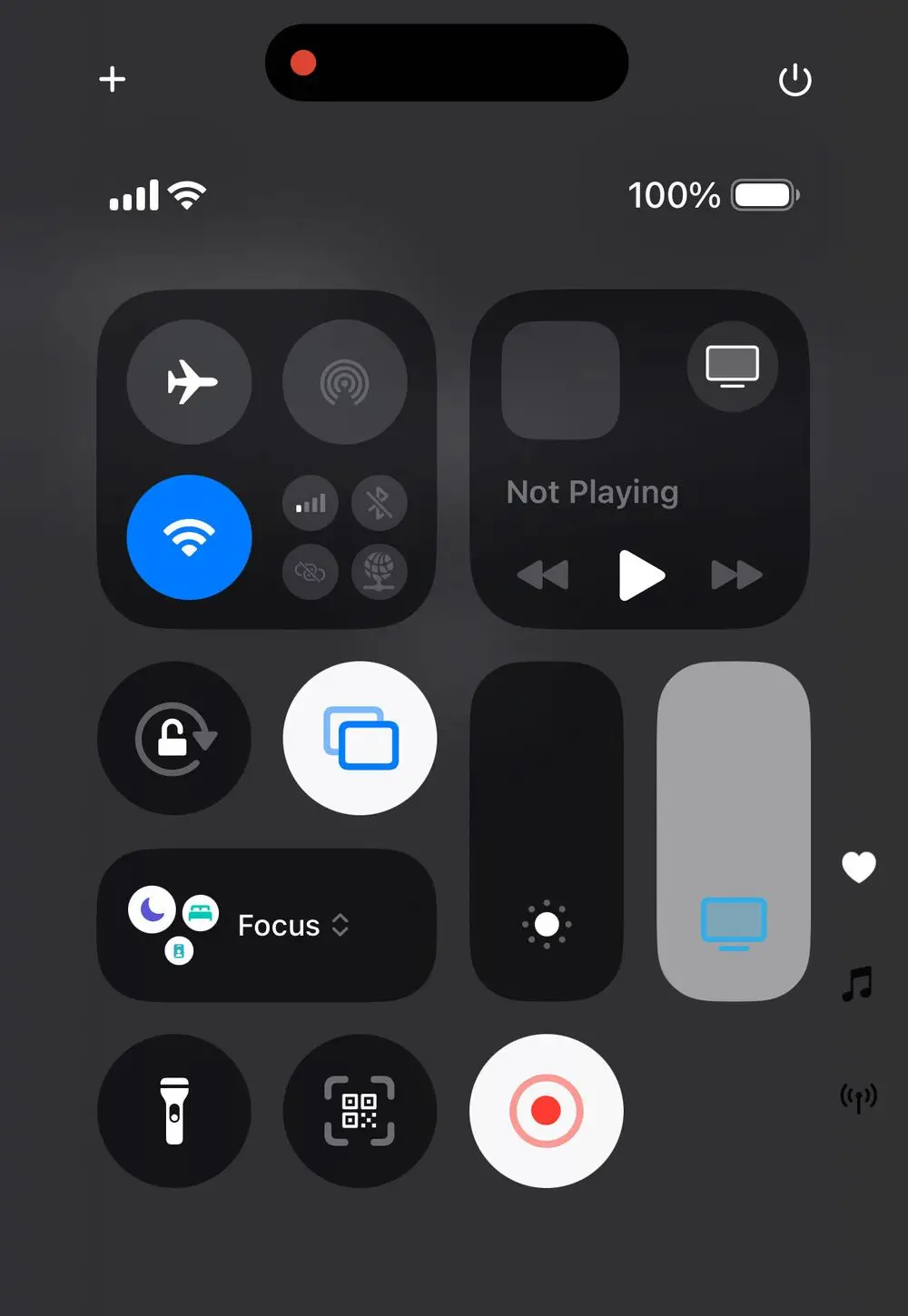
The screenshots above are our own, from an iPhone 14 Pro on iOS 18.6: the control, the countdown in the Dynamic Island and the recording state.
To stop, Apple gives three routes:
- If your iPhone has a Dynamic Island, tap the red circle, then tap the stop button.
- On all other models, tap the timer (highlighted in red) in the top left of the screen, then tap Stop.
- Or open Control Center and tap the red Record button, as Apple's "Record the screen" page says.
Add the Screen Recording control
Apple's Control Center page says you can rearrange, add and remove controls:
- Open Control Center.
- Tap the Add button to begin editing the controls.
- Tap Add a Control at the bottom of the screen to open the controls gallery.
- Tap a control to add it to Control Center.
- When you finish, close Control Center by swiping up from the bottom center of the screen (iPhone with Face ID or iPhone Duo).
Apple's screen recording page points to this same "Customize controls" section for a missing control.
Record with audio
- Swipe down from the top-right corner of the screen to open Control Center.
- Touch and hold the Screen Recording control.
- Tap Microphone to turn it on, then tap Start Recording.
- Wait for the 3-second countdown, then start recording.
Find and trim the recording
Apple says screen recordings are automatically saved to your photo library. To review them, open the Photos app, tap Collections, scroll down to Media Types, then tap Screen Recordings.
To trim one, as Apple's Photos page describes:
- Open the video in Photos and tap the edit button.
- Drag either end of the frame viewer below the video to adjust the start and stop times, then tap Done.
- Tap Save Video to save only the trimmed video, or Save Video as New Clip to save both versions.
To undo edits after you save, open the video, tap the edit button, then tap Revert. Apple notes that a video saved as a new clip can't be reverted to the original.
If you want a different capture format, Apple's screen capture settings page says to go to Settings > General > Screen Capture. SDR screen recordings use HEVC and HDR recordings use HEVC (HDR10). HDR recordings play back with slightly reduced quality on standard displays.
If it doesn't work
- Some content won't record. Apple's note says some apps might not allow you to record their content.
- Screen mirroring. Apple says you can't record your screen and use screen mirroring at the same time.
- The control is missing. Add it from the controls gallery as described above.
- Low storage. Recordings are saved to your photo library, so see our guide to freeing up iPhone storage without deleting photos.
If the phone itself is misbehaving, see our fix for an iPhone that keeps disconnecting from Wi-Fi or how to factory reset an iPhone.
What we checked
We read these Apple Support pages on Nov. 14, 2026. The three screenshots are our own captures from an iPhone 14 Pro on iOS 18.6, where we started a recording from Control Center; we did not test the other steps. The pages we read do not state which iOS version each step applies to, so button names may differ on your screen. Apple documents no cause for a greyed-out control, and nothing on how much space a recording needs.
Why it matters
A screen recording is the quickest way to show someone a problem or a process on your phone. Apple says to tap Microphone to turn it on before you start, and that recordings save to your photo library, so check both before a take that matters.