To restart an iPhone, turn it off, then turn it back on. On an iPhone with Face ID, press and hold the side button and either volume button until the slider appears, then drag it.
Wait 30 seconds, then hold the side button until the Apple logo shows. Older models use different buttons, listed below.
How to restart an iPhone
Apple's Restart your iPhone page splits the steps by model. Each model type below ends the same way: drag the slider, wait 30 seconds for the device to turn off, then turn it back on.
iPhone X, 11, 12, 13 or later, and iPhone Duo
- Press and hold either volume button and the side button until the power-off slider appears.
- Drag the slider, then wait 30 seconds.
- Press and hold the side button until you see the Apple logo.
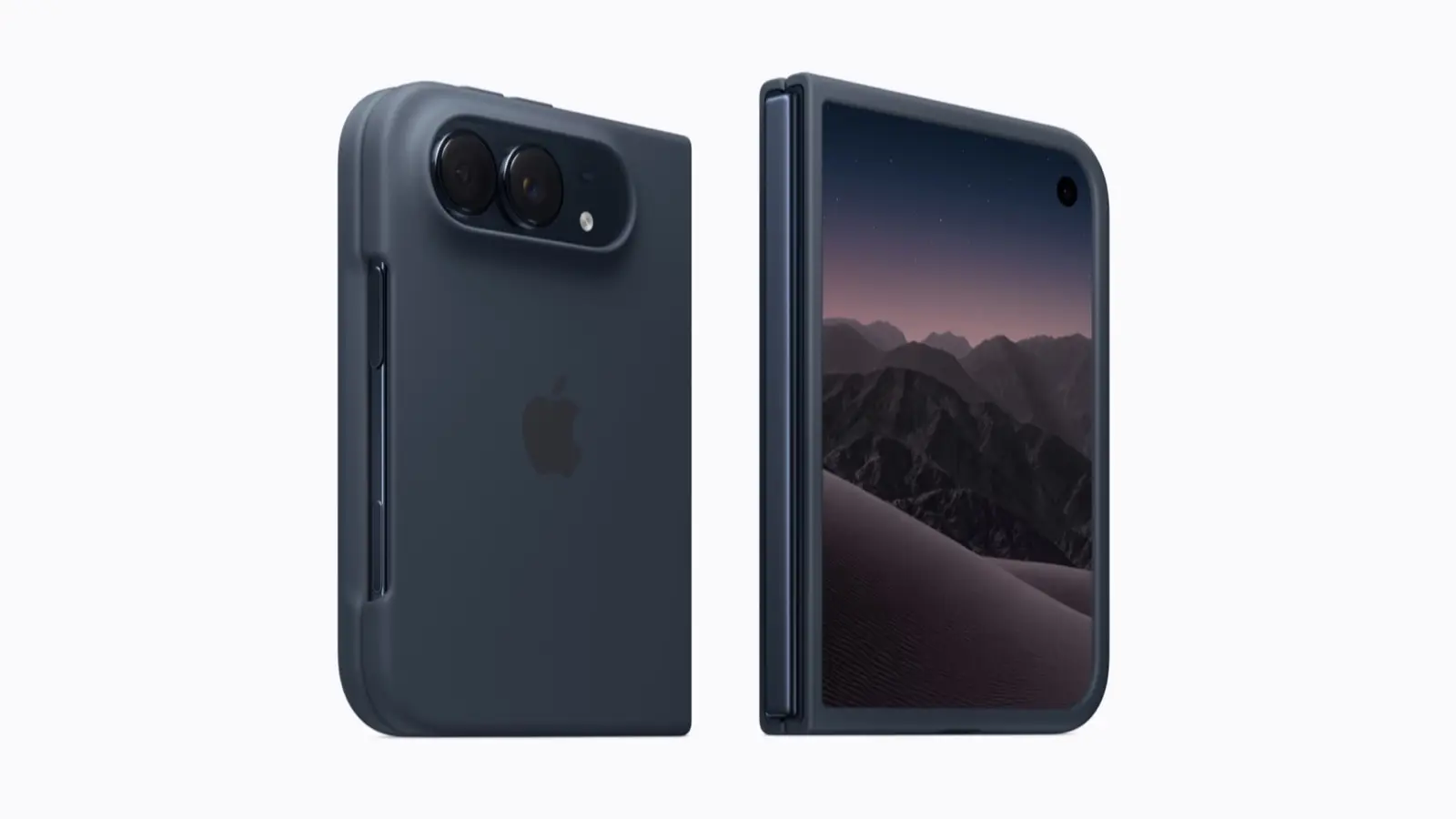
Apple says that on iPhone Duo the side button is the top button on the right side.
iPhone 6, 7, 8, and iPhone SE (2nd or 3rd generation)
- Press and hold the side button until the power-off slider appears.
- Drag the slider, then wait 30 seconds.
- Press and hold the side button until you see the Apple logo.
iPhone SE (1st generation), iPhone 5 or earlier
- Press and hold the top button until the power-off slider appears.
- Drag the slider, then wait 30 seconds.
- Press and hold the top button until you see the Apple logo.
How to turn off iPhone without the buttons
Apple's Turn iPhone on or off page lists two ways to turn off the iPhone from the screen. Both end by dragging a slider.
- Settings: open Settings, tap General, scroll down, then tap Shut Down.
- Control Center: open Control Center, then touch and hold the icon Apple's page labels "the Power button", in the top-right corner of your screen.
Apple says to turn the iPhone on by pressing and holding the side button until the Apple logo appears.
If the screen is frozen: force restart
Apple says to force restart when the iPhone is not responding and you cannot turn it off and on. The force restart steps depend on the model. Apple's charging help page says iPhone 8 and later, including iPhone SE (2nd generation and later), use the same volume up, volume down, side button sequence as Face ID models.
iPhone 8 or later (including iPhone SE 2nd generation and later), iPhone with Face ID, and iPhone Duo
- Press and quickly release the volume up button.
- Press and quickly release the volume down button.
- Press and hold the side button until you see the Apple logo. Apple says this might take longer than 10 seconds.
On iPhone Duo, Apple says the first volume button is the one nearest the side button.
iPhone 7 and iPhone 7 Plus
Press and hold the side button and the volume down button together until you see the Apple logo. Apple says this might take longer than 10 seconds.
iPhone 6s and earlier, and iPhone SE (1st generation)
Press and hold the Home button and the side button or top button together until you see the Apple logo. Apple says this takes around 10 seconds.
If the iPhone still will not turn on
Apple says to charge the iPhone for one hour, then try again. If it shows a low-battery screen, Apple says to check the hardware, then charge for 30 minutes or until it starts. If it still will not turn on, Apple says you might need service, and links to Apple's service page.
If a restart does not fix a problem, other guides may help: how to clear cache on iPhone or, as a last resort, how to factory reset an iPhone, which erases your data.
What we could not confirm
- We have not tested these steps on a device. Button names are Apple's, as of Nov. 16, 2026.
- Apple does not promise a restart fixes any particular problem, so we do not either.
What we checked
Everything above comes from Apple Support pages read on Nov. 16, 2026: Restart your iPhone, Turn iPhone on or off, Force restart iPhone, and Restart an unresponsive iPhone, plus the force restart line on Apple's iPhone charging help page.
Related: how to clear system data on iPhone, how to screen record on iPhone.